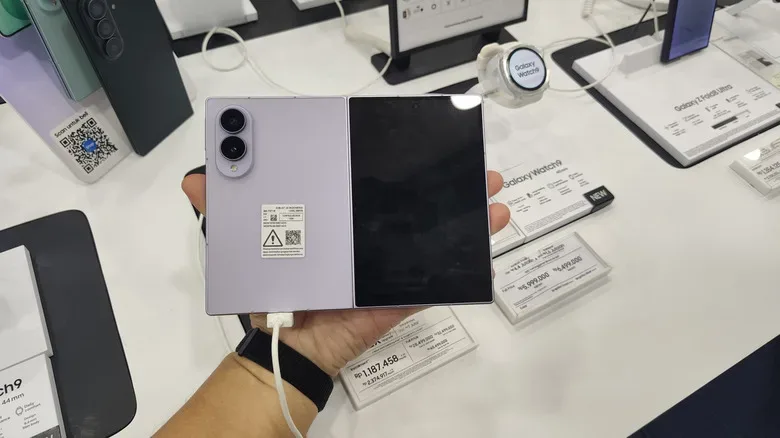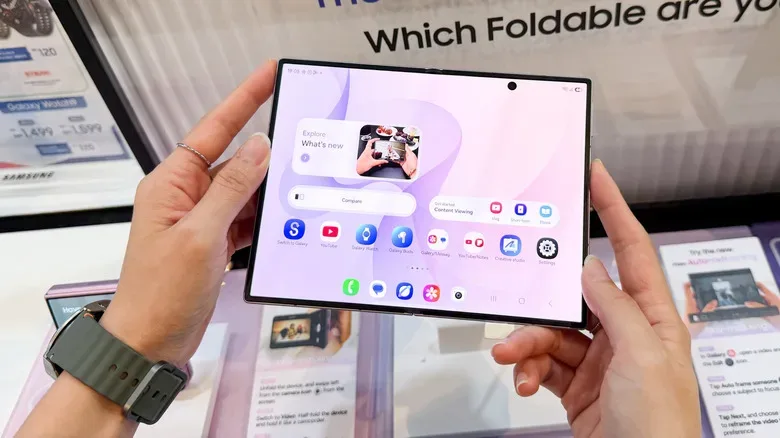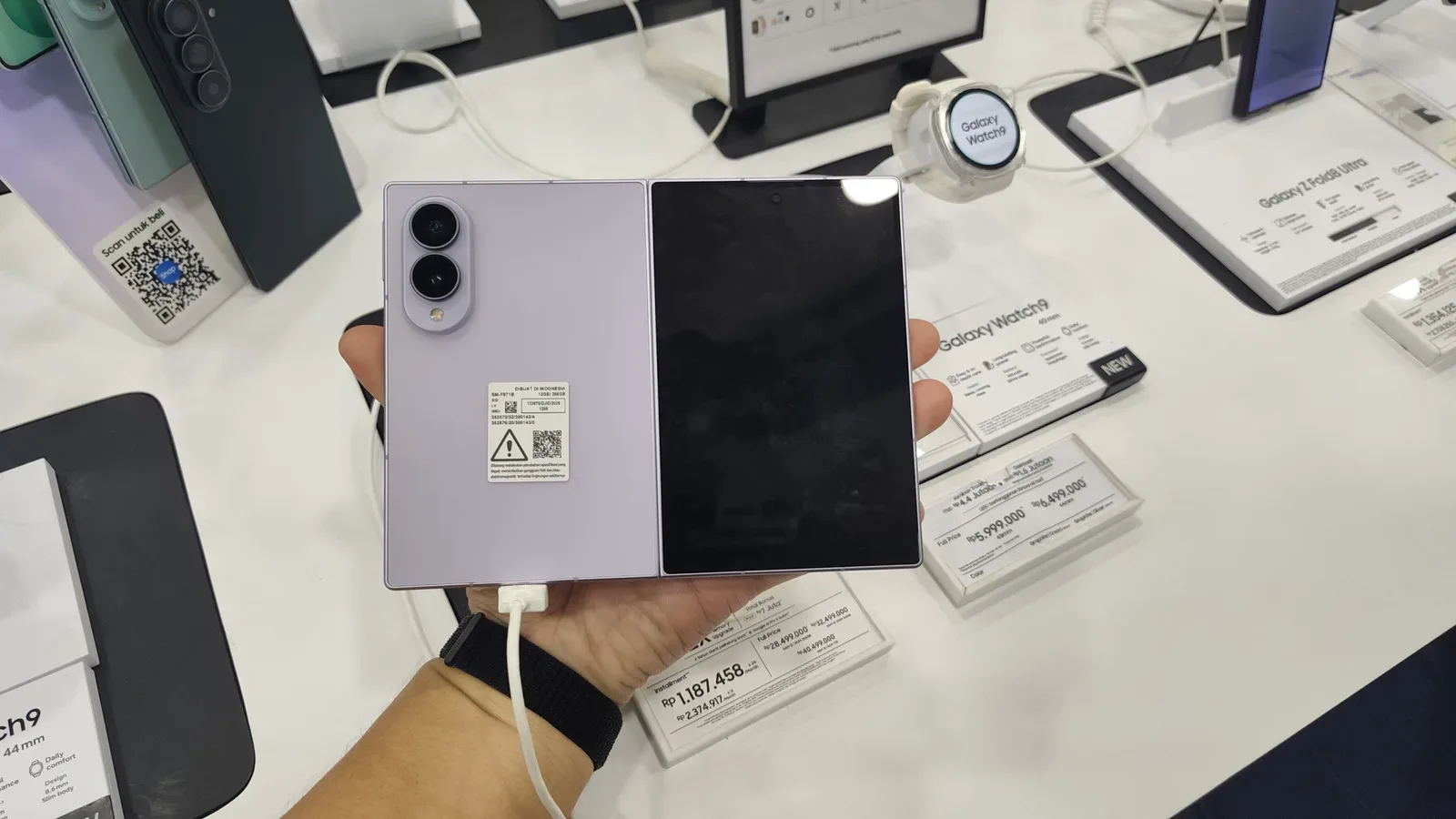
Samsung DeX has spent years serving as the emergency “my phone is suddenly my workstation” button: connect a compatible Galaxy device to an external display, add a keyboard and mouse if needed, and Android becomes a desktop-style environment. The Galaxy Z Fold 8’s 7.6-inch inner display changes the premise somewhat. It is already large enough to make the idea of a compact, self-contained desktop interface feel plausible.
A Play Store app called Gadesk offers a way to run that DeX-style desktop output directly on the Fold 8’s unfolded screen, without connecting a monitor. The catch is that this is not a standard DeX setting. Its setup asks the owner to change several security- and access-related settings, including disabling Auto Blocker, enabling wireless debugging and granting the app accessibility permissions.
That makes Gadesk an interesting option for owners who specifically want desktop-window multitasking on the Fold’s inner panel, but it should be approached as a deliberate configuration choice rather than a one-tap upgrade. A large folding screen is an appealing place for DeX; the permissions required to get there deserve just as much attention as the desktop itself.
What Gadesk is doing differently
In its usual form, DeX expects an external display, connected either by cable or wirelessly. That display provides the space for a more PC-like interface, while the phone remains the device doing the work. It can also work with peripherals such as a USB dock, mouse and keyboard.
Gadesk’s workaround changes where that desktop view appears. The app uses wireless debugging to make the Z Fold 8 behave as though it has an external display connected. It then captures the desktop output and places it as an overlay on the Fold’s own inner screen through the accessibility access granted during setup.
Wireless debugging is a Developer options feature intended to support development and device communication over Wi-Fi. Accessibility permission, meanwhile, gives an app extensive ability to interact with and present information over the interface in order to support accessibility functions. Here, those capabilities are central to recreating DeX on the device itself.
The distinction matters. This is not described as a root-based modification, and it does not require downloading an app from an unofficial site or sideloading software. Gadesk is available through the Play Store. But it is still a workaround built on permissions that ordinary apps do not normally need, rather than a native Samsung toggle for inner-screen DeX.
Before starting: understand the security changes
The required steps begin by turning off Auto Blocker in Settings under Security and privacy. With Auto Blocker enabled, the connection steps Gadesk relies on can be blocked. The setup then requires Developer options, which are revealed by navigating to About phone, opening Software information and tapping Build number seven times before confirming with the device passcode.
From Developer options, wireless debugging must be enabled while connected to Wi-Fi. The device will ask whether the selected network should always be permitted for wireless debugging. Gadesk then uses a pairing flow, including a pairing code, to establish its driver connection. A successful pairing is indicated by DeXprobe appearing in the Wireless debugging section.
After that, Gadesk asks for driver approval and accessibility access. The accessibility control is found through the phone’s Installed apps list, where Gadesk can be switched on and allowed. Only then does the app expose its Start desktop option.
Practical implication: this setup is best treated as something to enable only when its benefit outweighs the expanded access it needs. Users should read each prompt, pair only on a Wi-Fi network they trust, and revisit the relevant settings if they stop using the app.
That is not an accusation that the app is unsafe; it is simply the consequence of what the method requires. Auto Blocker, wireless debugging and accessibility tools all exist around areas of the device where cautious defaults are useful. The convenience of an on-device DeX workspace is real, but so is the responsibility of managing those settings.
How to set up DeX on the Fold 8 inner display
Provided the device meets the compatibility requirements and the user is comfortable making the changes above, the process can be summarized as follows:
- Install Gadesk from the Play Store.
- Open Settings, go to Security and privacy, and turn Auto Blocker off.
- Enable Developer options through Settings, About phone and Software information by tapping Build number seven times, then confirming with the passcode.
- In Developer options, turn on Wireless debugging while connected to Wi-Fi and approve the network prompt.
- Open Gadesk, select Connect driver and choose First-time pairing. Allow notifications if requested.
- If the app does not open the appropriate page, return to Developer options, open Wireless debugging and choose Pair device with pairing code.
- Enter the displayed pairing code through the Gadesk notification labeled “Pairing screen detected. Enter the code.”
- Confirm that DeXprobe appears in the Wireless debugging menu.
- Return to Gadesk, choose Allow Driver and approve it. Then choose Enable accessibility and open Settings.
- Under Installed apps in Accessibility settings, locate Gadesk, turn it on and allow the permission.
- Return to Gadesk and select Start desktop.
The multiple stages explain why this solution will not suit everyone. It is a few minutes of system-setting work in exchange for eliminating the external display requirement. For people who rarely use DeX, the normal monitor-based route may remain less complicated. For someone who uses a Fold as a portable productivity device and wants a desktop layout away from a desk, the idea may be more compelling.
The Fold 8’s screen makes orientation an important choice
Gadesk launches the desktop in landscape by default, but portrait orientation may make better use of the Z Fold 8’s proportions for multitasking. This is a small setting with an outsized effect on how a desktop-style UI feels on a folding phone. DeX is designed around resizable windows and workspace behavior rather than a conventional phone app’s full-screen flow, so the available height and width shape the experience.
The app also includes a virtual trackpad. That provides controls for copy, paste, zooming in and out, and opacity adjustment. It is an alternative for situations where a physical mouse is unavailable, not a replacement for the fact that DeX can work with external peripherals.
Gesture Action settings offer another layer of control. By default, a three-finger tap is set to Home and a two-finger tap is set to Back. Both gestures can be reassigned or disabled. The useful principle is simple: the more controls placed over a working surface, the more valuable it is to tailor them. Someone using the Fold primarily with touch input may want those shortcuts close at hand; someone relying on a mouse and keyboard may prefer fewer gesture actions competing with normal use.
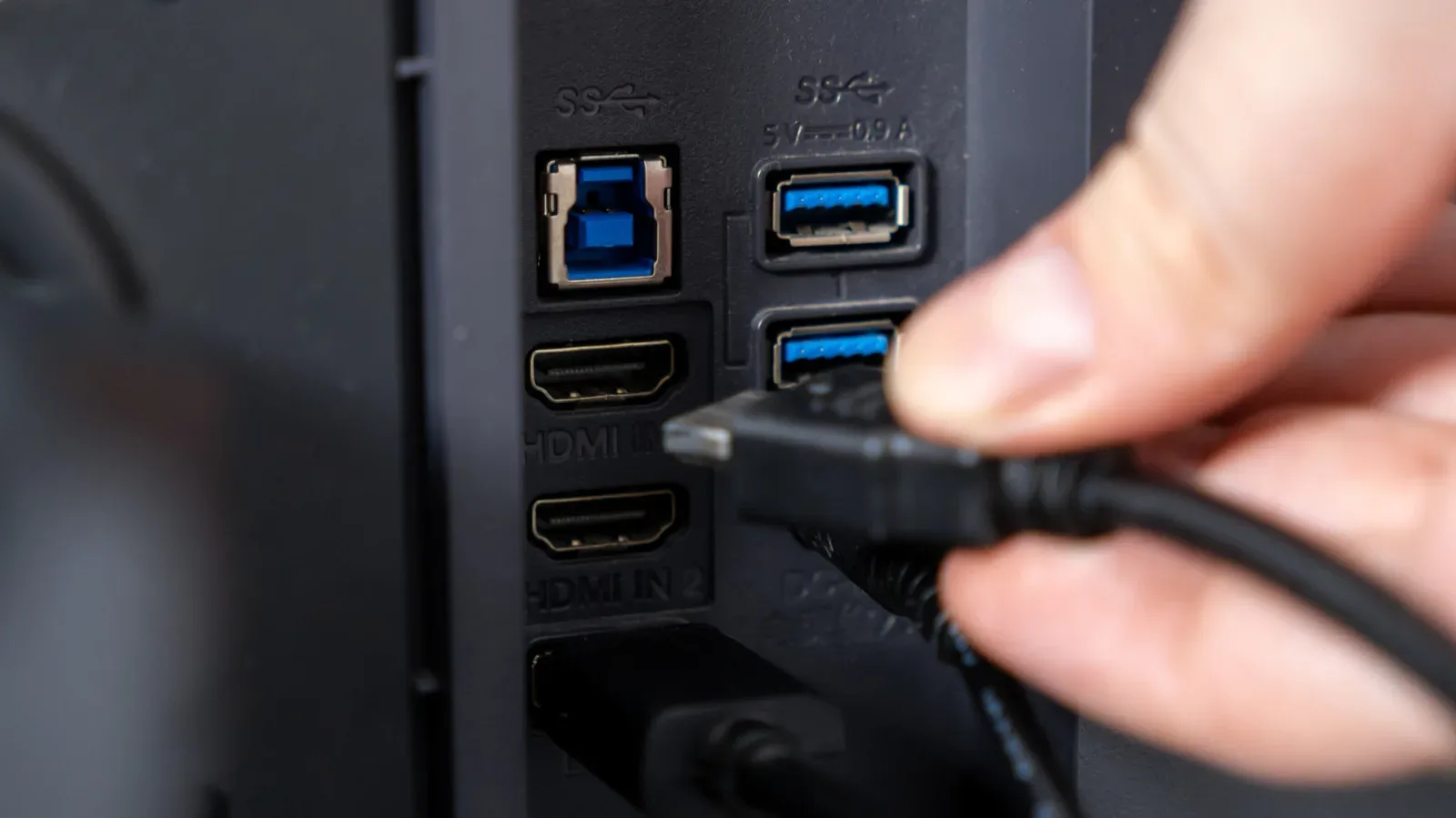
The broader desk setup still matters too. A physical dock, mouse and keyboard can remain useful for DeX even when no external display is involved. Those building a compact gaming or work station may also get practical mileage from the ports already present on a monitor; as our look at gaming-monitor USB ports as a desk hub explains, a monitor’s connections can simplify peripheral management when an external-screen setup is preferred.
The free version is a trial, not an unlimited mode
Gadesk is not fully free. Its free tier limits individual DeX sessions to 15 minutes and includes ads. Watching promotions can extend a session by 10 minutes at a time. The paid upgrade is listed as a one-time $20 fee, removing both the time limit and advertising.
That structure makes the free version useful for determining whether the workflow is actually worthwhile on a particular Fold 8. The orientation, trackpad and gesture options are all things a person can evaluate before deciding whether a persistent on-device DeX mode fits their routine. It also gives owners a reason to consider the trade-off in concrete terms: does this become a regular tool, or is it an occasional novelty that does not justify leaving the required setup in place?
Compatibility extends beyond the Fold 8
Although the Fold 8 is a particularly natural fit because of its 7.6-inch inner display, Gadesk is not limited to that phone. It supports other DeX-capable Galaxy phones running One UI 8 or later. It also supports Google Pixel devices through Android’s built-in desktop mode.
That wider support reinforces the useful lesson here: a phone’s desktop capability and the screen it can place that desktop on are separate questions. Samsung’s established DeX path has centered on an external display. Gadesk attempts to bridge that gap for the phone’s own display through debugging and accessibility features. The Z Fold 8 simply makes that bridge more enticing because its unfolded panel offers substantially more room than the phones available when DeX first appeared in 2017.
For Fold 8 owners, the outcome is a flexible but non-native option. Gadesk can turn the inner screen into a standalone DeX workspace, offer touch-friendly controls and avoid a monitor entirely. It also requires a notably more involved permissions setup than standard DeX. That is the key fact to keep in view: this is less a hidden Samsung feature than a capable workaround whose convenience should be weighed against the access it needs.