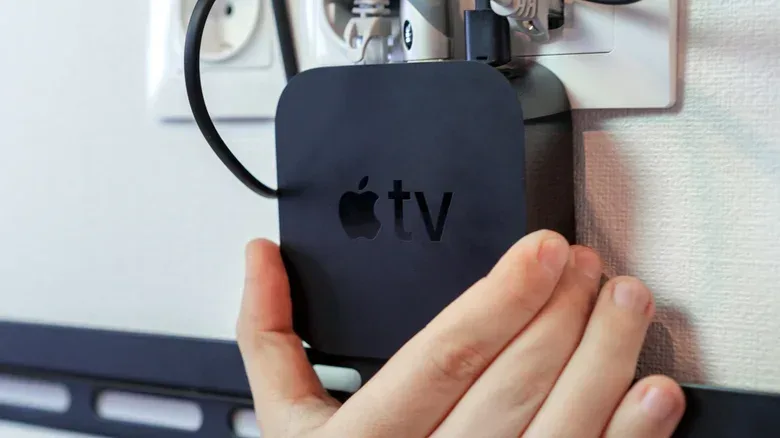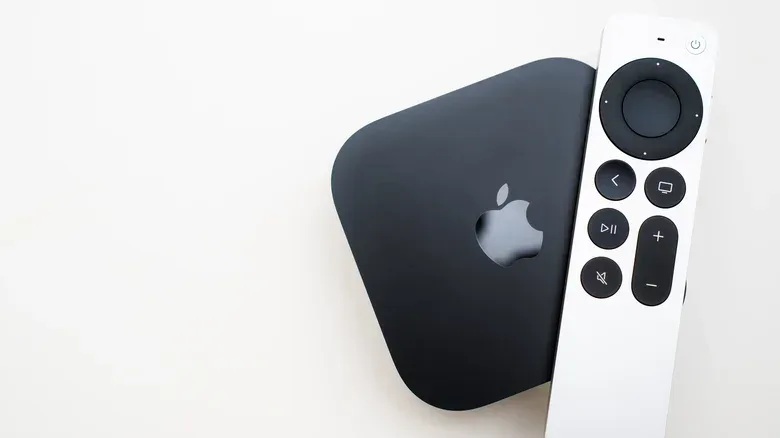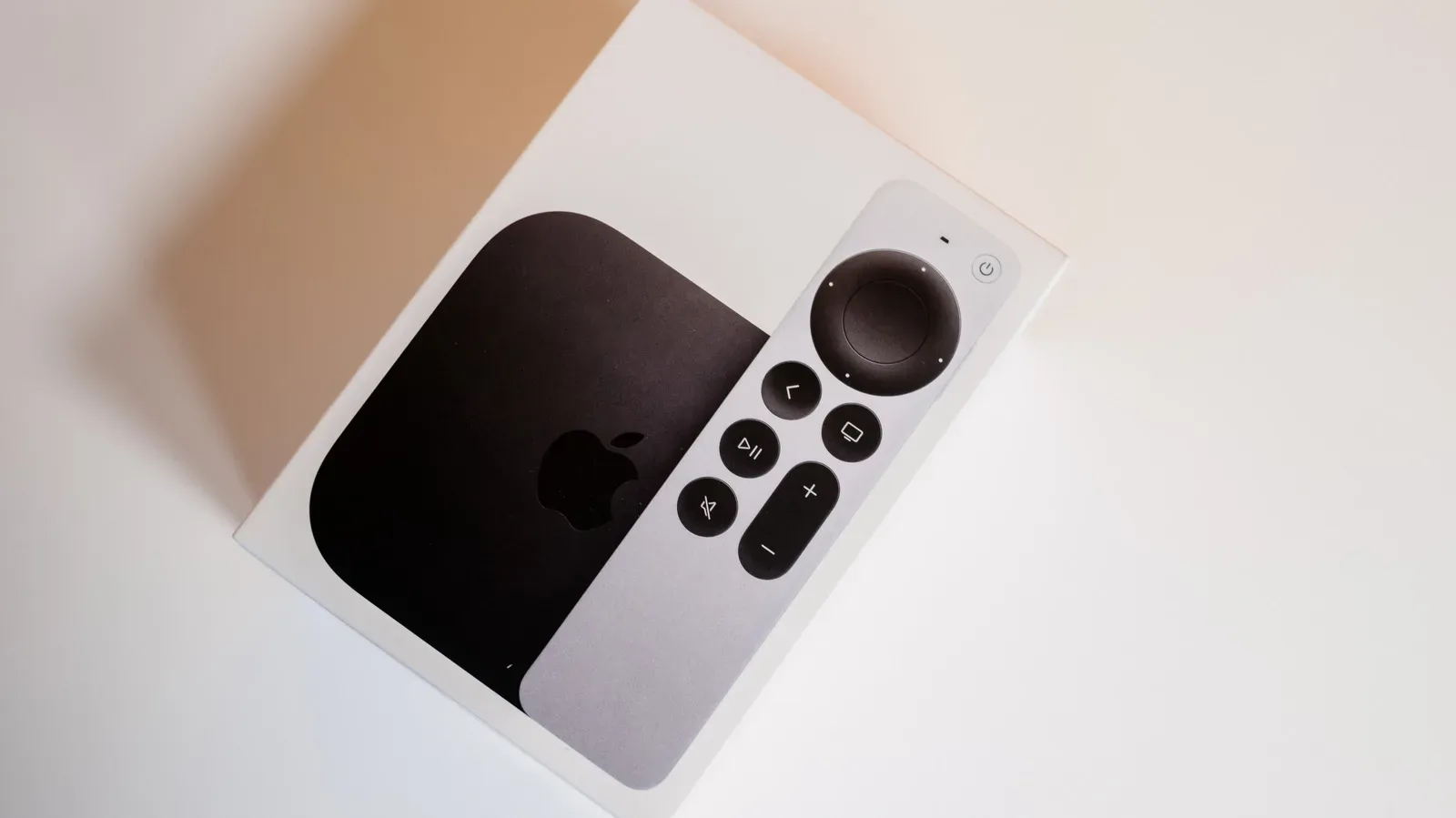
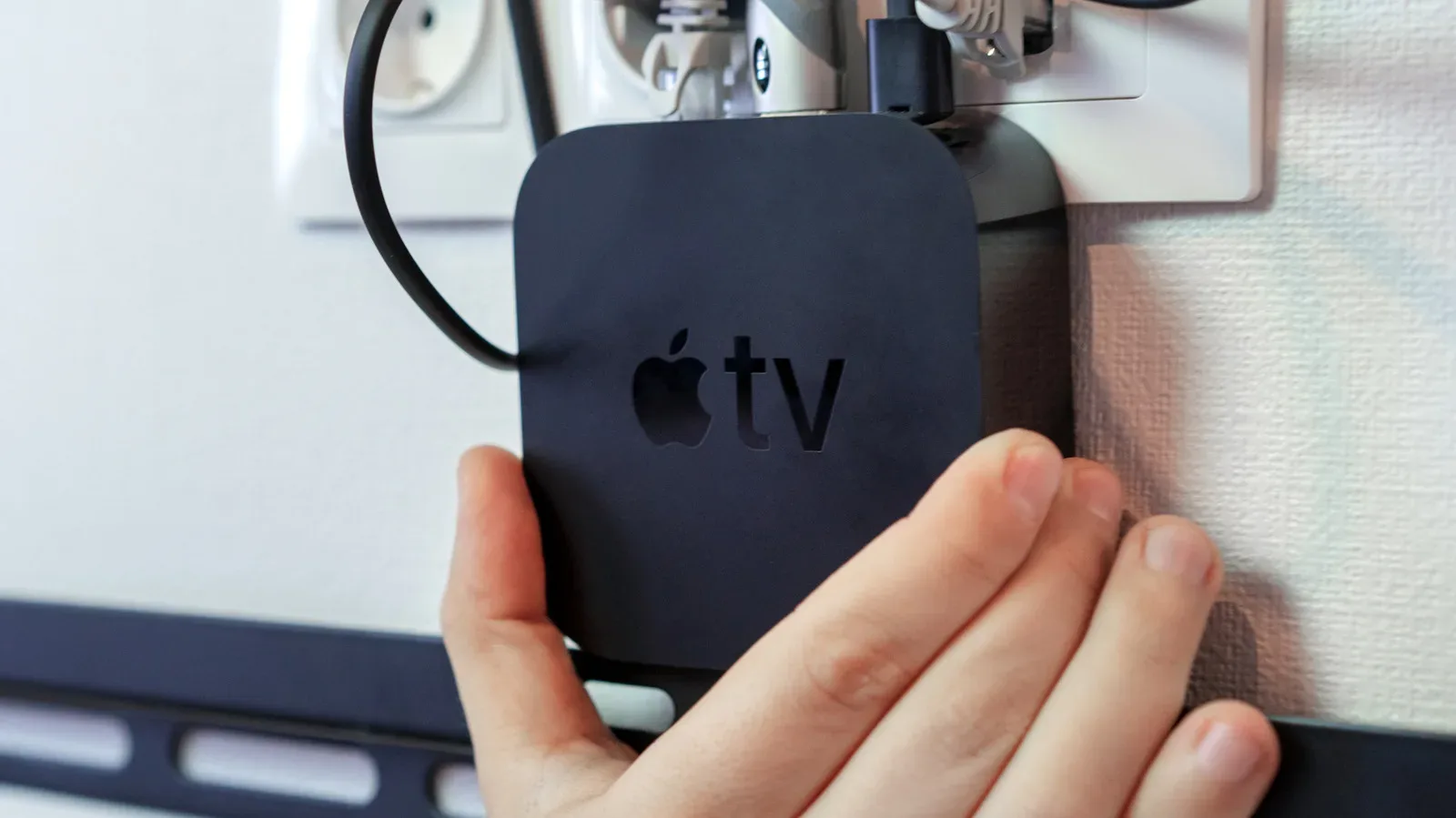
Replacing an Apple TV does not have to mean banishing the previous box to a cable drawer. An older Apple TV 4K may lack the appeal of the newest hardware, but it remains a capable tvOS device with several distinctly useful second acts. Put it on a secondary television, turn a spare display into a small game station, use it for wireless screen sharing, or leave it connected as part of a HomeKit smart-home setup.
That breadth matters because Apple TV is not merely a video-streaming stick. It runs tvOS on Apple-designed silicon and can handle apps, some substantial games, AirPlay receiving and smart-home duties. The trade-off is flexibility: it is not a general-purpose Android box that can simply be reflashed with another operating system. Reuse works best when it leans into the features Apple has built around tvOS, iPhone, iPad, Mac and HomeKit.
Before deciding where the device goes, separate what you want from what it can actually support. A bedroom screen may only need fast access to streaming apps. A games-focused monitor benefits from controller compatibility. A smart-home role depends on the specific Apple TV generation and on whether its networking features match the accessories in the house. That simple check prevents an old box from becoming an unnecessarily complicated solution.
1. Give a secondary television a more capable streaming interface
The most straightforward reuse is moving an older Apple TV to a TV that has a less pleasant built-in interface, whether that is a child’s room, a garage gym, a guest space or another smaller set. Even an Apple TV from 2017 can be an upgrade in this context. tvOS has relatively fewer ads and forced recommendations than many rival television interfaces, which can make ordinary navigation feel less cluttered.
This is also the use case where chasing every current audiovisual specification may matter least. A secondary display may not be the place where HDR10+ or Dolby Atmos determines the viewing experience. The more practical benefit is a consistent interface that starts the services a household already uses without requiring everyone to learn another TV maker’s menus.
There is a broader household advantage, too. Reusing the Apple TV preserves the same operating environment from room to room rather than requiring one person to troubleshoot several unrelated TV platforms. That does not mean every smart television needs an external box: many newer TVs have solid apps and AirPlay support of their own. But if a built-in platform is slow, intrusive or inconvenient, an old Apple TV can be a purposeful upgrade rather than leftover hardware.
2. Build a compact Apple TV game screen
An Apple TV 4K can do more than run passive entertainment apps. It can play games that suit a television, including Dead Cells, Inside and Wreckfest. That makes a spare TV or monitor a plausible dedicated corner for short sessions, local play or a room where a full console is not already connected.
The important practical item is the controller. Few games are likely to feel good with only the Siri Remote, so an Xbox or PlayStation controller is the sensible companion for this role. A familiar controller gives games with more involved movement and action the input they expect, and it makes the Apple TV feel less like a streaming box attempting to impersonate a game platform.
Party games are the notable counterexample. The Jackbox games available on the platform allow players to join through a website on their phones, which changes the setup entirely: the television becomes the shared display while each phone becomes a personal input device. For a group, that can be more approachable than finding enough conventional controllers.
There are limits worth acknowledging. This is not an argument that an older Apple TV should replace every console, desktop or handheld. Its value is a focused one: it can make an unused screen immediately useful for tvOS games without placing another large machine in the room. Think of it as a compact, controller-friendly game destination and choose games that fit that role.
Apple device features can also overlap in unexpected ways. For a related example of how Apple’s ecosystem can repurpose one device as an input method for another, see Apple Switch Control and its cross-device control options. That feature is separate from Apple TV gaming, but it illustrates why an older Apple device can retain value after an upgrade.
3. Use AirPlay for a bigger canvas, not latency-sensitive play
AirPlay is another reason an Apple TV can remain useful. An iPhone, iPad or Mac can mirror content to the TV, providing a larger canvas for work, sharing or casual entertainment. In practice, this can be helpful when the point is simply to put a phone, tablet or computer screen in front of more people or onto a larger display.
But AirPlay has two qualifications that should guide expectations. First, an Apple TV may be unnecessary if the television already supports AirPlay directly. In that case, adding the external box may duplicate a capability that is built in. The Apple TV can still be preferable for its tvOS interface or its other roles, but screen mirroring alone is not automatically a reason to connect it.
Second, wireless mirroring has inherent lag. Lag is the delay between an action on the sending device and the corresponding result on the TV. It may be tolerable for a presentation, browsing or showing photos, but it makes AirPlay a poor choice for action games such as Resident Evil 4, where timing matters. A larger picture does not compensate for delayed controls.
Picture format is the other limitation. AirPlay mirroring does not retain Dolby Vision, a high dynamic range format intended to preserve richer brightness and color presentation where supported. When the goal is to watch a movie or show at the best available quality, playing it directly through the Apple TV’s local app is preferable to mirroring it from another Apple device. AirPlay is best understood as a convenience feature, not a universal replacement for native playback.
4. Keep it connected as a HomeKit hub
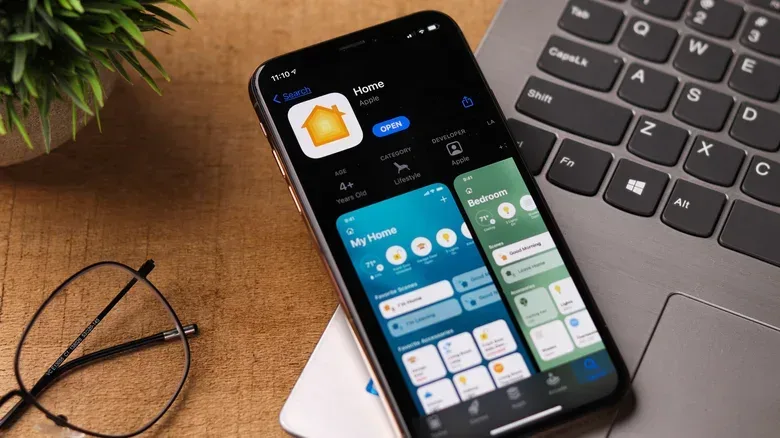
The least visible reuse may be the most important for some homes: leave the Apple TV powered and connected as a Home Hub for HomeKit. HomeKit is Apple’s smart-home platform. A Home Hub enables remote access and lets automations continue to trigger around the clock, so it serves a different purpose from simply opening a smart-home app while someone is at home.
That distinction has practical consequences. A connected hub helps support rules such as adjusting temperature or activating room lighting without requiring an iPhone, iPad or Mac to be actively used at the moment the automation should run. The Apple TV does not need to occupy a TV input or receive daily attention to make this contribution; it can sit behind a screen and function as infrastructure.
Having more than one compatible hub can also provide resilience. HomePods can serve this role as well, and an additional Apple TV means another hub can take over if one disconnects or is being updated. A second hub does not promise that every smart-home issue disappears, but redundancy is useful when lighting or temperature routines are expected to operate reliably.
This is a particularly strong argument against treating an old Apple TV as obsolete merely because it no longer drives the main living-room television. Its ongoing value may be measured less by what appears on-screen than by whether the smart-home system remains reachable and able to run its routines.
5. Check its Matter and Thread role before relying on it
Apple TV can also act as a Matter controller, pairing Matter-ready accessories with HomeKit. Matter is a smart-home standard intended to help compatible accessories work across supported smart-home ecosystems. In this context, the Apple TV helps bring Matter-ready devices into a HomeKit household.
Some Apple TV models add a more specialized networking job: acting as a Thread border router. The supplied compatibility information identifies second-generation and fourth-generation Apple TV models, along with some third-generation units, as capable of this role. Owners should therefore confirm their exact model rather than assuming any Apple TV will provide Thread networking.
Thread is a networking approach for compatible smart-home accessories. A border router bridges Thread devices with each other and with the internet. The useful idea is the mesh: more Thread devices can make the Thread network more responsive and resilient because there are more participating points in the network. That can matter in a home with several compatible accessories, where the Apple TV’s contribution is not entertainment at all but helping the smart-home network function more robustly.
There is no need to assign every old Apple TV every job. A device can be a secondary streamer and a Home Hub at once, or it can stay tucked away solely for HomeKit, Matter and—where the model permits—Thread. The right outcome is the one that gives the box a clear responsibility without pretending it is an open-ended computer.
A quick way to choose the right second life
- Use it on another TV if that screen’s built-in software is slow, ad-heavy or inconvenient, and the main need is familiar streaming access.
- Use it with a spare monitor or TV if you want a compact tvOS games setup; pair an Xbox or PlayStation controller for games that need conventional controls.
- Use AirPlay selectively for sharing an iPhone, iPad or Mac screen, but avoid it for action games and use local apps for Dolby Vision movie and TV playback.
- Keep it online as a Home Hub if HomeKit remote access and always-running automations matter in the home.
- Verify the generation before planning around Thread border-router support, since that capability is model-dependent.
An old Apple TV is most useful when its next job is specific. It may become the quiet box behind a bedroom television, the controller-paired machine beside a small gaming screen, or the always-on link supporting HomeKit accessories. None of those roles requires it to be the latest model. They only require its remaining capabilities to match a real need.