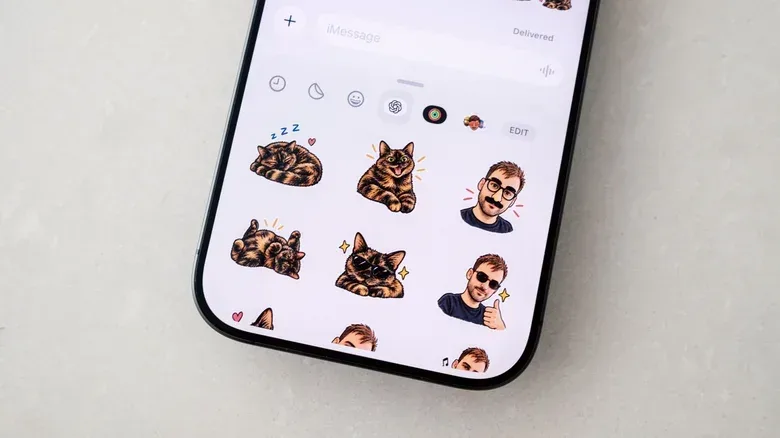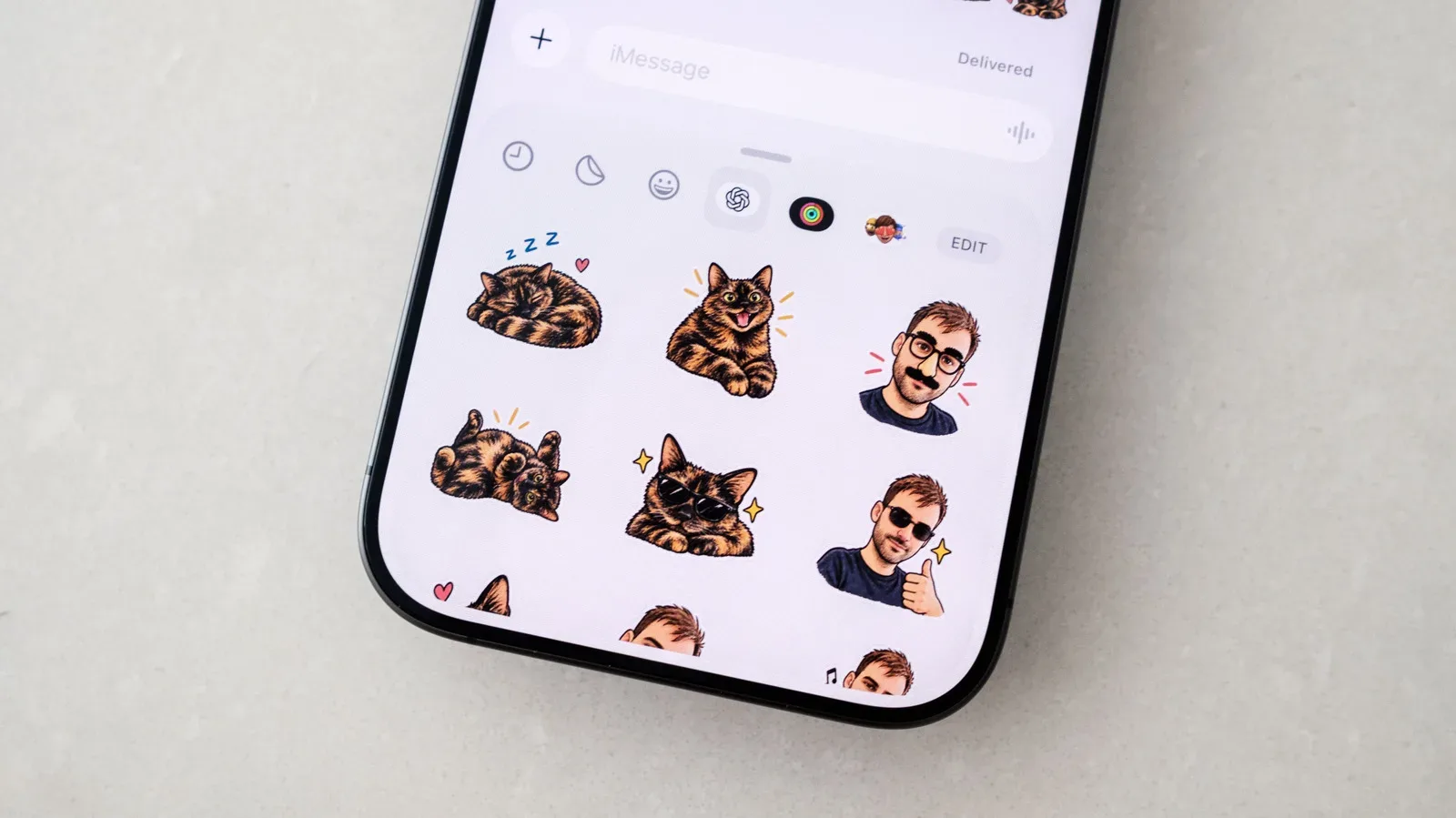
Custom reaction images have long been a staple of group chats, game-night planning and the kind of ongoing joke that becomes funnier only because it refuses to leave the message thread. ChatGPT Images now offers a more direct route to making those reactions feel like proper stickers: its mobile sticker workflow can create a pack from selected visual references, a style and emoji guidance, then send the finished set to iMessage or WhatsApp.
The feature is available through the ChatGPT app on iOS and Android. It produces nine stickers at a time, with tools to revise individual results or retry an entire request when the generated direction misses the mark. Export options differ by device: iMessage is available on iPhone, while WhatsApp can be used from either mobile platform.
For players who use chat to organize squads, share screenshots or keep a running stream of jokes between sessions, the practical appeal is straightforward. A reference photo can become the starting point for a themed sticker set instead of remaining a single image in a camera roll. The result is not a game feature or an in-game collectible; it is a messaging tool for putting more personality into the conversations around games.
What the sticker workflow does
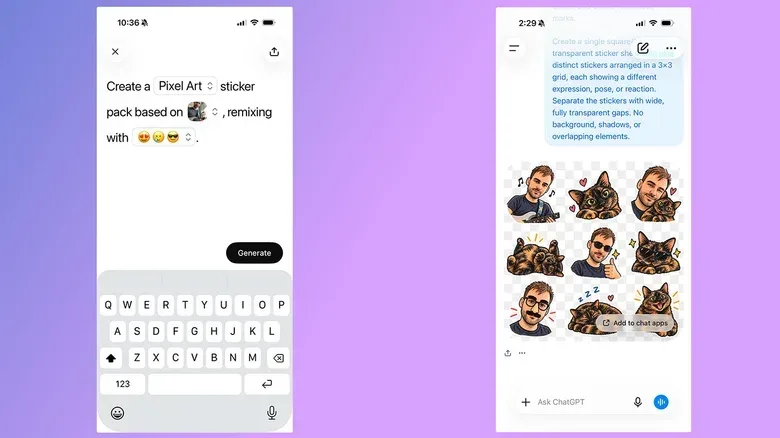
ChatGPT Images presents a dedicated Stickers option within the app’s Images area. Rather than beginning with a blank prompt alone, the workflow asks the user to make a few creative choices:
- a visual style;
- one or more reference images; and
- a selection of emoji.
The emoji are not the stickers being exported. They function as guidance for ChatGPT, helping indicate the kinds of expressions or reactions the set should cover. In other words, they are part of the instruction given to the image system. The generated output is a separate nine-image sticker set.
That structure matters because a sticker pack is most useful when it contains a small range of readable reactions rather than nine near-identical pictures. The workflow gives users a way to steer the broad emotional or visual direction before generation begins. A reference image identifies what should inform the design; the style and emoji help establish how it should be presented and what reaction territory it should occupy.
Apple already lets iOS users make stickers from their own photos, including the ability to add effects, but that approach has limited scope. The ChatGPT Images route is aimed at users who want something more stylized or more deliberately varied than a photo cutout. It also creates a set rather than requiring each reaction to be prepared one by one.
How to make a nine-sticker set in the ChatGPT app
The dedicated process begins in ChatGPT’s mobile interface:
- Open the app’s sidebar using the menu icon at the top left.
- Choose Images.
- Open the Trending tab and select Stickers.
- Pick a style, add a reference image or images, and choose emoji to guide the request.
After processing, ChatGPT generates nine stickers. Review the full set before exporting it. If it matches the intended look, use Add to chat apps, then choose iMessage or WhatsApp.
WhatsApp users are asked to name the sticker pack before it is added to the app. That name is worth treating as a functional label, not merely a punchline: it is how the pack will be grouped when it is time to find a specific sticker later. A short, recognizable title makes practical sense if several packs are created for different friends, games or recurring chat jokes.
On Android, iMessage will not appear as an export option. That is an expected platform limitation, not a sign that the image request failed. Android users can still use the app’s WhatsApp export path.
Why references and prompts are both useful
The dedicated Stickers screen is the quickest route when the goal is simply to make a pack. But it is not the only method. Users can also type their own request asking ChatGPT to generate a sticker.
Writing a custom prompt can be more useful when faithfulness to a source photo is especially important. The supplied reference material notes that this approach can help the chatbot stay closer to the original photo. In practical terms, the preset workflow is a convenient creative starting point, while a direct prompt gives the user room to specify what should remain central to the image.
A reference image is the picture supplied to guide the generation. A prompt is the written instruction that describes the desired outcome. The two can work together: the image provides visual material, while the wording directs the transformation. The dedicated sticker interface adds style and emoji choices as further cues.
That distinction is useful when a set feels broadly entertaining but does not capture the desired subject closely enough. Instead of abandoning the idea, use a custom prompt and make the requested priority clearer. The app supports two different levels of correction after it produces an image: editing a particular sticker or retrying the generation from scratch.
Editing a sticker versus retrying the whole request
The ability to revise is important because a sticker pack has to work at a glance. If one image is off while the rest fit, there is no need to start over immediately. To change a particular result:
- Tap the sticker that needs work.
- Select Edit from the menu.
- Describe the desired adjustment in the prompt bar.
This is the more targeted option. It is suited to situations where the overall pack is close to the intended direction but one sticker needs a different treatment.
If the request itself has been misunderstood, ChatGPT also has a reset-style option. Tap the three-dot icon and choose Retry to ask it to start again. The difference is simple: Edit is for refining an output; Retry is for replacing an unsatisfactory interpretation.
Both paths are worth knowing because they prevent a common workflow mistake: treating every imperfect result as a reason to make a completely new pack. When only one sticker needs a correction, edit it. When the set is built around the wrong idea, retry the request. This keeps the creative process aligned with the available controls rather than relying on repeated exports.
Exporting the pack to iMessage or WhatsApp
Once the pack is ready, select Add to chat apps and select the messaging platform. The actual sending step then happens inside that messaging app, using its normal sticker interface.
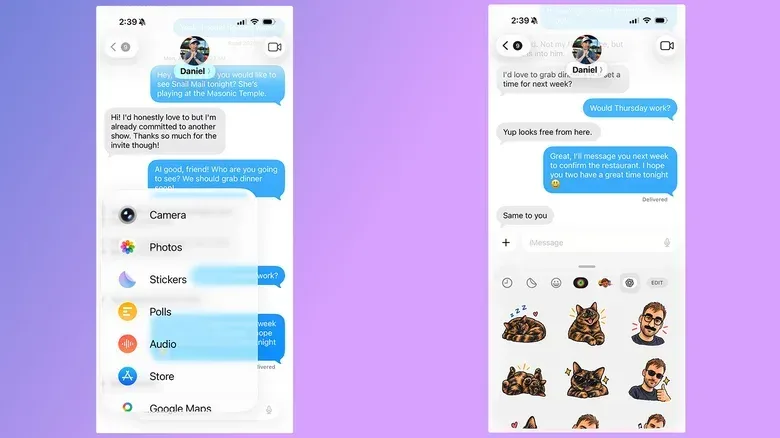
Sending a ChatGPT-created sticker in iMessage
- Open a conversation in the Messages app.
- Tap the Plus button.
- Select Stickers.
- Tap the OpenAI logo near the top of the compose window.
- Select the sticker to send.
This is an iPhone-only destination in the described export flow. The sticker is sent as part of the ordinary iMessage composition process after it has been imported from ChatGPT.
Sending the pack in WhatsApp
- Open the conversation where the sticker will be sent.
- Tap the sticker icon on the right side of the compose bar.
- If WhatsApp first shows GIF choices, select the additional sticker icon below.
- Choose a sticker from the pack, which appears under the name assigned during import.
The saved pack name is therefore part of navigation inside WhatsApp. If a chat group has its own shorthand—perhaps a campaign name, a team name or a shared meme—it can be a useful way to identify the set quickly without confusing it with later packs.
Practical limits to keep in mind
Sticker generation counts toward ChatGPT’s daily and weekly usage limits. This is particularly relevant for free accounts: if the limit is reached, another request may need to wait until the allowance refreshes.
That limit changes the best approach slightly. Before generating, gather the reference image or images and consider the mood the pack should cover. If the first output is almost right, use Edit on the specific image instead of reflexively starting a new request. If the concept is entirely wrong, Retry is the appropriate clean reset. These are not guarantees of a particular result, but they are the available options for making requests more deliberate.
For gaming communities, stickers are likely to be most valuable when they are clear reactions that can be reused beyond a single joke: celebration, disbelief, defeat, a call to regroup, or an exaggerated “one more match” mood. The feature’s real convenience is that it packages those visual reactions directly for the services where group coordination and banter already happen. That can sit alongside more substantial conversation about new releases, such as a newly dated Steam Early Access and Xbox Game Preview release, without requiring anyone to leave the chat app to hunt down the right reaction image.
The key point is not that every generated set will be perfect on the first try. It is that ChatGPT’s mobile workflow combines generation, per-sticker revision, full-request retrying and direct chat-app export in one place. Users who understand which control addresses which problem can move from photo or idea to a reusable iMessage or WhatsApp sticker pack with much less friction.