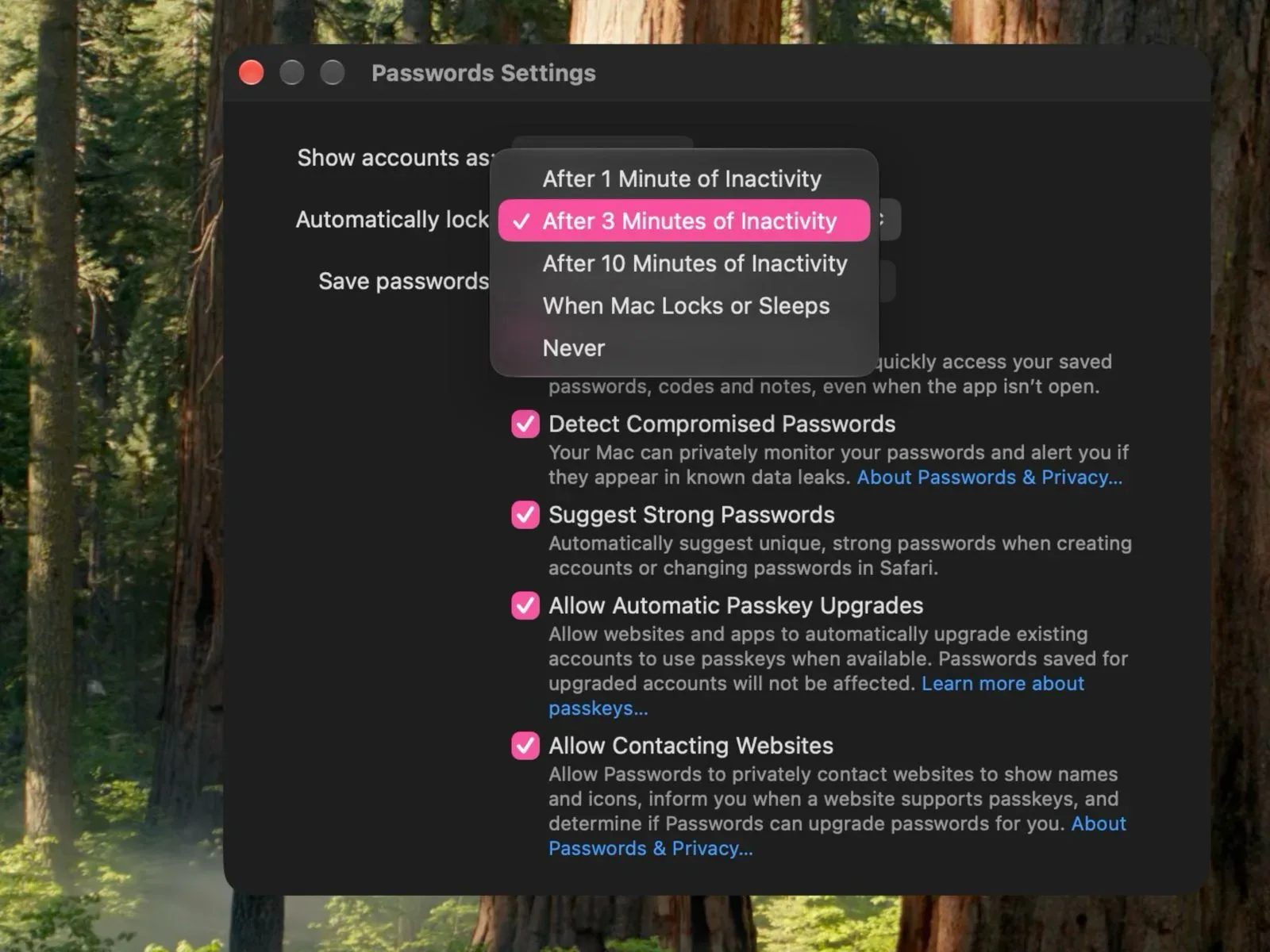
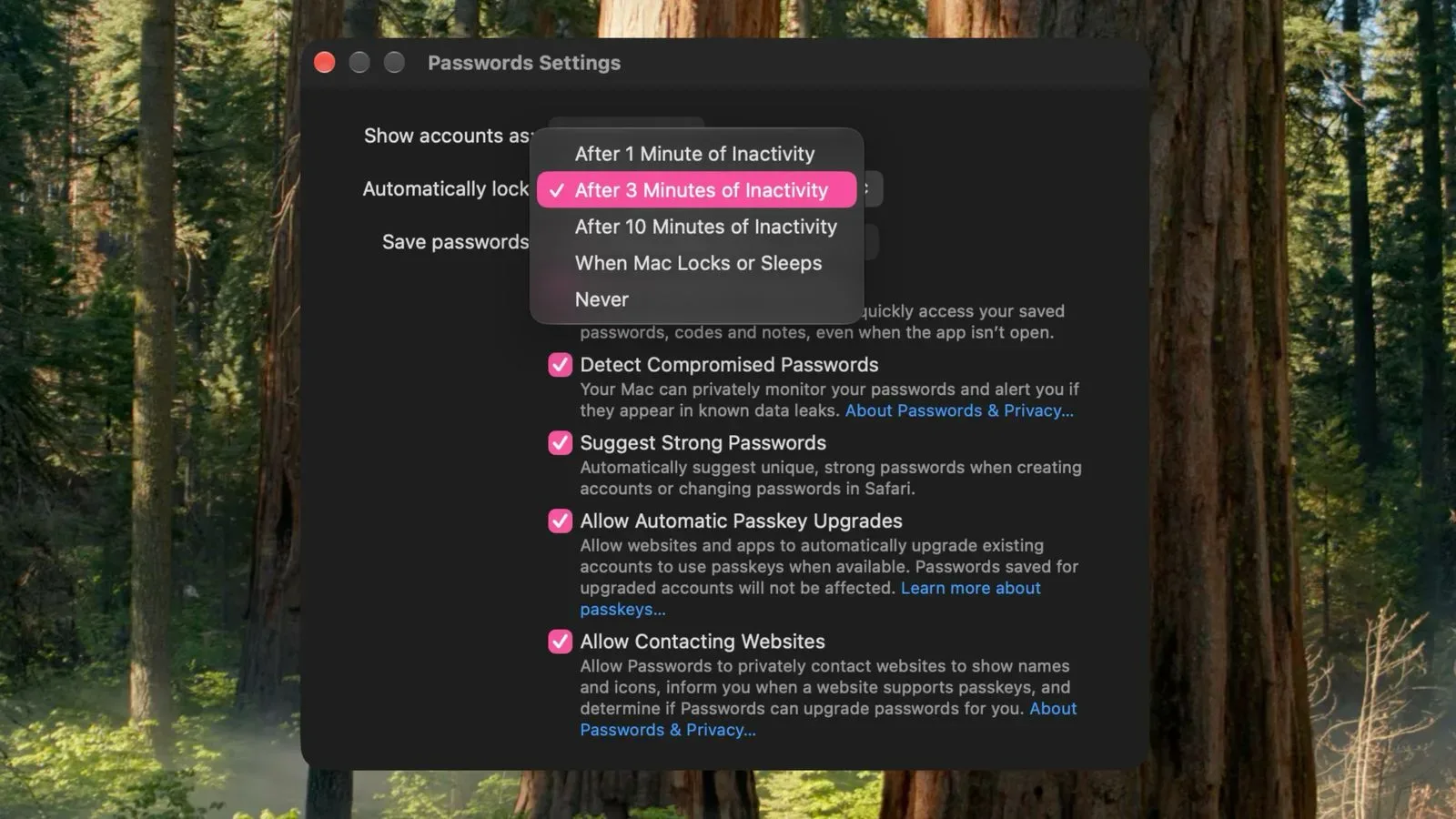
Apple appears set to give Mac users a small but meaningful security setting: control over when the Passwords app locks itself. A menu present in the macOS 27.3 beta includes several automatic-lock choices, replacing the fixed three-minute inactivity behavior used in the current macOS 27.2 release and earlier Mac operating system versions.
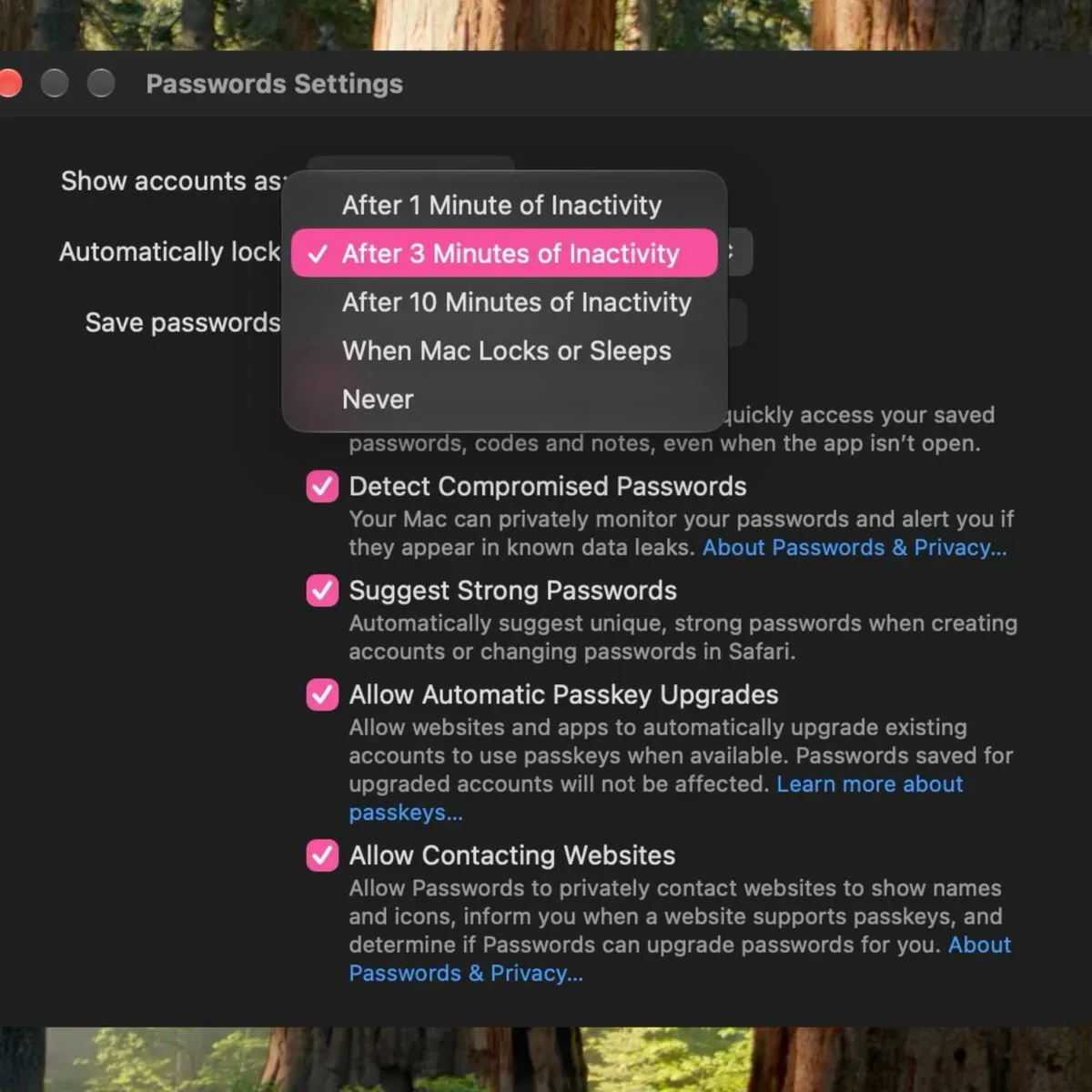
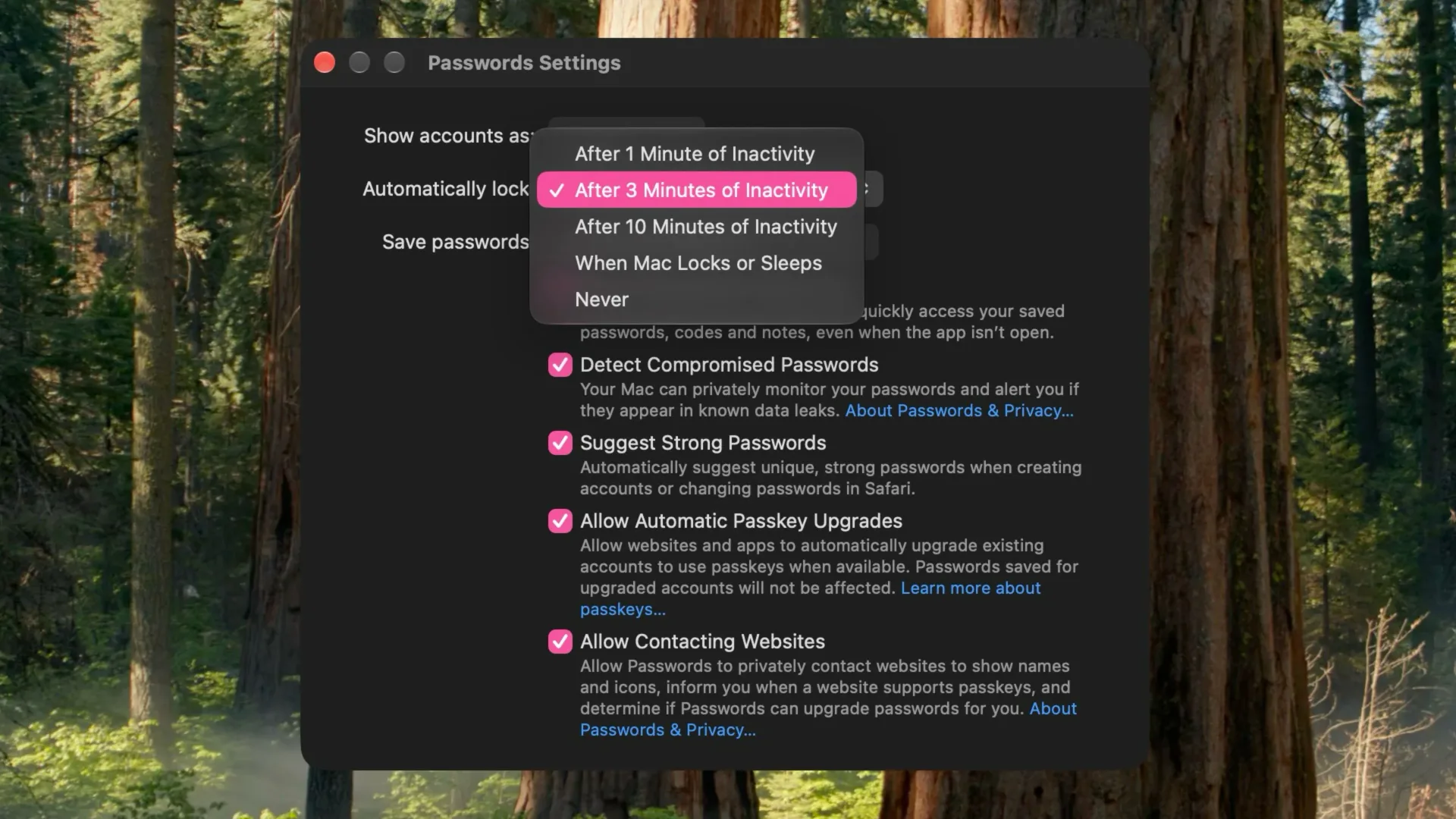
The proposed options are one minute, three minutes, or 10 minutes of inactivity. Users would also be able to have Passwords lock when the Mac locks, lock when the Mac sleeps, or never lock automatically.
It is an unglamorous change compared with a major operating-system redesign, but it affects an app that can hold account credentials and logins. A timeout is the period an app waits after inactivity before it requires authentication again. In this case, the setting determines how long a user can leave the Passwords app unattended before its protected contents are locked.
What is changing in Passwords
Today, the Passwords app uses a three-minute inactivity timeout with no choice of shorter or longer duration. The macOS 27.3 beta indicates that Apple intends to turn that single default into a set of user-selected behaviors.
- One minute: A shorter inactivity window for people who prioritize reducing the time sensitive information remains accessible.
- Three minutes: The existing behavior, retained as an option.
- 10 minutes: A longer period before the app locks after inactivity.
- When Mac locks: Passwords locks alongside the Mac’s own lock state.
- When Mac sleeps: Passwords locks when the computer enters sleep.
- Never automatically: Passwords remains unlocked unless it is locked through another action or condition.
The presence of these controls in beta software is evidence of the planned feature, rather than a guarantee that every wording, option, or release detail will remain exactly the same. The update is expected in December, bringing the settings to users beyond the beta track if the planned rollout proceeds.
Why a password-manager timer matters
Password managers sit at the intersection of convenience and account security. Their purpose is to keep login information in one protected place, reducing the need to remember every credential manually. But opening that protected store creates a temporary usability question: how long should it stay open before the system asks the user to authenticate again?
There is no universally correct answer. A person using a Mac at home, with no one else around, may find a longer timer less disruptive while entering credentials across several sites. Someone working in a shared space may prefer a minute, particularly if they regularly step away from their keyboard. Apple’s current fixed three-minute rule treats those different circumstances alike. The incoming choices acknowledge that a timeout is a personal security preference, not merely a technical default.
The options tied to the Mac’s lock and sleep states are especially straightforward. Mac lock refers to the point at which the computer itself is secured and requires authentication to resume use. Sleep is the low-power state entered when a Mac is inactive or deliberately put to sleep. For people who already rely on those system-level actions as their boundary when leaving a computer, linking Passwords to either event could make the app’s behavior more predictable.
That does not mean an app-level timeout and a Mac-level lock are identical protections. The inactivity choices focus specifically on time spent away from the Passwords app. The lock and sleep choices instead follow broader computer events. The distinction matters because a user can remain at a Mac without interacting with Passwords, or can use other apps before locking the machine. Apple’s forthcoming menu gives users ways to choose the rule that best matches those habits.
The convenience-versus-security trade-off
A shorter timeout usually means more frequent authentication. That can be mildly inconvenient, especially when a user is setting up a device, reviewing several accounts, or moving between browser windows and the Passwords app. Yet it also narrows the opportunity for someone else to view or use information if the Mac is left unattended.
A 10-minute setting reduces interruptions, but naturally leaves a larger gap after the user stops interacting with the app. The “never automatically” option takes that approach furthest. It may suit a tightly controlled, private situation, but it is the choice that demands the most care from the Mac owner. On a shared computer, in a workplace, classroom, household common area, or any place where a screen can be left visible, automatic locking offers a useful backstop against a simple lapse in attention.
Importantly, the new menu does not force one security posture on everyone. The three-minute choice remains available, so users content with the present behavior should be able to retain it. The value is choice: stricter settings are available for those who want them, while users who repeatedly find the current limit too short gain room to adjust.
A dedicated home for iCloud passwords and logins
Apple introduced the standalone Passwords app with macOS Sequoia in September 2024. It serves as a dedicated place to manage iCloud passwords and logins, rather than making users treat credential management as a less visible system setting.
The auto-lock change follows naturally from that dedicated-app approach. Once password management lives in an app people may open and use directly, the app’s own security behavior becomes more noticeable. A fixed timeout can be sensible as a default, but direct controls let users decide how Passwords should fit within their own workflow.
For Mac users keeping an eye on other recent hardware and software coverage, the change is another example of Apple refining the details around everyday device use rather than only adding headline features. MacBook Pro details may draw attention to hardware specifics, but credential protection is equally central to the daily experience of owning a computer.
Practical implications for Mac users
When macOS 27.3 arrives, the best setting will depend on where and how a Mac is used. A one-minute timeout is likely the clearest fit for users who often work around other people or want Passwords to close quickly after each task. Three minutes preserves the familiar status quo. Ten minutes may make sense for private, uninterrupted sessions where repeated authentication is more of a burden.
The event-based options offer another kind of simplicity. Users who make a habit of locking their Mac whenever they walk away may prefer to have Passwords follow the same trigger. Those who tend to close a laptop or let a desktop sleep at the end of a task may prefer the sleep option. Either route shifts the decision from counting inactive minutes to using a clear device action.
“Never automatically” should be understood literally: it removes the time-based automatic closure described by the menu. It is not a broadly recommended setting for every environment simply because it is the most convenient. Its inclusion is about control, and control works best when paired with an honest assessment of who can physically access a computer.
For now, the core facts are simple: macOS 27.2 and earlier releases maintain a fixed three-minute Passwords timeout; the macOS 27.3 beta shows planned settings for one, three, or 10 minutes, plus Mac-lock, sleep, and no-automatic-lock behaviors; and the expected update is slated for December. It is a focused adjustment, but one that gives users a direct say in an important security routine.