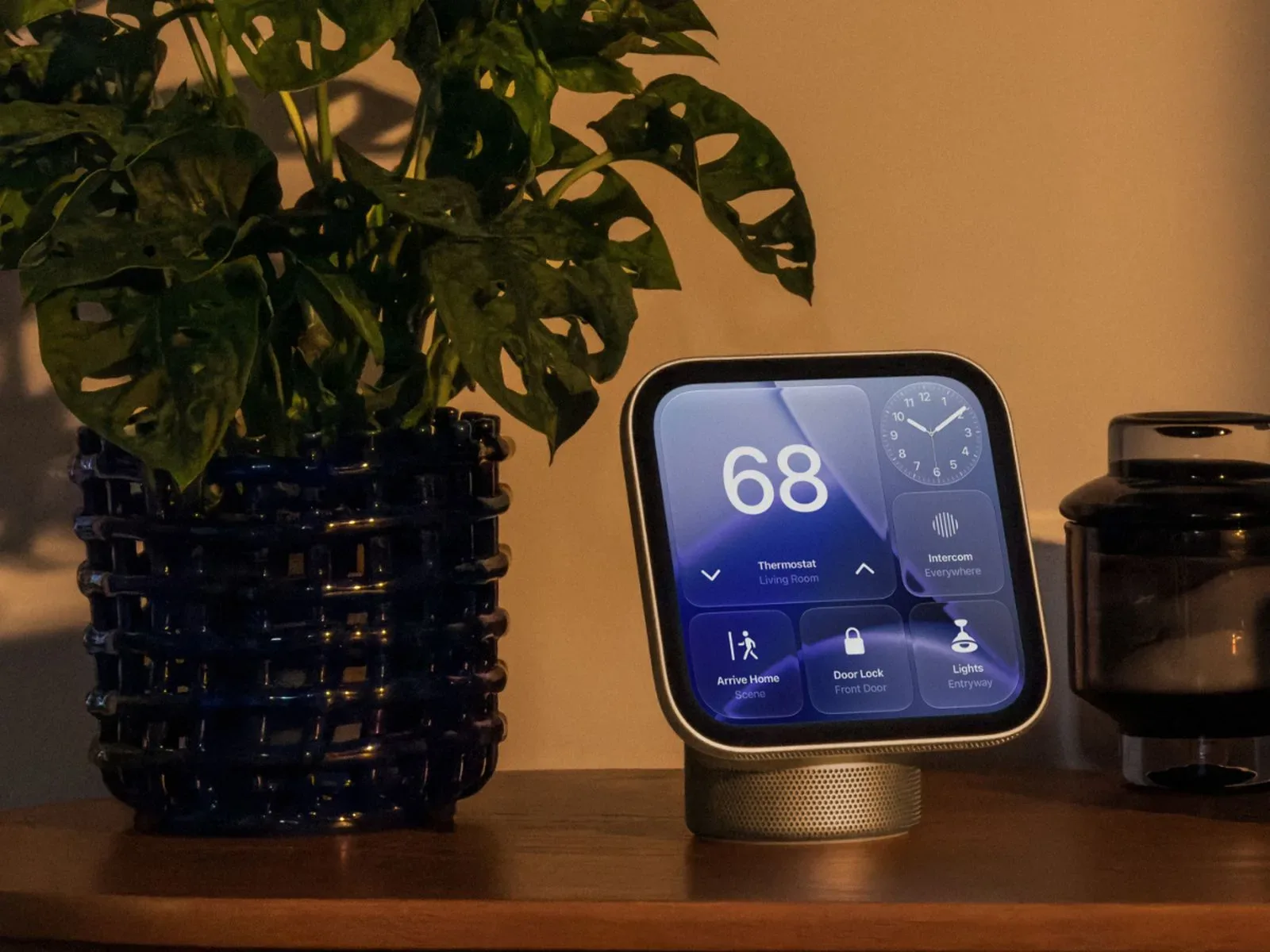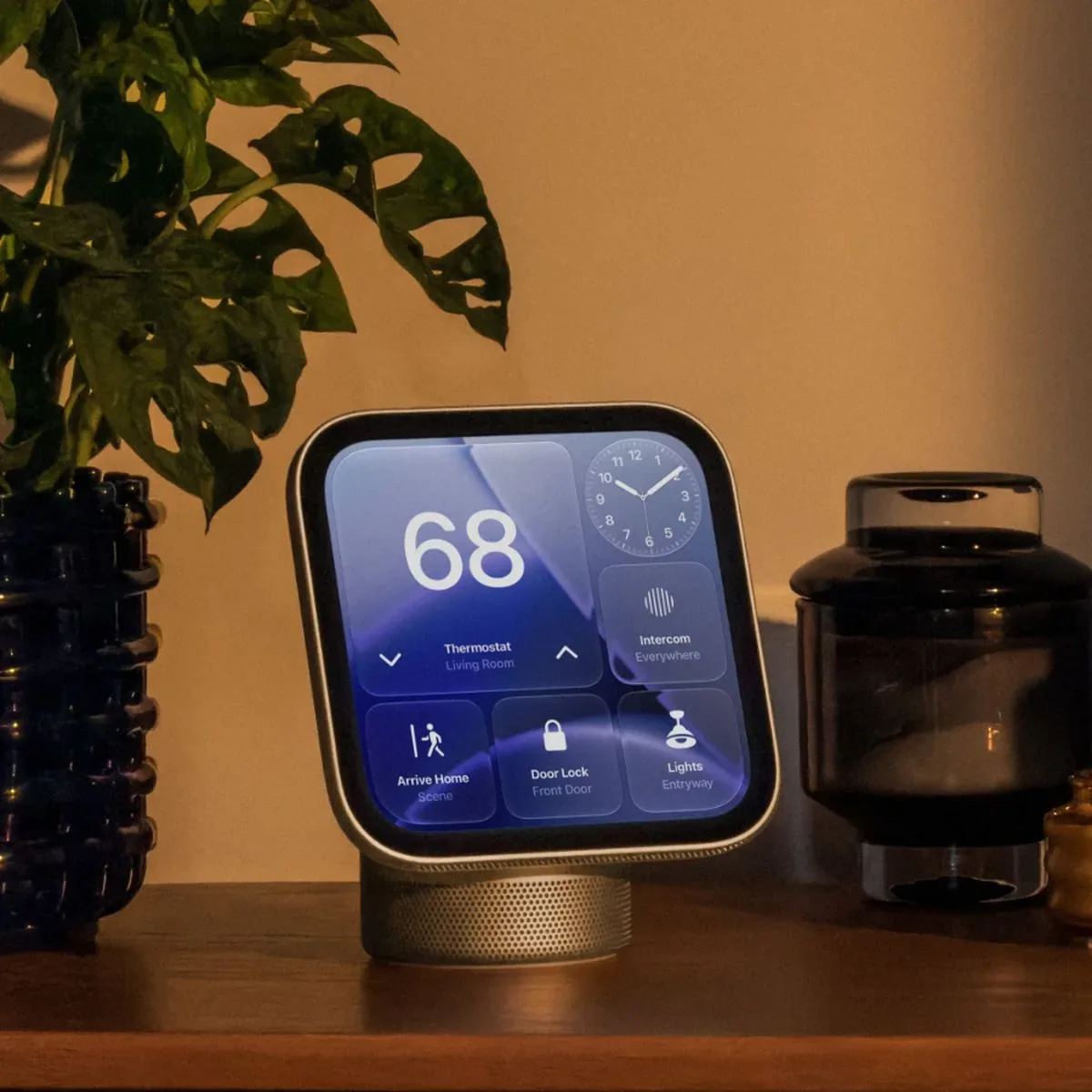
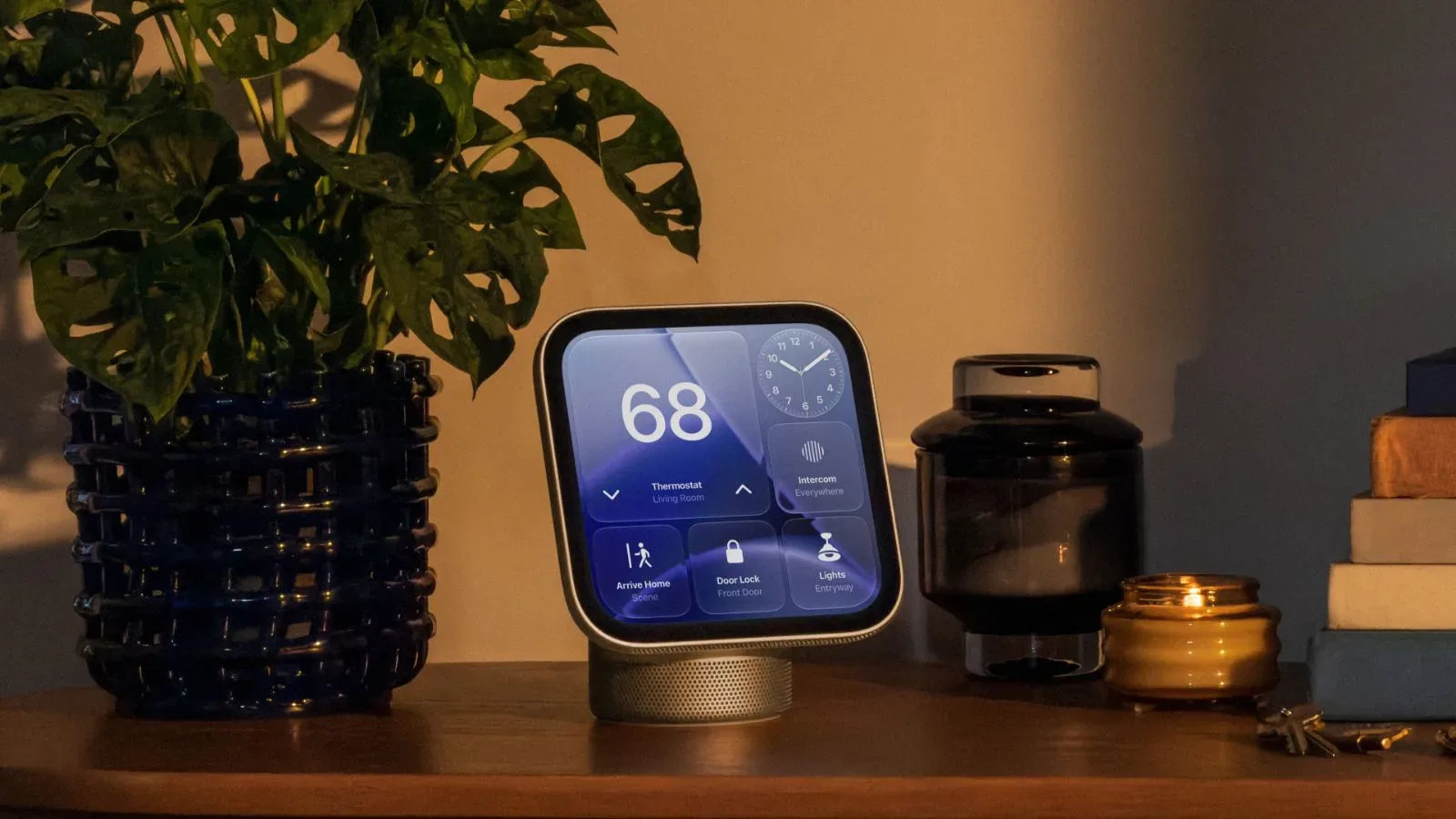
Apple’s new HomeView hub arrives with an unusually revealing set of small-print details: not a giant feature list, but the sort of settings that determine how a shared screen works once it is sitting in a kitchen, living room or other high-traffic room. The device combines a camera, face recognition, media controls, web and app access, smart-home alerts, and personal information. That makes its rules for recognition, guests and authentication more consequential than they might initially sound.
The clearest theme is that HomeView treats the household display as a shared device that must sometimes become personal. Its approach appears to combine face recognition with proximity and device checks, rather than assuming that anybody standing in front of the screen should receive access to private material. At the same time, the hub has practical quality-of-life tools: a Mirror mode, a media sleep timer, iPhone-assisted sign-ins and adjustable interface transparency.
Face recognition has real-world limits
HomeView may fail to recognize a person whose face is covered, including someone wearing sunglasses. That is a mundane limitation, but it matters because recognition is central to the device’s personal-access model. Removing an obstruction is the obvious fix, though placement and lighting are also part of the equation.
For the camera to identify someone, the display needs to face them. They should be centered in the camera’s view and, when several people are present, be nearest to the camera. Apple also says the hub should not be obstructed by shelves or cabinets above it, and that it needs even, front-facing light.
For more context, explore Drake Country Album Speculation Builds on Texas Ranch Talk and ‘Choosin Texas’ Remix.
Those requirements are useful installation guidance rather than cosmetic preferences. A screen placed low beneath a cabinet, angled away from the usual seating area, or set where a strong backlight puts faces into shadow could make personal recognition less dependable. In a shared-room product, the difference can be felt immediately: a hub that cannot identify the intended person consistently becomes a hub that asks for another authentication step more often.
Face recognition, in this context, means the camera is being used to distinguish an enrolled person from others nearby. It is not presented as the only condition for opening personal content. HomeView also checks for a nearby iOS device that was recently unlocked and is connected to the same Wi-Fi network. The layered design is significant: the camera identifies who is in front of it, while the iPhone-related conditions help establish that the person has an associated, recently used device.
Personal access is designed to fail closed
If the normal Wi-Fi connection goes down, HomeView can still use cellular connectivity to unlock personal content—but only under particular conditions. The iOS device must be in the same location and must have been on the HomeView Wi-Fi network recently. That is a measured fallback, not a blanket instruction to regard any cellular-connected phone as sufficient proof of identity.
The same caution shows up when access attempts go wrong. Repeated attempts to open authenticated personal material cause camera-based facial recognition to be disabled. At that point, the user must verify their identity through a registered device.
This is a meaningful distinction between convenience and security. A household hub is inherently exposed to more passers-by than a phone in a pocket. A recognition lockout after repeated failed attempts reduces the chance that persistent retries become a route into protected information. The trade-off is friction for the legitimate person after the safeguard triggers, but the recovery path is clearly defined: use a registered device.
There is no indication that every function on HomeView needs this higher level of verification. Instead, the details distinguish personal content—material requiring authentication—from a set of guest-facing capabilities. That separation is likely to be central to how the device feels in practice. A visitor can have useful access without automatically inheriting the owner’s private digital life.
Guest controls are more granular than a simple guest mode
HomeView owners can decide what unrecognized people are permitted to do. The options cover browsing, voice assistance, music and content restrictions, which are the areas most likely to create awkwardness on a screen used by multiple people.
- Safari can be enabled or disabled, and adult websites can be blocked.
- Siri is available by default for general knowledge, writing help and math help, though those Siri capabilities can be switched off.
- Explicit content can be allowed or disallowed.
- The owner can select which Apple Music subscription provides music for an unrecognized user.
That Apple Music setting is particularly practical. Rather than leaving unidentified guests without music or exposing the owner’s listening setup by default, the hub has a designated subscription choice for them. The available information does not spell out how those subscriptions are arranged or displayed, so it would be premature to infer more than the setting itself. Still, its inclusion suggests HomeView anticipates regular use by people the camera does not recognize.
Safari and Siri controls also frame the product as something broader than a passive smart display. A web browser and a general-purpose voice assistant can make a communal device more helpful, but they can also create supervision and privacy considerations. The availability of direct on/off choices, along with adult-site and explicit-content limits, gives the owner a way to match the hub’s behavior to the room it occupies.
These settings will matter most in homes where the line between “family device” and “personal device” shifts throughout the day. The supplied controls cannot answer every household-policy question, but they cover several obvious ones: whether guests can browse, whether they can ask Siri for help, what kind of media plays, and which music service identity is used.
A camera tool called Mirror has a straightforward purpose
HomeView’s Control Center includes Mirror, which uses the camera to show the person standing in front of the device. Mirror includes an edge light to illuminate the face and offers 1x and 2x zoom options.
The feature is modest, but it makes sense alongside the hardware’s camera requirements. It gives users a direct visual tool for checking framing and lighting, as well as a conventional mirror-like view. The edge light is intended for facial illumination; 1x and 2x refer to the two available magnification levels. Nothing in the feature description indicates more elaborate camera modes, and its value is probably in immediate access rather than complexity.
There is also a useful practical connection between Mirror and the recognition advice. If HomeView needs a centered face, an unobstructed camera and even front light, a camera preview can make it easier to spot why the hub might not be seeing someone properly. That is an inference from the listed features, not a stated troubleshooting workflow, but it is a sensible use of tools that are already on the device.
Media and interface controls favor low-friction shared use
HomeView can pause whatever media is playing at the end of a sleep timer. A sleep timer is simply a countdown that stops playback when it reaches zero. It is a familiar option for late-night listening or viewing, but it is especially welcome on an always-present room screen, where someone may not want media to continue after they have left or fallen asleep.
The visual presentation is adjustable too. The transparency of the Liquid Glass interface can be changed from clear to opaque, as on iPhone, iPad and Mac. Transparency affects how much of the underlying screen or background remains visible behind interface elements; opacity makes those elements more solid. This is a personal-preference control, but it can also affect legibility in a bright room or against a visually busy backdrop.
HomeView’s notification model is intentionally narrow. It offers notifications for phone calls and home devices, plus a setting for critical notifications. There are no other notification controls or options listed. Rather than turning the household display into another endpoint for every alert from a person’s digital life, the system appears to focus on communication and the connected home.
Critical notifications are the specific class that can be toggled on here. The available details do not define which individual alerts qualify, so users should not assume a broader notification-management system exists beyond the described call, home-device and critical-notification choices.
Setup and recovery require a different mindset from a phone or console
One notably sparse hardware detail: HomeView has no button to turn it on, turn it off or restart it. Restarting can be done through Settings, or by briefly unplugging the device.
That means placement should account for access to power. A hub tucked neatly into a difficult-to-reach cable arrangement may look tidy, but briefly disconnecting it is the physical recovery method when the Settings route is not viable. The guidance does not describe any further reset process, so users should stick to the two stated restart options rather than assuming a hidden hardware-button routine.
Accounts are also handled with the iPhone: websites and apps can be signed into using an iPhone, in a manner similar to Apple TV. This avoids treating the shared hub as a place where passwords must be typed out in front of everyone nearby. The precise range of supported websites and apps is not specified, but the stated capability makes the iPhone a key companion device in two ways: it helps satisfy personal-access checks and it can assist with sign-ins.
What HomeView’s details say about its role
Individually, a mirror preview, a sleep timer and a transparency slider may sound like minor launch-day observations. Together with device-backed authentication and guest permissions, they sketch a clear role for HomeView. It is meant to be visible and usable by many people, while still recognizing moments when its owner needs a private layer.
For prospective users, the most useful preparation is practical: choose a location with an unobstructed, front-facing view; expect sunglasses and uneven lighting to interfere with recognition; decide in advance whether guests should have browsing and Siri access; and keep the power connection accessible enough to briefly unplug the hub if a restart is needed. The finer settings matter because a shared screen is defined less by its headline feature than by how it handles the ordinary interruptions of household life.