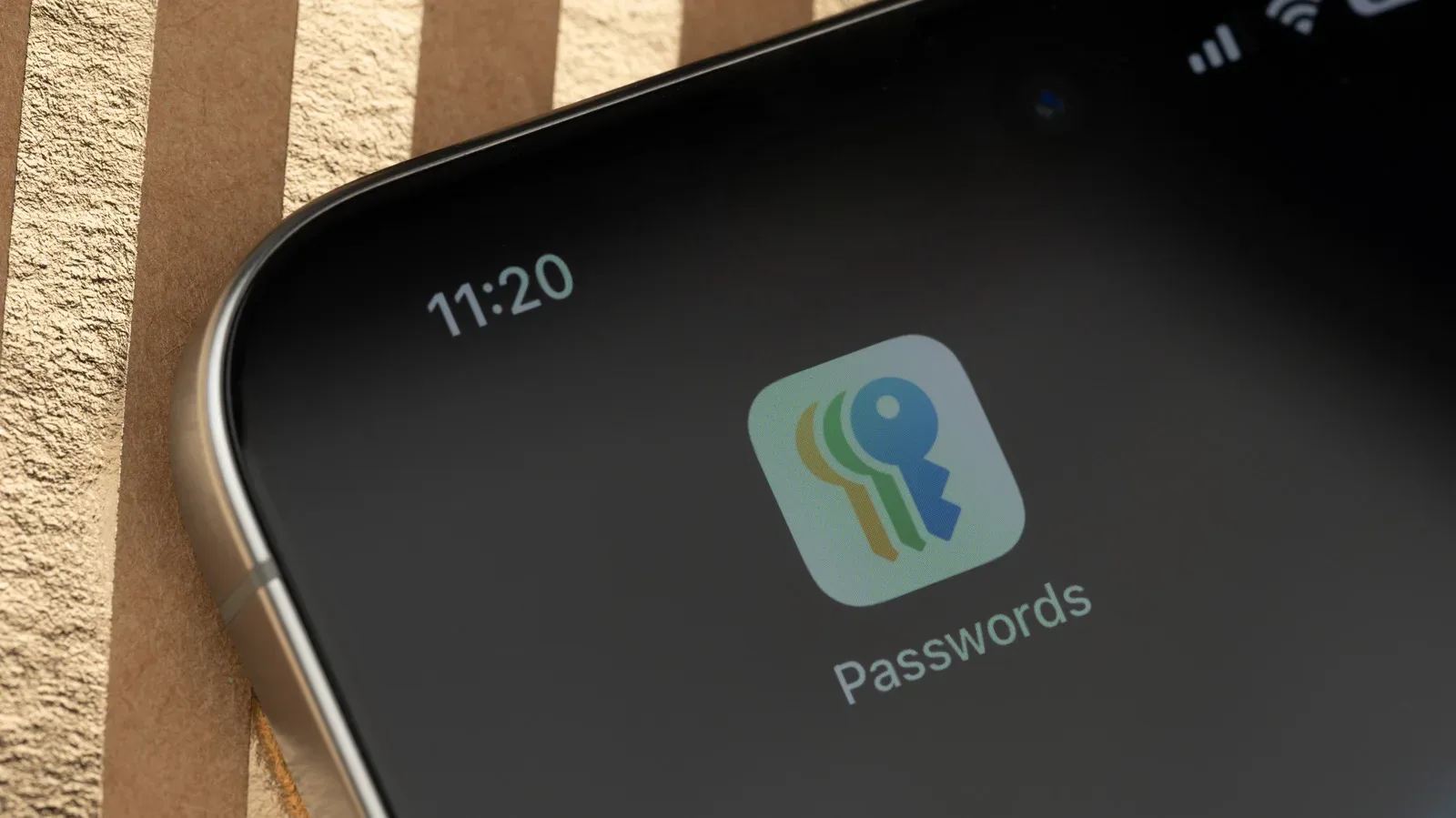
A warning that one of your saved passwords may have appeared in a leak has an impressive ability to turn an ordinary iPhone notification into a miniature catastrophe. The important distinction is that it is a risk warning, not a forensic report: it does not by itself establish that an iPhone was compromised, that a particular service was breached, or that somebody has signed in to an account.
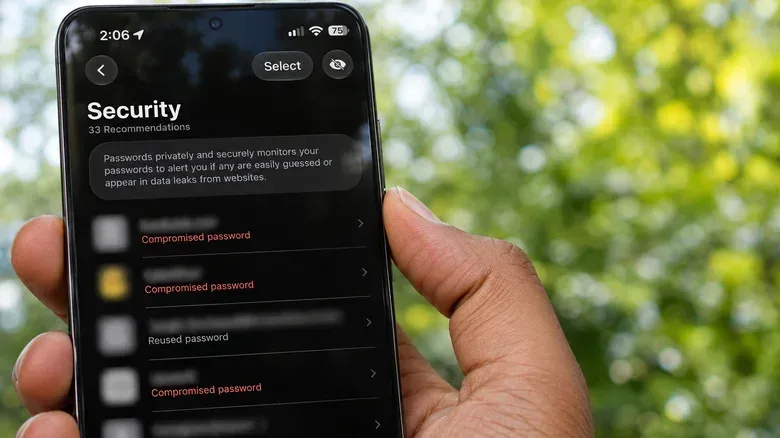
It does mean the credential deserves prompt attention. A password found in known leaked data can be tried elsewhere by criminals, particularly when the same password has been reused. Apple’s Passwords app gives iPhone users a focused place to find the affected logins, identify whether a password is marked leaked, reused, or weak, and start the process of replacing it with a unique credential.
The practical goal is not to panic-change every password after a single alert. It is to understand exactly what the alert can say, then fix the exposed or risky credential at the service itself. That difference matters, because changing an entry in a password manager alone does not change the password accepted by the website or app.
What an iPhone password warning actually means
Apple’s Passwords app stores logins and passkeys, and it can sync them through iCloud Keychain using end-to-end encryption. It also generates strong passwords and autofills credentials in apps and on websites. In iOS 18, Apple made Passwords a dedicated app, so security recommendations no longer require users to hunt through Settings just to see the accounts that need work.
The app’s security notices cover more than one kind of problem:
- Leaked passwords: a saved password matches password data that has appeared in a leak.
- Reused passwords: the same password is being used on more than one account.
- Weak passwords: the password is considered insufficiently robust, even if it has not been connected to a known leak.
Those labels are related, but they are not interchangeable. A weak password does not necessarily mean it has been exposed. A reused password does not necessarily mean a service has been hacked. And a leaked-password warning does not tell a user where the password originally appeared. Treating all three as a reason to improve account security is sensible; treating any one of them as proof of an active account takeover is not.
That missing origin is especially significant when passwords are reused. Imagine a password used for both a low-stakes forum and a much more consequential email or bank account. If the forum credential enters leaked data, the email or bank service may not have suffered a breach at all. The problem is that the exposed password could still be attempted against those other accounts. This is why unique passwords are not just a tidiness preference. They reduce the damage that can spread from one compromised login to another.
How Apple checks without sending your password in plain form
Apple uses two layers of checking for saved credentials. The iPhone checks a local list of commonly leaked passwords. For passwords that are not on that list, it performs privacy-preserving cryptographic checks with Apple’s servers.
In plain terms, a cryptographic check uses information derived from the password rather than transmitting the password itself. Apple says it does not retain that derived information. The point is to allow a comparison against leaked-password data while avoiding a system in which the device simply uploads a readable list of a person’s passwords for inspection.
That distinction is worth retaining when interpreting the feature. The Passwords app is designed to identify a match or risk signal, not to reveal the supposed leak’s complete history. It can tell users which saved login needs attention; it cannot turn a warning into a detailed incident report showing exactly who obtained a password, when they did so, or whether they used it successfully.
For people invested in Apple devices, Passwords is integrated with iCloud Keychain. Windows users can access iCloud Passwords through Chrome or Edge after installing iCloud for Windows and its browser extension. Apple does not offer a native iCloud Passwords app for Android. The broader principle is not exclusive to Apple: Google Password Manager offers similar checking for passwords saved in Google, including through Chrome on iPhone, and 1Password also provides comparable functionality.
A password manager can be particularly helpful because the strongest response to password reuse is often a collection of long, unique credentials that would be inconvenient to remember manually. It also makes it easier to avoid the tempting but unsafe pattern of making tiny variations to one familiar password across many sites.
Where to find the affected accounts
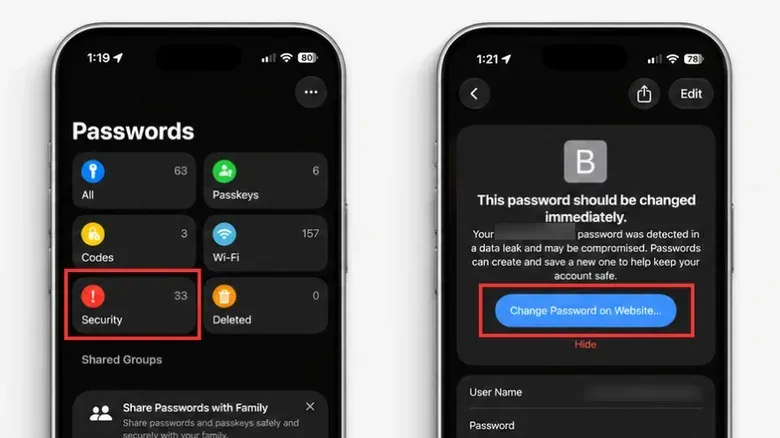
Open the Passwords app and authenticate with Face ID, Touch ID, or the device passcode. From the main screen, select Security. The category lists saved accounts with relevant warnings. If Security is not visible, return to the app’s main screen and look again.
- Open an account listed in Security.
- Read the warning attached to that login to determine whether the issue is leaked, reused, or weak.
- Select Change Password to go to the relevant service’s website or app.
- Create and set a new, unique password at the service itself.
- Confirm that the saved Passwords entry is updated to match the new credential.
That fourth step is the one most likely to be misunderstood. Password managers keep a record of the credential used with an account. They are not generally changing the service’s credential just because a user edits the saved record. The account password must first be changed through the service’s own password-change flow. Password managers will commonly notice that a login has changed and offer to update their stored entry.
If an alert concerns a reused password, do not stop at the account currently shown. Search for every account that used that same password and change each one. Give priority to email and banking accounts. Email in particular can be a critical recovery route for other services, so a reused or leaked email password carries wider practical implications than a low-priority account with no sensitive information.
Passkeys and two-factor authentication address different parts of the problem
Where a service supports them, passkeys can replace traditional passwords. Rather than relying on a password that can be reused across sites, a passkey is a login method stored in the user’s password system and used to authenticate with the service. Apple’s Passwords app can store passkeys alongside regular login credentials.
Passkeys are not a reason to ignore warnings about old passwords still attached to existing accounts. Instead, they are an option to consider after an affected account has been secured, assuming that service offers passkey sign-in. It can be useful to think of them as a way to reduce future dependence on passwords, rather than as an explanation for a present leak alert.
Two-factor authentication, often shortened to 2FA, is another layer. It adds an additional verification step beyond the password. That does not make a leaked password harmless, and it does not remove the need to replace a reused one. It can, however, make a password alone less useful to someone attempting to enter the account.
The combination suggested by these warnings is straightforward: unique credentials for each account, a passkey where available, and two-factor authentication as an additional barrier. Each measure tackles a somewhat different risk. Unique passwords limit cross-account fallout; passkeys can eliminate the reusable password from compatible logins; 2FA adds another step to the sign-in process.
Make sure compromised-password monitoring is enabled
Users who have used Passwords without ever seeing a security notice can check whether monitoring is active. On iPhone, go to Settings > Apps > Passwords > Detect Compromised Passwords. This setting is worth checking before assuming a silent Passwords app means all saved credentials are clear.
The alert system also has a phishing angle. A surprise email, text, or browser pop-up claiming that a password has leaked may be attempting to rush a recipient into clicking a fraudulent link. Do not use links in that message to “verify” the account or reset the password. Instead, open Passwords directly on the iPhone, inspect its Security section, and independently open the service’s genuine app or website if a change is needed.
That approach is less dramatic than reacting to every scary notification, but it is more reliable. The Passwords app gives the user an on-device route to review the actual saved login and begin the legitimate password-change process. Dismissing a recommendation does not resolve the underlying password issue, while interacting with a fake warning can create an entirely new one.
Why this matters beyond a single iPhone
Passwords are one of the quieter pieces of personal technology infrastructure. They cover games, stores, social platforms, work tools, financial services, and the email accounts used to recover access to many of the above. A leak warning therefore matters less because it proves a disaster has happened and more because it offers a chance to prevent password reuse from becoming a chain reaction.
That perspective also applies to older hardware that remains useful in an Apple setup. An old tablet can still have a second life as a streaming control surface, as explored in this guide to repurposing iPads and Android tablets for gaming streams, but the accounts used across that setup still benefit from unique passwords and careful security alerts.
A leak warning is therefore best treated as a specific maintenance task: identify the affected service, change the real account password through the real service, update the saved entry, replace the same password anywhere else it was used, and consider passkeys and 2FA. It is not proof that a person has been hacked. It is a useful warning that a credential may no longer be safe to trust.