There is a specific kind of modern anxiety reserved for looking at an Android phone before lunch and discovering it has already burned through half its battery. Nobody set out to play a survival game where the final boss is a charging cable, yet here we are.
The good news is that a fast-draining battery does not automatically mean the phone is finished. In many cases, power is being spent on a few predictable jobs: lighting a bright display, rendering extra frames at a high refresh rate, allowing apps to keep working off-screen, or repeatedly topping up the battery in conditions that create heat. The useful way to approach the problem is to separate today’s battery runtime from long-term battery health. One is about making it to bedtime. The other is about preserving the battery’s capacity over time.
That distinction matters for games, navigation and any other demanding activity. A phone can lose charge quickly because it is being asked to do a lot, but an unexplained drain while it is sitting in a pocket is a different investigation. Start with the biggest, least disruptive changes, then use Android’s battery information to identify whether one app is behaving like it has been assigned an endless grind quest.
The display is usually the first raid boss
The screen is generally the largest drain on a phone’s battery, which makes display settings the highest-value place to begin. This does not require living in near-darkness or disabling Wi-Fi. It means avoiding unnecessary screen power when ambient conditions do not call for it.
Lower the brightness manually when it is comfortable to do so, or enable adaptive brightness. Adaptive brightness adjusts the display to surrounding light, helping avoid a screen that remains excessively bright indoors. On many Android devices, the option is under Settings > Display, in the brightness controls.
Screen timeout deserves equal attention because it solves an extremely ordinary waste: a lit display after the user has stopped looking at it. Setting the timeout to around 30 seconds means the panel turns off sooner when the phone is idle. The location varies by device, but it is commonly found at Settings > Display > Screen timeout.
What refresh rate means, and why 60Hz can help
A refresh rate describes how often the display redraws the image each second. A 120Hz screen refreshes up to 120 times per second, while 60Hz refreshes 60 times per second. The higher setting can make scrolling and gameplay appear smoother, but it also asks more of the display and can increase power use.
For routine messaging, browsing and video, switching a 120Hz-capable phone to 60Hz can be a reasonable compromise. Samsung devices may place the setting under Settings > Display > Motion smoothness, where Standard is the lower-refresh alternative to Adaptive. Names and menus differ between brands, so the practical rule is to look for refresh rate or motion-smoothness controls in Display settings.
Related coverage includes How to Improve Android Battery Life Without Giving Up Everyday Features.
It is not an all-or-nothing lifestyle change. Someone who values smoother motion in games may prefer a higher refresh rate during play, then choose 60Hz for the rest of the day. The point is to consciously spend battery on the moments where the visual benefit matters, rather than spending it all day by default.
Dark mode helps—but its benefit depends on the screen and brightness
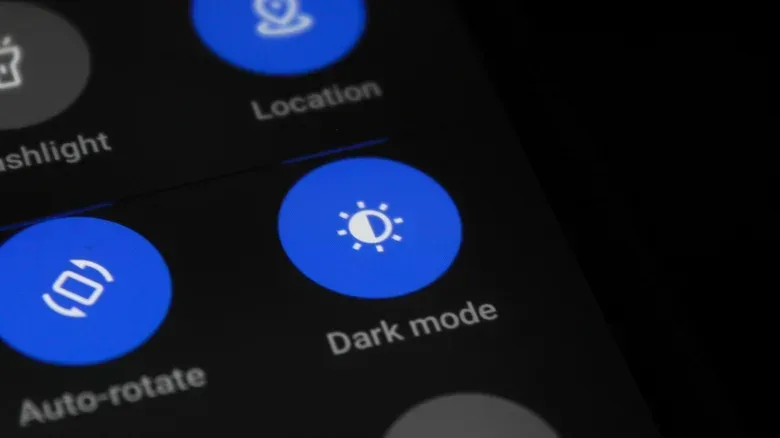
Dark mode is another worthwhile option, particularly on OLED or AMOLED displays. These panel types can reduce display power use when showing dark pixels. A Purdue University study found that dark mode at full brightness could save between 39% and 47% of display power on OLED or AMOLED screens. At more typical indoor brightness, however, the measured savings fell to between 3% and 9%.
That is an important reality check. Dark mode is not a magical extra battery pack, and its results are not identical across every phone or setting. It can still be part of a sensible battery plan, especially for people who use a bright display often. But brightness and how long the screen stays on remain the more fundamental levers.
Let Android limit the background busywork
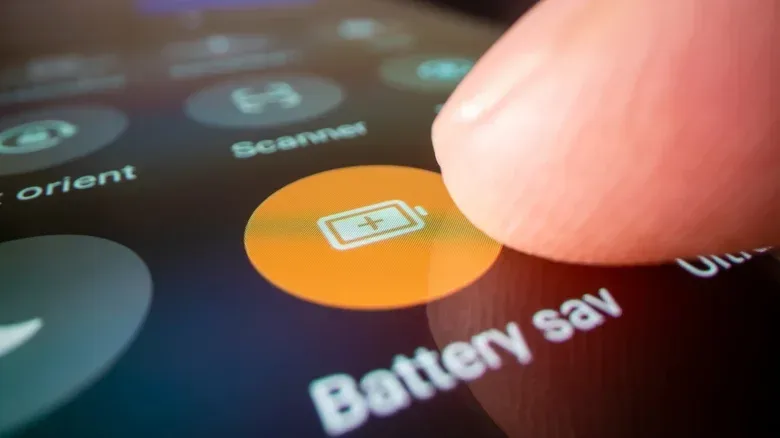
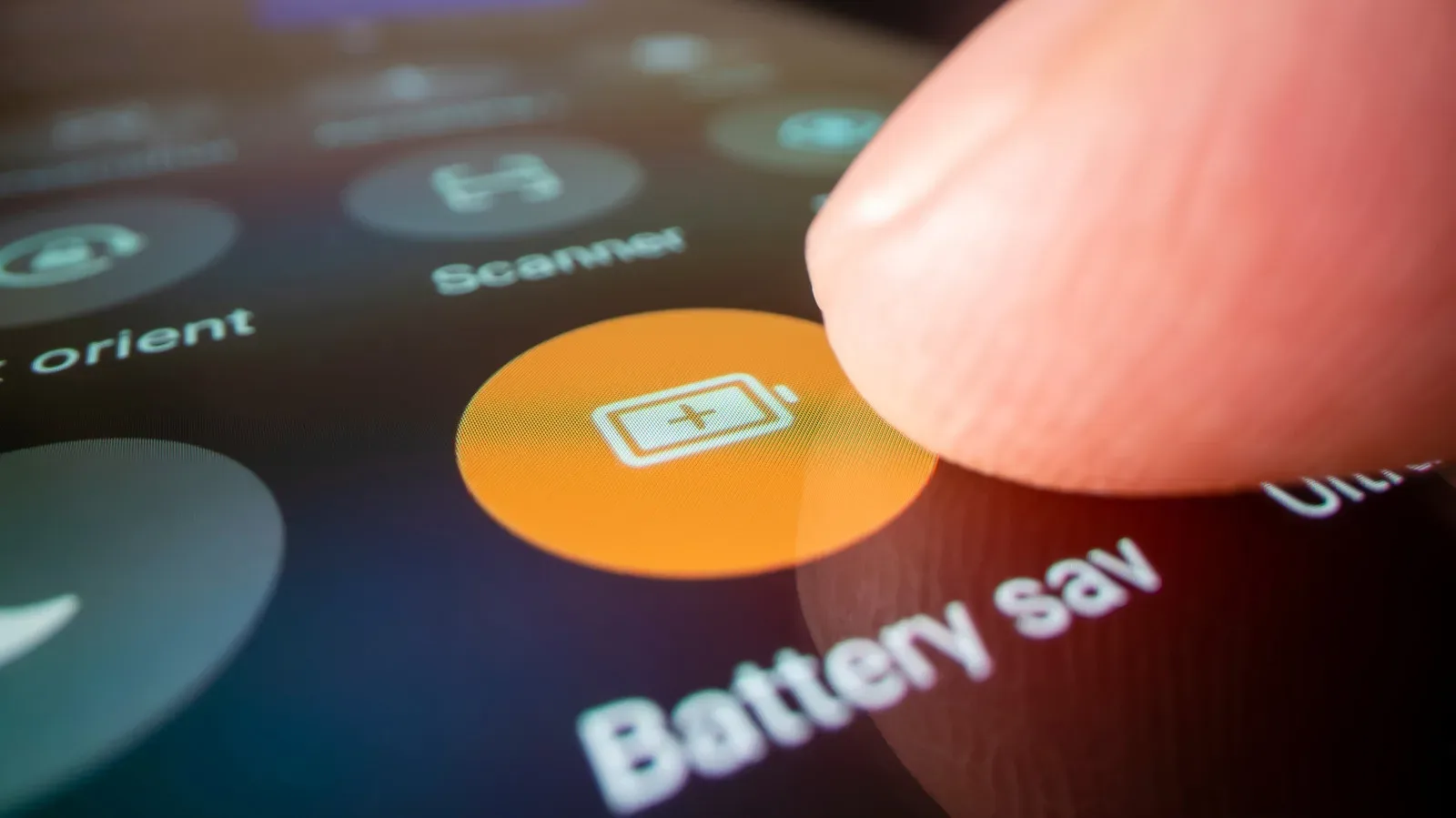
Once the display is under control, Android’s own battery tools can handle some of the chores that are easy to forget. Battery Saver, sometimes labelled Power Saving, reduces certain activity when the charge falls below a chosen threshold. It is generally available through Settings > Battery > Battery saver, and some phones offer Standard and Maximum modes.
Battery Saver is useful as an emergency reserve tool: when the meter becomes genuinely concerning, the phone starts making trade-offs so it can stay useful longer. It is not necessarily meant to be permanently active if the restrictions make the experience less convenient.
Adaptive Battery takes a more selective approach. It learns which apps are used often and restricts power access for apps opened less frequently. On some Android phones, it can be enabled through Settings > Battery > Background usage limits > the three-dot menu > Adaptive battery.
For players, this is a useful distinction. A game that is actively being played should have the resources it needs. A game that was opened days ago and has no business checking in constantly is a stronger candidate for restrictions. The objective is not to strangle every app equally; it is to stop infrequently used apps from taking unattended turns.
Check Battery usage before blaming the hardware
If battery loss still seems abnormally steep, move from broad adjustments to evidence. Open Settings > Battery > Battery usage on most Android devices. This report shows which apps have used the most power over the previous 24 hours or a longer period, depending on the phone.
Look for entries that do not match what actually happened during the day. A navigation app may have stayed active in the background. A social app may be refreshing far more than expected. A game may not have fully closed. Battery usage will not solve the problem by itself, but it turns “my phone battery is bad” into a more answerable question: which process consumed the charge?
Tapping an app in that list can reveal additional controls, including background usage limits. Android can usually place an app into one of two more restrictive states:
- Sleeping: the app can run in the background only occasionally. Updates and notifications may arrive later.
- Deep sleeping: the app does not run in the background at all.
Deep sleep is best reserved for apps where delayed updates and missing background notifications are acceptable. That makes it a poor fit for anything that must reliably alert the user, but a practical option for rarely used apps that quietly consume power. Treat these settings as permission controls, not punishment: apps that need to communicate promptly should remain available; the rest do not need an unlimited backstage pass.
If a sudden drain cannot be explained by ordinary usage or the Battery usage screen, malicious software is another possibility raised by the available guidance. Finding and removing spyware or other malware is important for both battery behavior and device security.
Battery lifespan is a different match from daily endurance
A lithium-ion battery does not simply have a fixed number of hours stored inside it forever. Its capacity declines over time, and charging patterns affect that decline. Battery University’s guidance highlights a 20% to 80% charge range as healthier for lithium-ion batteries because it keeps voltage lower and can extend cycle life.
In plainer terms, repeatedly charging to 100% and leaving the phone connected—especially somewhere warm—can accelerate wear. Heat is the central villain in this chapter. Fast charging is convenient, but it creates more heat than standard charging, which makes it less gentle on battery health.
This does not mean a phone must never reach 100%, or that a full charge is somehow forbidden before travel. It means that when maximum capacity is not necessary, partial charging is kinder to the battery. Charging to about 80% is a useful target, and even topping up to 70% can be gentler than draining the battery to empty before refilling it completely.
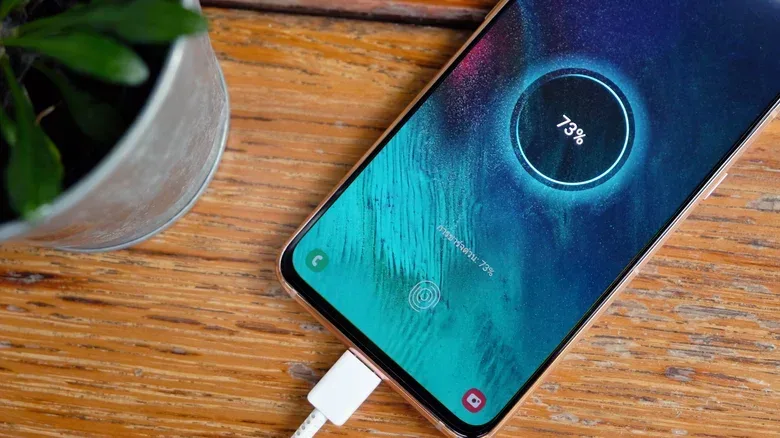
Many recent Android phones include an optional charge cap. Look under Settings > Battery > Battery Protection or a similarly named menu; terminology changes by manufacturer. Available limits may range from 80% to 95%.
Some devices also offer a Basic setting that stops charging at 100% and waits until the level drops to 95% before charging again. That may suit people who need to see 100% but still want to reduce continuous topping up. It is a compromise rather than the most conservative choice, but better battery management is often about choosing a habit that is realistic enough to maintain.
A practical setup that does not wreck normal phone use
For most people, the sensible order is to make the changes with minimal downside first. Do not start by declaring war on every notification or reducing the phone to a monochrome artifact. Try this sequence:
- Enable adaptive brightness or lower the brightness to a comfortable indoor level.
- Set a shorter screen timeout, such as 30 seconds.
- Use a 60Hz refresh rate when smoother 120Hz motion is not important.
- Enable Battery Saver for low-charge situations and Adaptive Battery for ongoing app management.
- Review Battery usage and restrict only the apps whose consumption is surprising or unnecessary.
- Choose a charging limit between 80% and 95% if the phone offers one, particularly when protecting long-term capacity matters more than starting every day at 100%.
The gaming-specific version is straightforward: reserve the performance and visual settings for when they genuinely improve a session. A high-refresh display can be worthwhile in a game where motion clarity matters. It is less compelling while checking a chat message, reading a guide, or sitting on a menu screen. That same targeted approach applies to background limits: do not deep-sleep an app whose messages matter, but do not let a forgotten app operate indefinitely either.
Battery concerns are not limited to Android, either; broader device questions around capacity and software behavior are also part of the conversation in early iPhone 18 Pro reports. Across platforms, the practical lesson remains less glamorous than a miraculous battery hack: manage the screen, verify background activity, and avoid adding unnecessary heat where possible.
When settings are not enough
After making the above changes, a phone that continues to drain unusually quickly may need a health check. Samsung users can open the Members app and navigate to Support > Phone diagnostics to run a scan. If its battery result is anything other than Normal, replacement may be worth investigating.
Other Android phones may offer a path such as Settings > Battery > Battery Health. The wording changes, but the interpretation is similar: a status below Good or Normal is a sign that the issue may no longer be something a brightness slider or app setting can solve.
That is also why it is worth addressing the manageable drains now. A bright screen, needlessly fast refresh rate and unrestricted background apps can make even a healthy battery feel inadequate. But a battery health test helps distinguish that daily configuration problem from a battery that has genuinely worn down. One needs a settings pass; the other may need hardware attention.