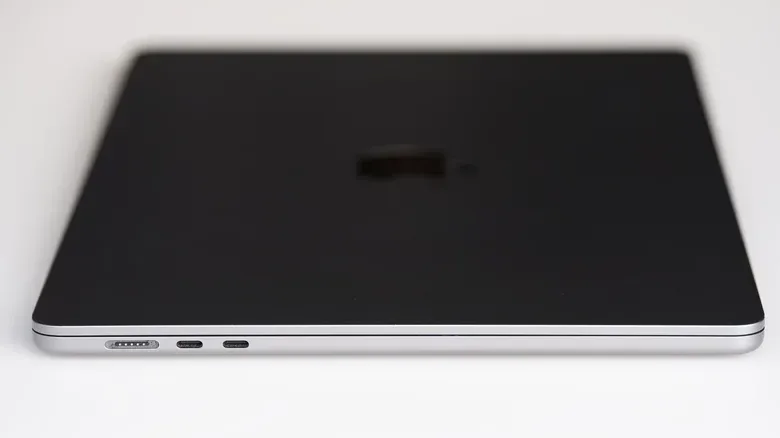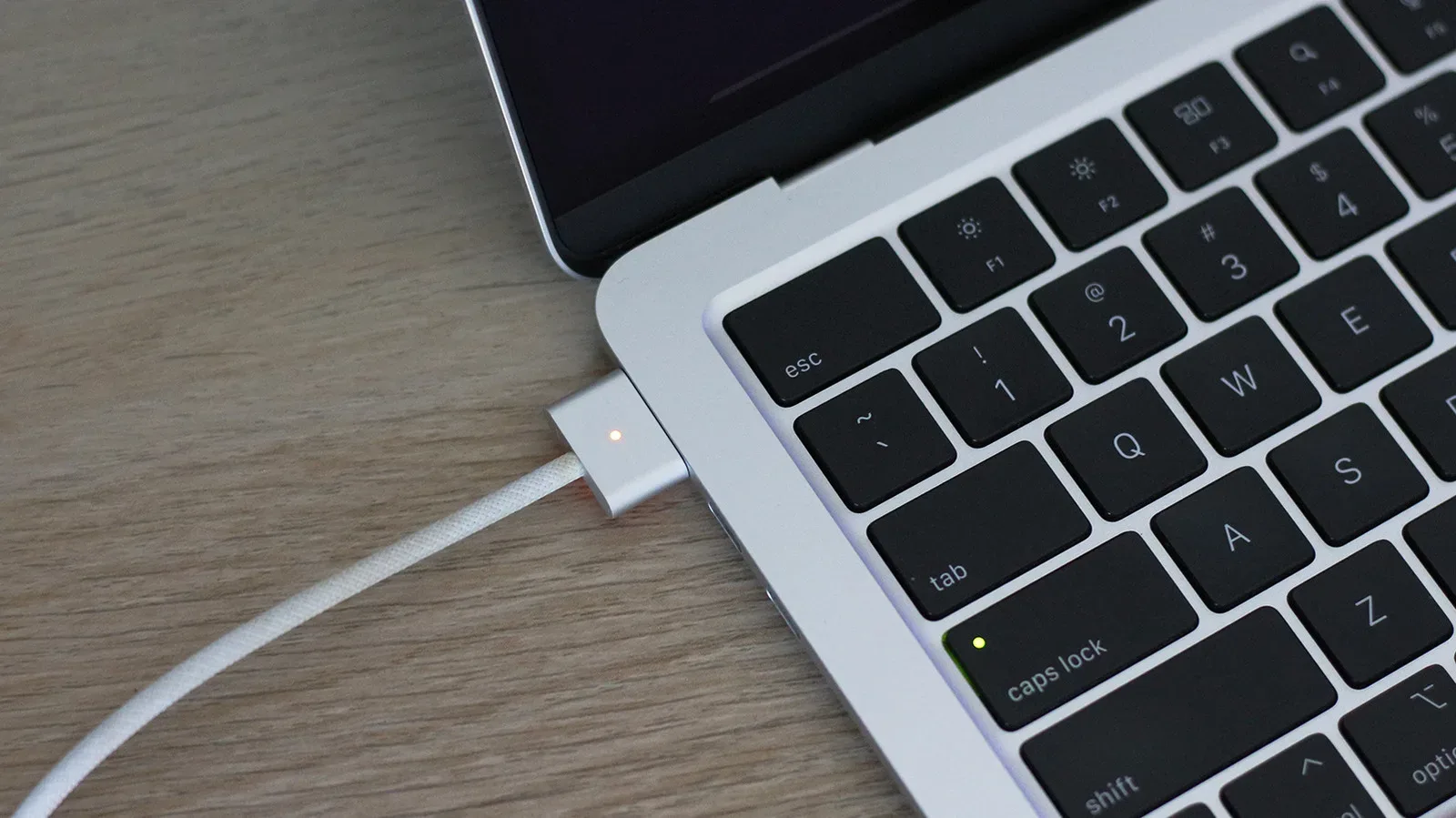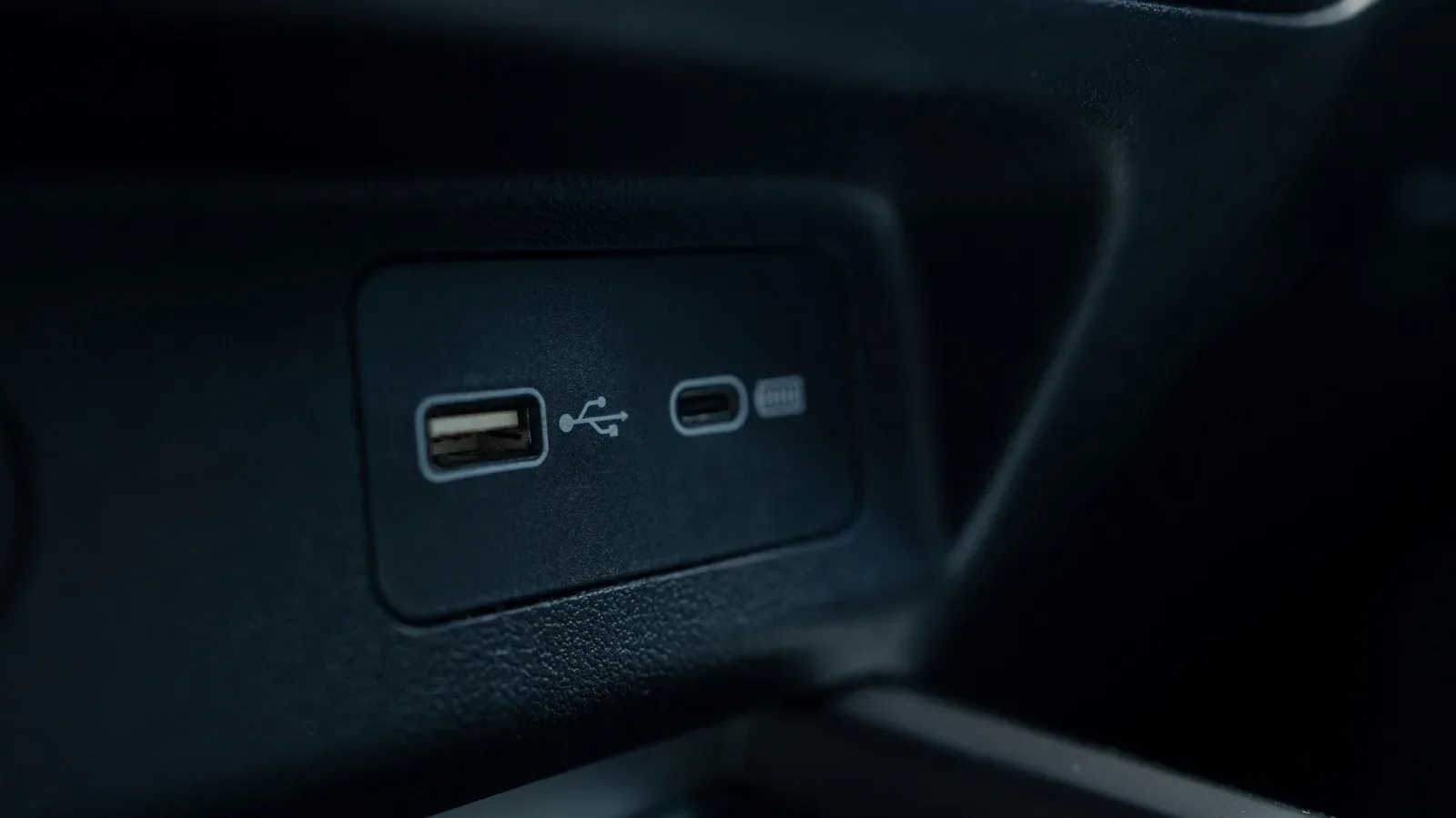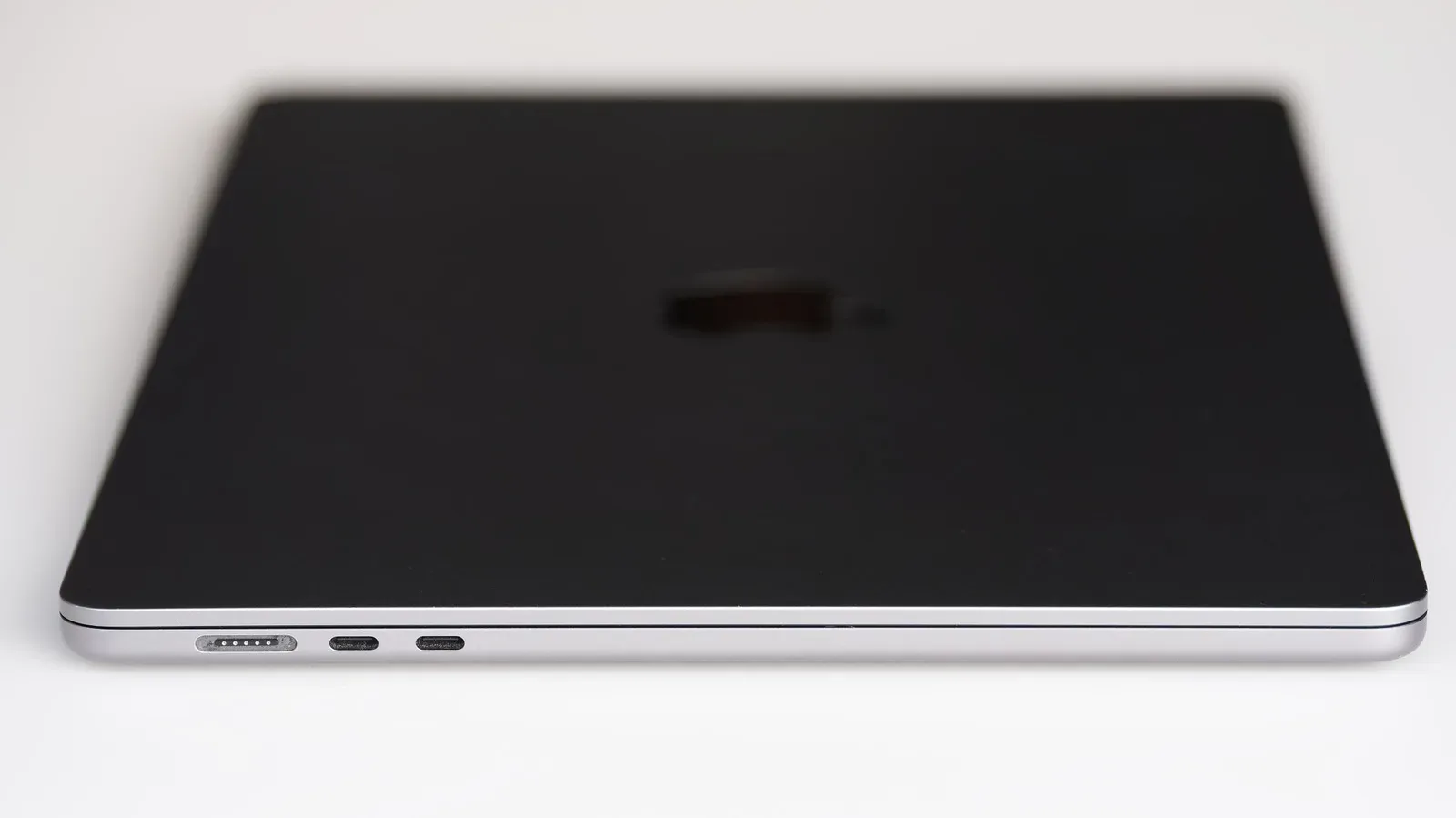
Apple’s modern laptops can make port shopping look deceptively simple. The sockets have the same compact USB-C shape, chargers fit, drives fit, and a cable that worked with one device often plugs neatly into another. But the physical connector does not tell the whole story. A USB-C port can offer basic USB 2 transfer speeds, faster USB 3 data, display output, or a far broader Thunderbolt feature set.
The useful short version is this: USB-C is the connector shape; Thunderbolt is a connection standard that uses that shape on modern Macs. Every modern Thunderbolt port is physically a USB-C port, but a USB-C port is not automatically Thunderbolt. That distinction matters most when moving very large files, attaching external displays, buying docks and drives, or trying to understand why a seemingly identical cable limits a costly accessory.
It is a naming problem with consequences, not unlike the overlapping labels discussed in Google Wallet and Google Pay’s confusing naming history. A familiar-looking name or connector can imply more than the underlying hardware actually guarantees.
Start with the physical plug, not the promised performance
USB-C is best understood as a description of the reversible port and connector. It does not, by itself, establish a data rate, video capability, charging behavior, or support for Thunderbolt. Older Thunderbolt generations used Mini DisplayPort, but current Thunderbolt implementations use the USB-C-shaped connector.
That means two ports that look identical may be built for different workloads. The supplied Mac examples show the range clearly:
- A USB 2 port can top out at 480 Mbps.
- A USB 3 implementation can provide 10 Gbps and may support a display.
- USB4 Version 2.0 can reach 80 Gbps, though USB4 implementations can also be configured as slowly as 20 Gbps.
- Thunderbolt 4 tops out at 40 Gbps.
- Thunderbolt 5 supports 80 Gbps, with up to 120 Gbps for traffic moving in one direction.
Those figures are not interchangeable promises merely because the receptacle is USB-C-shaped. The connector answers “will it fit?” It does not fully answer “what will it do?”
Why Thunderbolt is more predictable
The key advantage of Thunderbolt is not simply a higher peak number. It is the requirement set behind the name. Thunderbolt ports must meet defined capabilities, including high-speed data operation and, on newer versions, display and charging support. This makes the Thunderbolt label a more dependable shortcut for buyers planning a workstation around storage, displays and a dock.
USB-C equipment needs closer reading because several useful functions can be optional. A port may support a particular speed tier but not video output. Another can have the same physical appearance and work with a display through DisplayPort Alt Mode, a mode that carries DisplayPort video over the USB-C connector. Power Delivery is likewise a USB-C charging capability whose presence cannot be inferred from connector shape alone.
USB naming compounds the issue. “USB 3” is not one fixed speed. In the provided range, a USB 3 port can mean anything from 5 Gbps to 20 Gbps depending on its exact implementation. USB4 Version 2.0 may appear close to Thunderbolt 5 on a specification sheet, but there is an important floor beneath the headline: a manufacturer may implement USB4 as low as 20 Gbps, while a Thunderbolt 5 port is required to provide 80 Gbps.
Speed is useful only when the whole connection can use it
Data-transfer figures describe how much information can move over a connection in a given time. Mbps means megabits per second; Gbps means gigabits per second. The practical point is not to memorize every suffix. It is to identify the slowest relevant part of a setup: the Mac port, the external drive or dock, and the cable.
The stated comparison is substantial. Moving a 500GB file over the MacBook Neo’s 10 Gbps USB 3 port can take roughly seven minutes, while Thunderbolt 5 on a MacBook Pro M5 Max can complete that transfer in less than a minute. Actual compatibility still matters, but the comparison illustrates why a fast external SSD and a high-bandwidth port are meaningful for people who routinely shift huge projects.
Thunderbolt 5’s bandwidth also enables up to three 4K monitors over a single port. For a desk setup, that is an example of bandwidth affecting what one cable can carry rather than just how quickly a file copy finishes.
Mac examples show why visible ports are not enough
The MacBook Neo example has two USB-C-shaped ports with different specifications: one USB 2 port limited to 480 Mbps and one 10 Gbps USB 3 port that can also power a display. Both can charge. The MacBook Pro M4 Pro example has Thunderbolt 5 ports capable of up to 120 Gbps in one-direction data movement.
The lesson is not that one machine is universally better; it is that the same connector can serve different priorities. A basic USB-C port remains perfectly useful for charging and routine file transfers. Thunderbolt earns its extra capability for workloads that need sustained fast transfer, a more demanding display setup, or the confidence that certain features are part of the standard rather than optional extras.
Compatibility: plug-in success and full performance are separate questions
In most cases, a standard USB-C device connected to a Mac Thunderbolt port should work normally. A USB-C drive, for example, will operate at the drive’s own supported speed. A Thunderbolt port does not magically make a slower drive faster than the drive is designed to be.
Going the other direction requires more caution. A Thunderbolt-only external SSD connected to the MacBook Neo in the example will not work. Newer accessories can often fall back to slower USB operation, improving their chances of working across more systems, but that fallback should be checked rather than assumed.
There are therefore three questions worth separating before buying or troubleshooting an accessory:
- Does the device physically connect? USB-C and modern Thunderbolt use the same connector shape.
- Does the port support the device’s required standard or a compatible fallback? A Thunderbolt-only device may not function on a non-Thunderbolt USB-C port.
- What speed and features will the complete chain permit? Even a compatible device may run below its maximum capability.
This distinction helps avoid an especially frustrating assumption: “It plugged in, so it should perform at the advertised speed.” Physical fit establishes neither compatibility nor peak bandwidth.
The cable can be the bottleneck
A cable is part of the specification, not just a passive afterthought. A Thunderbolt cable can be used with a regular USB-C port or device without causing compatibility trouble. But pairing a regular USB-C cable with a Thunderbolt device can restrict the connection to the cable’s supported standard.
For practical shopping, match the cable to the job rather than treating every USB-C lead as equivalent. Someone charging a device or transferring occasional small files may have no need to pay for Thunderbolt hardware. Someone purchasing a high-speed Thunderbolt storage device or relying on high-bandwidth display connections should verify that the cable is rated for the intended standard. The port, accessory and cable should be treated as one chain.
Why Thunderbolt gear can cost more
Thunderbolt is co-developed by Intel and Apple, rather than by the USB Implementers Forum. Manufacturers seeking to use the Thunderbolt name and logo must put ports and cables through Intel certification testing. That rigorous process contributes to higher costs for Thunderbolt-equipped products and cables compared with regular USB-C alternatives.
The extra outlay is most defensible when the guaranteed feature set removes a real limitation. If the goal is charging, simple peripherals, or ordinary file movement, standard USB-C may be the sensible choice. If a setup depends on the highest transfer performance, a complex external-display arrangement, or confidence about the port’s baseline capabilities, Thunderbolt’s certification and requirements have a clearer practical payoff.
How to identify what a Mac actually has
Apple does not label MacBook ports individually, so visual inspection is not a reliable way to distinguish them. The practical check is Apple’s Tech Specs page. Open the Apple menu, choose About This Mac, copy the model name, search for that model on Apple’s site, and open its specifications. Searching the page for “Thunderbolt” or “USB” should reveal the port types and stated capabilities.
Do that before choosing a dock, external SSD, monitor or premium cable. Then compare the Mac’s listed ports against the accessory’s exact requirements, including whether it is Thunderbolt-only or supports a USB fallback. This turns a vague USB-C purchase into a much clearer compatibility decision.
Thunderbolt is not a replacement name for USB-C, and USB-C is not a promise of Thunderbolt-class performance. They describe different layers of the same connection: one is the familiar plug shape, the other is a tightly specified transport standard. Once that distinction is clear, the right question is no longer “Does this have USB-C?” but “Which USB-C capabilities does this particular Mac, device and cable actually support?”