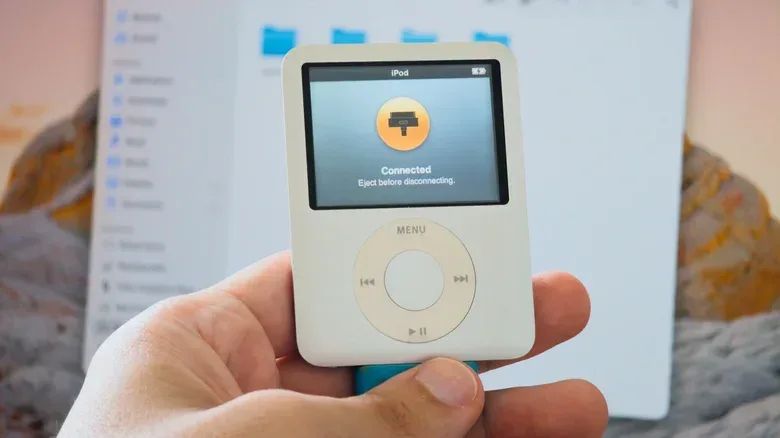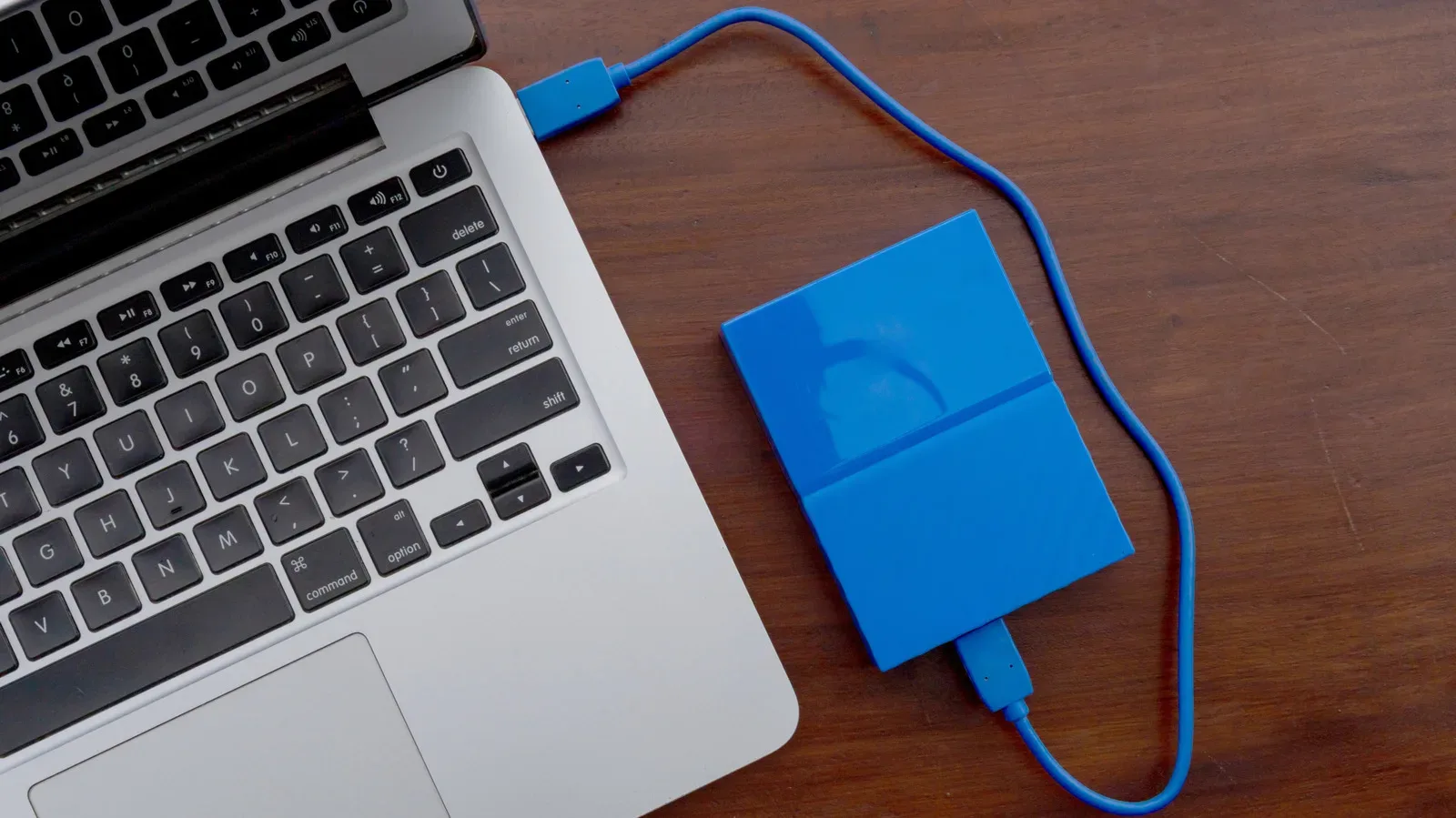
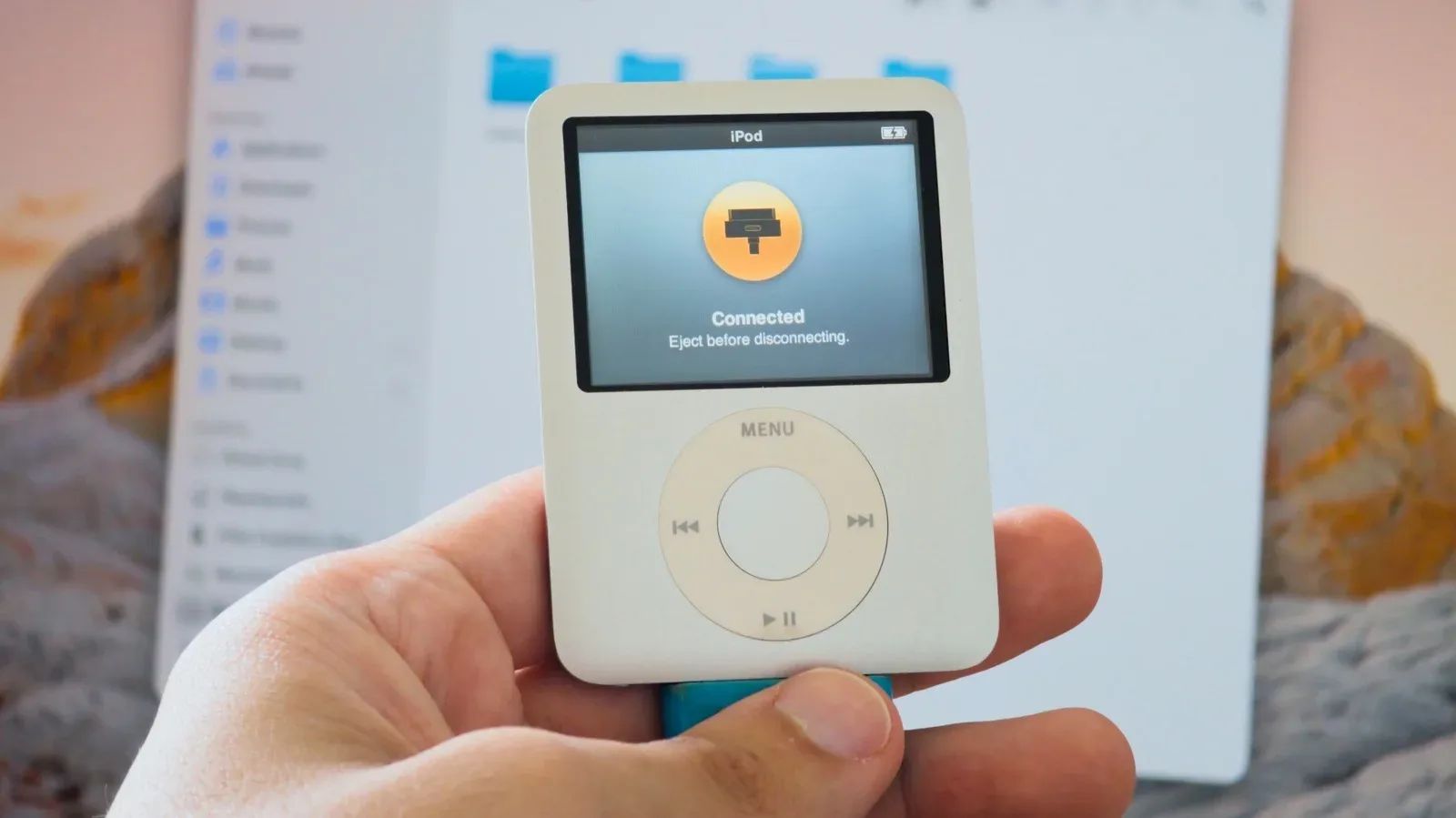
An older iPod can still pull off one unexpectedly practical trick: it can carry files between computers as a basic external drive. If a long-retired music player is sitting in a drawer, enabling Disk Use can turn it into a tiny, delightfully stealthy file carrier rather than permanent drawer décor.
This is not a declaration that every old iPod has secretly become the best thumb drive on the market. Modern USB flash drives are typically cheaper, roomier and far faster, while many older iPods have under 20GB of storage. The iPod classic is the important exception on capacity. Older iPods are also limited to USB 2 transfer speeds, which makes them a poor choice for moving very large files.
Still, reuse can be worthwhile when the device is already yours. It is a modest second job for hardware that may otherwise do nothing: carry documents, small media files or other computer-readable data. The idea has one huge caveat, however. The feature is for particular older iPods, not every device bearing the iPod name. An iPod touch does not support Disk Use or Disk Mode because it runs iOS rather than the older iPod operating system.
Think of this less as a hidden upgrade and more as a retired gadget’s side quest. It has constraints, a potentially destructive formatting decision, and one accessory requirement that could cause trouble away from home: a 30-pin cable.
First, check whether the iPod is in the right party
Disk Use is available on Click Wheel iPods and on the seventh-generation iPod nano, the nano model with a touch screen. That makes the distinction between product families especially important. A device can look iPod-ish, play music, and still not have the storage feature described here.
The iPod touch is the clear no-go model for this purpose. Its iOS-based software means it does not offer either Disk Use or Disk Mode. Do not mistake its touchscreen and broad app-era identity for compatibility with the older iPod feature set.
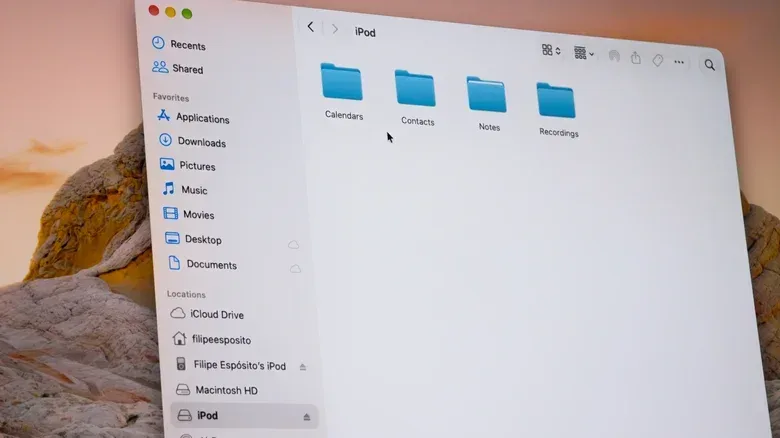
For supported hardware, Disk Use lets the computer treat the iPod much like it would a USB flash drive or external hard disk. Once enabled, the iPod can appear in Finder on a Mac or File Explorer on Windows. Files copied there are stored on the device, but they do not become browsable items in the iPod’s normal music interface. In plain language: the iPod can transport the files, but it cannot open them for you from its own screen.
That division is useful to understand before loading it up. This is computer-accessible storage, not a way to sneak PDFs, photos or arbitrary files into the iPod menu alongside albums and playlists.
How to enable Disk Use
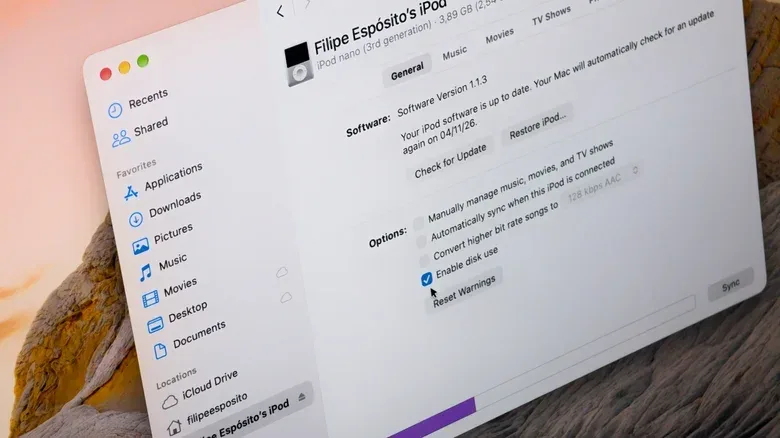
Disk Use is off by default. The setup is short, but the required option lives in the iPod management view rather than on the player itself.
On a Mac
- Connect the iPod to the Mac.
- Find the iPod in the Finder sidebar.
- Open the General tab.
- Choose Enable Disk Use in the available options.
- Select Apply before closing the Finder window.
On Windows
Connect the device and use either iTunes or the Apple Devices app. The Disk Use process is the same in either application: locate the iPod’s management options, enable Disk Use, then apply the change.
With the setting enabled, the practical workflow is reassuringly ordinary. Open the iPod as you would another removable drive, then drag files onto it. To retrieve the files later, connect the iPod to a compatible computer and browse the drive.
There is no separate secret partition made solely for your documents. The files share the iPod’s available storage with its operating files and any music already loaded on it. Its listed capacity therefore is not the amount of free space available for data. Anyone considering this role should check remaining space rather than assume that a nominal capacity is empty and ready to go.
The real compatibility boss fight is the file system
Getting files onto the iPod is only half the mission. Whether another computer can read them depends substantially on the file system, the organizational format a storage device uses to keep track of files and folders.
An iPod configured on a Mac is usually formatted as HFS+. Windows cannot read HFS+ without third-party software. So an iPod set up this way may work neatly with one Mac and then fail the moment its owner expects an ordinary Windows machine to see its files. That is not necessarily a failed cable or a dead player; it can simply be a formatting mismatch.
For people who need broader Mac-and-Windows compatibility, the available route is more disruptive: restore the iPod, then set it up using a Windows PC. That process formats it as FAT32. Macs can read FAT32, as can smart TVs and other platforms, making it the more broadly understood format in this specific setup.
The price of that compatibility is a strict limitation: FAT32 cannot hold an individual file larger than 4GB. The limit applies per file, not merely to the total contents of the drive. A batch of smaller items can fit until the iPod’s free storage runs out, but one file over 4GB cannot be copied to a FAT32-formatted iPod.
Before restoring: restoring the iPod erases everything on it. Music, existing files and other contents need to be preserved elsewhere first if they matter.
That warning is the point at which a whimsical repurposing job becomes a data-management decision. If all intended transfers happen between Macs, there may be no reason to erase a working iPod simply to chase wider compatibility. If the goal is to hand files among Windows PCs, Macs, smart TVs and similar hardware, FAT32 may be more useful—but only after its 4GB single-file ceiling is acceptable.
The same kind of compatibility thinking shows up in newer consumer tech, too: devices can promise a simple feature while connectors, formats and supported standards create the actual obstacle course. Compatibility remains a real-world tech boss fight, even when the core idea sounds straightforward.
Disk Use and Disk Mode are not interchangeable
The similar names are easy to confuse, but these functions do different jobs.
Disk Use is the feature for routine file storage and transfer. It is what makes the iPod show up in Finder or File Explorer as a usable external drive.
Disk Mode is a diagnostic-oriented mode for older iPods. It can help when an iPod freezes or does not show up on a computer. It is not the normal setting to enable just because you want a flash-drive substitute.
On supported Click Wheel models—including iPod classic, iPod mini, iPod with video, and iPod nano through the fifth generation—the sequence for Disk Mode is:
- Flip the Hold switch on, then off.
- Press and hold Menu and the center button for roughly six seconds, until the Apple logo appears.
- Release those buttons immediately.
- Hold the center button and Play/Pause until the Disk Mode screen appears.
A small ergonomic tip matters here: laying the iPod flat and pressing Play/Pause near the outer edge of the wheel can make the button combination easier to reach.
Use Disk Mode when troubleshooting calls for it, not as a substitute for enabling Disk Use. The two labels may sound like cousins; functionally, one handles everyday storage access and the other is for recovery-minded diagnostics.
What this old-hardware trick is genuinely good for
An iPod in Disk Use is best regarded as a convenience project for modest file transfers, especially if it is already sitting unused. It can also be a charmingly inconspicuous way to keep computer files separate from a person’s usual flash drives. But it should not be mistaken for an upgrade in capacity, speed or connector convenience.
- Capacity: most older iPods offer less than 20GB, aside from the iPod classic.
- Speed: USB 2 is a major limitation for large transfers.
- File visibility: copied data is accessible from computers and devices capable of reading external storage, not from the iPod’s own interface.
- Connection: bringing the right 30-pin cable is essential; it is not a connector one should expect to find everywhere.
- Cross-platform use: the Mac-oriented HFS+ setup and the more widely readable FAT32 setup behave differently, and FAT32 limits each individual file to 4GB.
The sensible comparison is not “old iPod versus ideal modern drive” but “old iPod versus leaving an otherwise functional device unused.” A 32GB USB flash drive can cost around $10 and offers more storage than many older iPods, so purchasing an old player specifically for this trick makes little practical sense. Using one already owned can be a tidy form of hardware reuse.
Owners who want a more ambitious modernization route may encounter the Sprout Pi Mainboard, a crowdfunded project intended for select iPod models that adds features including USB-C, Bluetooth and streaming apps. That is a wholly different proposition from Disk Use: it is hardware modification rather than a built-in storage option, and it applies only to select models.
For everyone else, the uncomplicated answer is also the best one. Confirm that the iPod is a supported non-iOS model, enable Disk Use, make a deliberate decision about Mac-versus-Windows formatting, and keep the 30-pin cable close. It will not outrun a current flash drive, but a beloved little music machine can still carry a few files like it has one more chorus left.