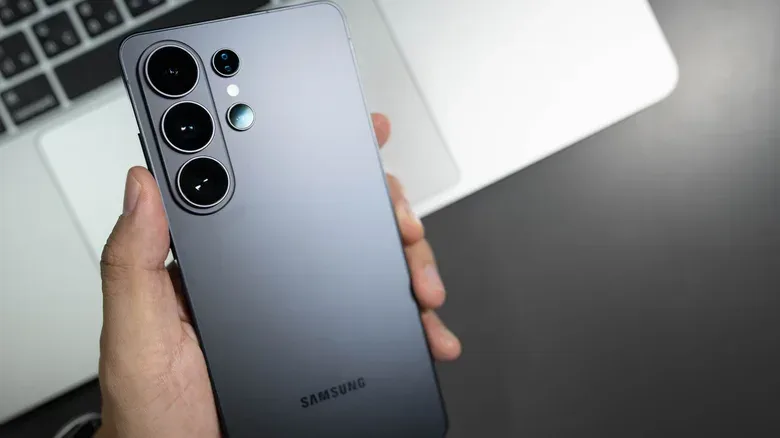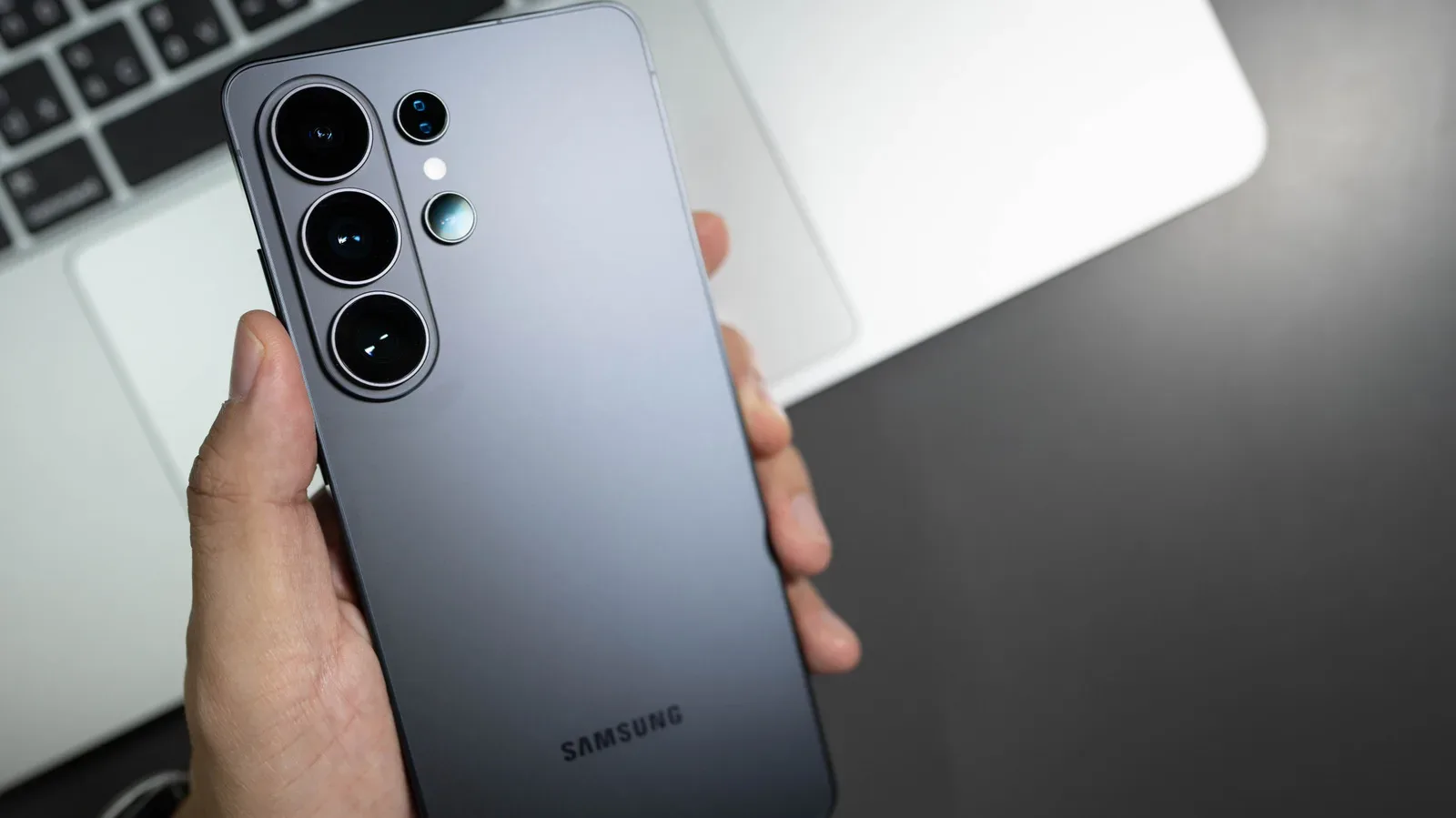
That button beneath the volume controls on a modern Samsung Galaxy phone may look like a conventional power key, but Samsung treats it as a configurable Side button. It still handles essential device duties, such as waking and locking the screen, yet it can also become a shortcut for the camera, flashlight, voice recorder, Samsung Notes, a preferred app, or a broader Modes and Routines action.
That flexibility is useful because physical shortcuts reduce the number of taps needed to reach something time-sensitive. A camera shortcut is valuable when a moment will not wait for an app drawer. A flashlight shortcut is easier than working through quick settings in the dark. And a recorder shortcut can make more sense than a voice assistant for someone trying to capture a sudden idea. The catch is that not every press type can be assigned to every task, and older Galaxy phones with a separate Bixby key follow a different set of rules.
What Samsung’s Side button does by default
On Galaxy phones using the combined Side button arrangement, a short press turns the screen on or off. A double press normally launches the camera. A long press normally invokes Bixby.
There are also button combinations that are worth leaving in mind before remapping anything. Holding the Side button and Volume Down opens the power menu, while a short press of those two buttons takes a screenshot. In other words, changing the Side button’s individual press behavior does not erase the basic idea of using the hardware controls for shutdown and screenshots.
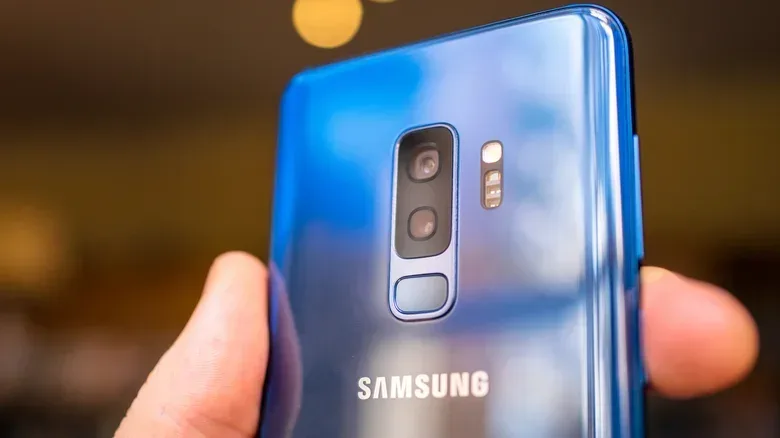
The design reflects Samsung’s shift away from a strictly single-purpose power button. Galaxy flagships from the S8 through S10 generation could have a fourth physical button: the dedicated Bixby button. From the Note 10 series onward, that Bixby-button role was folded into the Side button beneath the volume rocker. The button is therefore a small piece of phone hardware with several distinct gestures attached to it, rather than one action per button.
How to change the Side button on newer Galaxy phones
For Galaxy models with the multifunction Side button, open:
- Settings
- Advanced features
- Side button
This is the settings page for changing the relevant press actions. No hidden menu, separate code, or third-party remapping tool is required for the options described here.
Double press: the broadest shortcut choice
The double-press action is the most accommodating part of the configuration. It can be set to open one of Samsung’s listed tools or an app selected by the user. Available built-in destinations include:
- Camera
- Flashlight
- Magnifier
- Voice Recorder
- Samsung Notes
- Modes and Routines
- Samsung Capture
- An app of your choice
For a straightforward setup, choose the task that is both frequent and awkward to reach when the phone is locked or your attention is elsewhere. Camera remains the default for a reason: double-pressing a physical control is generally faster than locating an icon. But it is not automatically the right answer for everyone. Someone who uses their phone mostly for notes may get more day-to-day value from Samsung Notes; someone who often needs light immediately may prefer Flashlight.
There is a practical trade-off: replacing Camera means giving up the default camera shortcut. Before making the switch, consider whether that is a real sacrifice or simply a habit. The best assignment is usually the one that prevents the most repeated friction, not necessarily the most impressive-sounding feature.
Long press: assistant or power menu
The long-press setting is more limited. It can be used for an assistant, including Bixby, Google Gemini, ChatGPT, Claude, and other AI assistants, or it can be set to show the power-off menu.
That restriction matters. A long press is not a general-purpose launcher in the same way as a double press. If the goal is to reach a specific utility or ordinary app, assign it to the double press instead. If the goal is to speak or type a request to an assistant, the long press is the appropriate control.
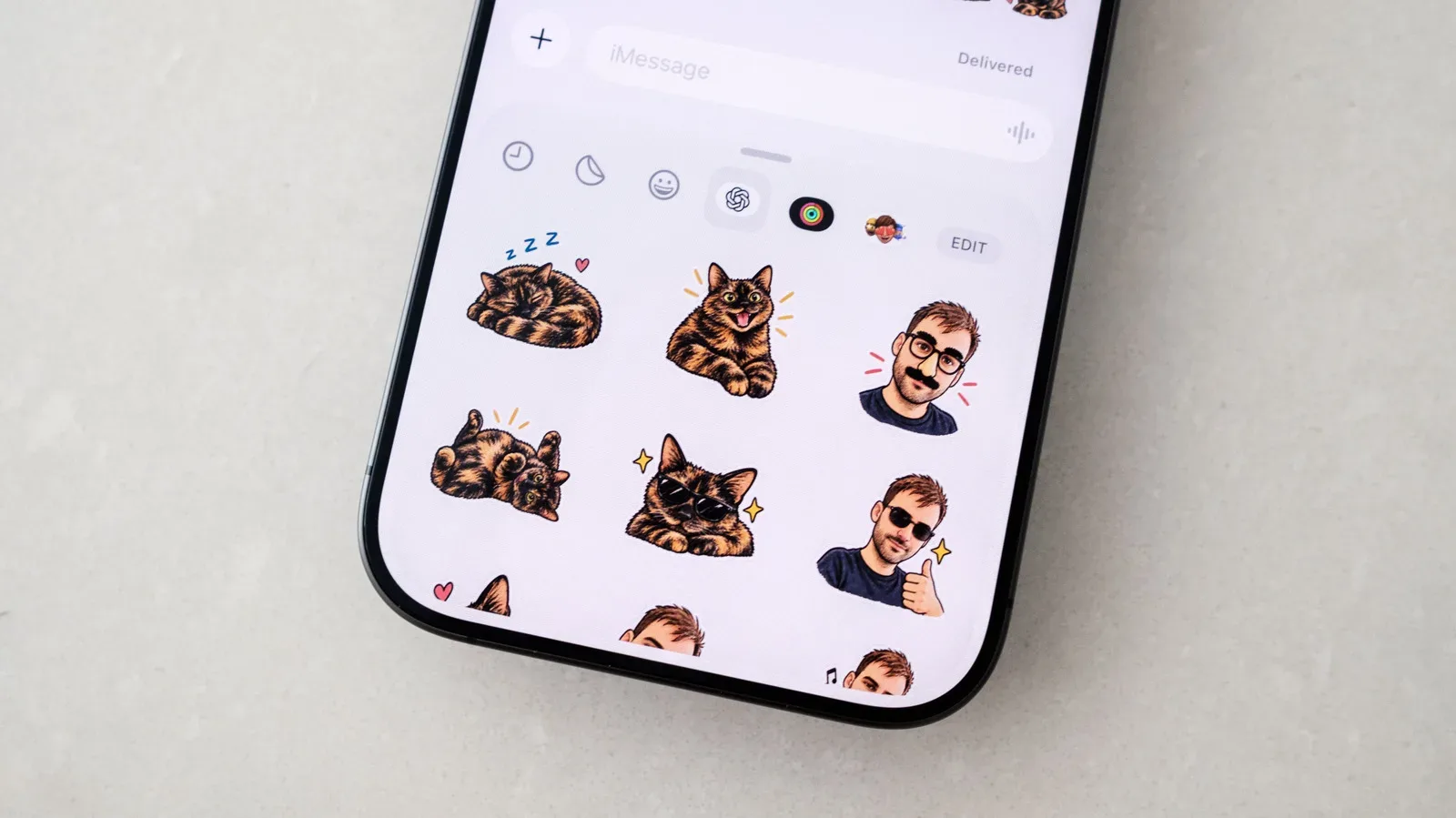
Choosing the power menu has an equally clear appeal. It makes a long press behave more like the traditional expectation for a phone’s power key. Users who do not want to trigger an assistant by accident, or who rarely use one, may prefer that familiar function. Users who do rely on an assistant can instead make that long press deliberate and useful. For more context on one of the assistant options, see how ChatGPT Images can turn photos into sticker packs for iMessage and WhatsApp.
Modes and Routines turns a shortcut into a starting signal
Modes and Routines is one of the more interesting double-press choices because it can lead to a collection of actions rather than merely opening a single app. Put simply, a mode is a setup for a situation, while a routine is the automation logic that carries out selected behavior. The Side button can serve as the deliberate trigger.
Driving is a clear example. A Side-button shortcut can turn on Driving Mode, which can be configured for actions such as hands-free calling, opening maps, reading messages aloud, and automatically replying to texts. The benefit is not that a button magically understands every context. Rather, it gives the user a fast, intentional way to tell the phone, “I am now in this context,” and have the selected set of actions follow.
This is also a useful way to avoid treating the button as only an app launcher. Launching Maps, for example, gets one app on screen. Starting a driving-oriented mode can combine maps with communication behavior selected for the same circumstance. The details of what happens depend on the mode or routine configured on the device, so it is worth reviewing the actions before relying on a shortcut during a commute.
For people who do not drive, the same principle still applies: pick a repeated situation and use the Side button as the intentional entry point. The source material supports Modes and Routines as an available shortcut destination, but does not establish a fixed list of every possible automation. Keeping the configuration focused on the actions shown in the phone’s own settings is the safest approach.
Voice Recorder is a practical double-press option
Voice Recorder is another assignment with a strong, specific purpose. When it is selected as the double-press action, the Side button can start a recording without hunting through the phone for the app. That can be helpful for recording a quick thought, preserving the beginning of a meeting, or capturing a reminder before the opportunity disappears.
The main advantage is speed, but it also changes the interaction from “unlock, find, open, then begin” to a single learned gesture. That reduction in steps is what makes physical-button customization meaningful rather than cosmetic.
There is a social and practical responsibility attached to a recording shortcut: know the rules and expectations that apply where you are, and make sure people are aware when appropriate. The button can make recording easy; it does not replace consent, local requirements, or good judgment.
Older Galaxy phones with a dedicated Bixby key work differently
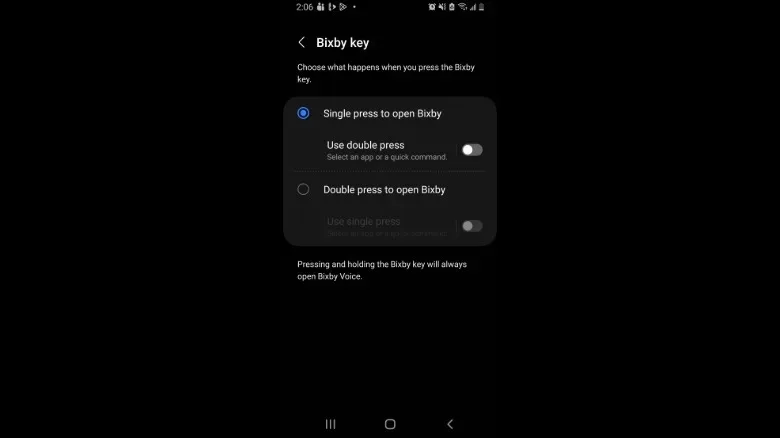
Galaxy S8, S9, and S10 series phones, along with the Note 8 and Note 9, use a separate physical Bixby button. Their configuration is found through a different menu path:
- Settings
- Advanced features
- Bixby Key
From there, the Bixby key can be configured to open an app of the user’s choice or run a command. However, the dedicated key carries restrictions that distinguish it from the newer Side button. A long press always opens Bixby Voice. Its single-press and double-press functions can be customized, but not simultaneously: one of the two must open Bixby Home.
That limitation means owners of these older models should plan around the press they use most. If an everyday app belongs on double press, Bixby Home must occupy single press, or the reverse. It is less flexible than the newer arrangement, but it can still turn the dedicated key into a useful shortcut rather than an accidental detour.
Galaxy Z Flip owners should check both phone states
Galaxy Z Flip phones add one important wrinkle: Side-button behavior can differ depending on whether the handset is open or closed. That makes it especially important to verify the behavior in both states after changing the setting. A shortcut that is sensible when using the unfolded screen may not have the same result when the phone is closed.
The broader lesson applies to every Galaxy model: after assigning an action, try the exact gesture you intend to use in normal life. Test a double press at a comfortable speed, confirm that the long press opens the expected assistant or power menu, and make sure the assignment does not create more accidental launches than it prevents. This is configuration, not a permanent commitment; return to the Side button or Bixby Key settings whenever the shortcut stops matching how the phone is actually used.
A simple way to choose the right assignment
Start with the one action that regularly costs too many taps. If it is capturing images, keep Camera. If it is finding your way in darkness, choose Flashlight. If it is taking spoken notes, pick Voice Recorder. If it is switching into a driving-oriented setup, use Modes and Routines. If one app consistently needs immediate access, make it the selected app for double press.
Then decide whether a voice assistant is genuinely useful on long press. Those who use Bixby, Gemini, ChatGPT, Claude, or another AI assistant can place it there. Those who would rather reserve the button for device control can choose the power-off menu. The resulting setup is not about maximizing features; it is about giving a physical button one job that makes the phone quicker to operate.