Health apps are at their most useful when they fit into a routine—and at their most irritating when they keep interrupting one. Google Health Premium’s Gemini-powered AI Coach is designed to provide personalized health and wellness guidance, summaries, recommendations and conversational help. But a feature intended to make the app feel more useful can become background noise if its advice is repetitive, its notifications arrive at the wrong moment, or a user simply wants a break from being prompted about personal metrics.
Google Health Premium subscribers do not have to cancel their subscription to step away from AI Coach. A privacy-controls option added in August 2026 lets users turn the feature off while keeping the rest of the paid tier active. Existing data is not deleted by this change, and Coach can be restored later.
That distinction matters. Disabling a feature, muting its alerts and cancelling a subscription are three different choices with different results. The best one depends on whether the problem is the coach itself, the frequency of notifications, or the value of Premium as a whole.
Turn off Google Health AI Coach
To completely disable AI Coach while remaining subscribed to Google Health Premium, use the app’s feature privacy controls:
- Open the Google Health app.
- Tap the profile photo in the upper-right corner.
- Select Your data in Google Health.
- Scroll to Feature privacy controls.
- Choose Manage feature privacy controls.
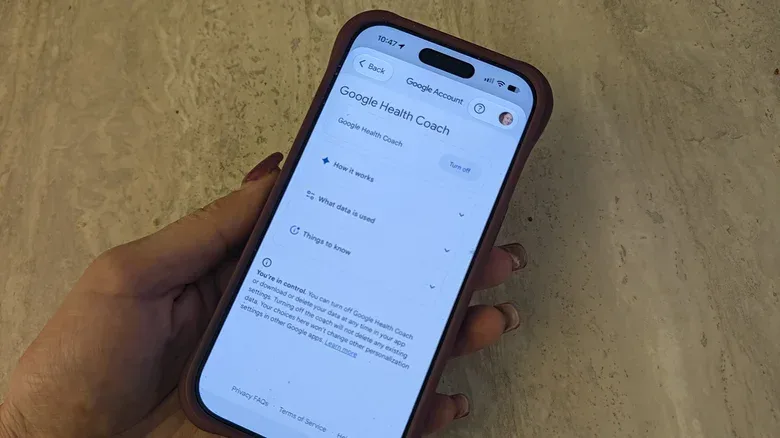
- Select Google Health Coach.
- Tap Turn off.
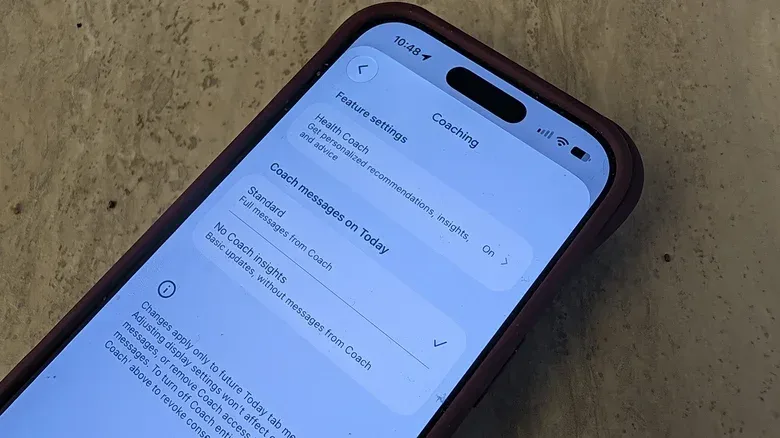
There is also a second settings path: tap the profile photo, open Google Health settings, select Coaching, then switch off Health Coach.
These menus are worth distinguishing from subscription management. Turning Coach off is a feature-level decision; it does not end Google Health Premium. That means users can continue using the paid tier’s other stated benefits, including personalized sleep summaries, advanced sleep-tracking algorithms, Sleep Score, Health Guardian, cycle predictions and nutrition tracking.
A lighter option: remove Coach insights from Today
A full shutdown may be more than some people need. If the issue is seeing recurring prompts on the app’s main screen, change Coach messages on Today from Standard to No Coach insights.
With that setting, Today displays basic updates without Coach messages. It is a practical middle ground for someone who wants a less editorialized dashboard rather than an ongoing stream of tailored observations. In other words, it can reduce the feeling that the app is constantly trying to start a conversation while leaving the broader account and Premium setup in place.
This kind of choice is increasingly important across consumer software. A default home screen may prioritize engagement, reminders and recommendations; the user may instead prefer a screen that functions more like a status board. The setting lets the latter preference win without requiring a subscription change.
If notifications are the real problem, mute them first
Notifications are often the source of frustration rather than the underlying tool. Google Health offers a narrower control for that situation:
- Tap the profile photo.
- Open Google Health settings.
- Select Push notifications.
- Turn Coaching off.
This keeps AI Coach available in the app but prevents coaching advice from generating push notifications. It is likely the least disruptive option for a subscriber who occasionally uses the feature but does not want it to compete for attention throughout the day.
The approach mirrors a useful general rule for managing personalized software: start with the smallest change that addresses the annoyance. A notification setting changes delivery, a Today-screen setting changes visibility, and disabling Coach changes feature access. Each has a different trade-off.
Users who like granular app controls may find a related perspective in Samsung Galaxy Users Can Bring Back the Apps Button in One UI 9, another example of a familiar interface choice being available as an optional preference rather than a fixed design decision.
What changes when Coach is disabled
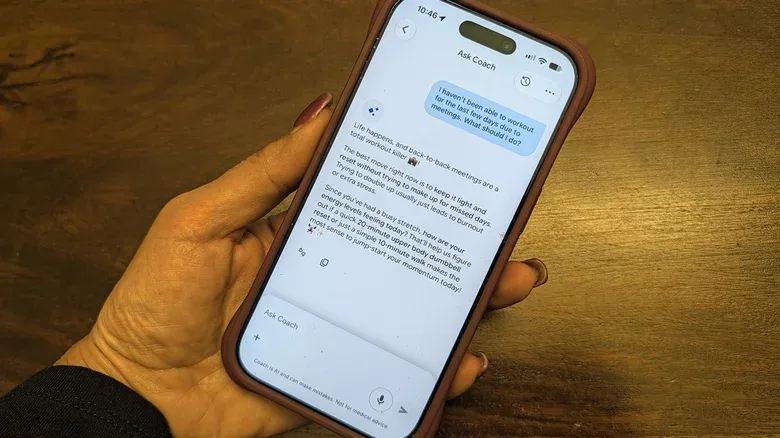
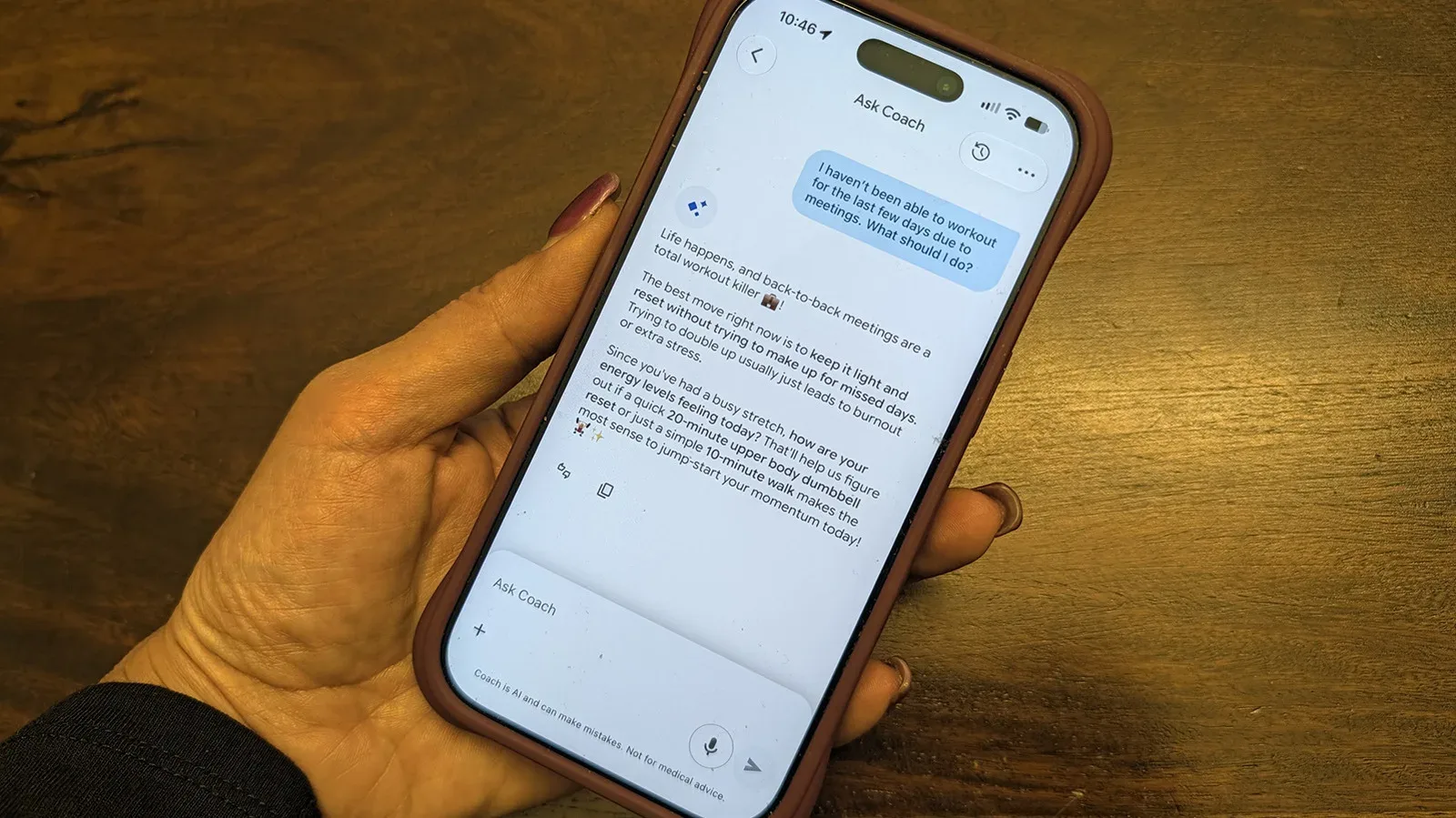
With Google Health Coach turned off, the personalized part of the experience goes away. Users will not receive its guidance, recommendations or summaries, and the Ask Coach conversation function cannot be used.
That also affects meal logging through Coach. The feature can be used to log food, including by taking a photo of a meal to record protein, carbohydrates and fat intake. Once Coach is disabled, that route is unavailable, although manual meal logging remains an option.
For workout tracking, the loss is similarly specific. Coach can be used to log details such as weights lifted during a strength session, and to discuss adjustments to workouts. Disabling it does not mean all health information disappears; it means the AI-driven conversational layer no longer processes those interactions inside the feature.
Personalized in this context means the system’s guidance can reflect information and interactions associated with the user’s lifestyle. More interaction gives it more material to tailor its responses around. That can be beneficial for people looking for convenient summaries or a place to record routine details. It can also be precisely why someone chooses to pause it, whether for privacy preferences, a desire for less analysis, or fatigue with feedback that feels too familiar.
Your past data remains intact
Turning off AI Coach does not delete prior data. That is an important practical point for anyone worried that disabling the feature will wipe sleep information, nutrition entries, activity history or other account data. The action is presented as a reversible feature preference rather than a data-deletion command.
However, restoring Coach later uses a different route than the one used to disable it. The relevant control remains on screen: tap the Ask Coach button at the bottom right, then choose Unlock Coach to begin restoring access.
That is a small but meaningful usability detail. Someone looking for a conventional on/off toggle in the original privacy-controls menu may not find the reactivation path there. Knowing that re-enablement begins from Ask Coach can prevent unnecessary searching through settings.
When disabling Coach makes sense
There is no single correct way to use a wellness app. Some subscribers may want tailored summaries and a conversational shortcut for tracking food or exercise. Others may view those same prompts as intrusive or repetitive, especially when the recommendations cover habits they already follow.
A pause can also make sense during illness, injury or a difficult personal period. Health data may feel less useful—or less welcome—when a person does not want frequent automated framing of how they are doing. Google Health Coach does not provide medical advice, so it should not be treated as a replacement for professional medical support in any case.
For subscribers using a compatible tracker such as Fitbit Edge, Coach is positioned as one of Premium’s personalized features. That makes the decision more nuanced than simply asking whether AI is good or bad. The relevant questions are more practical: Does the feature save time? Are its summaries read? Are notifications helpful? Is manual logging adequate? Does the rest of Premium retain enough value without the coach?
If the answer is yes to the final question, disabling Coach while keeping Premium may be the right balance. If a person expects to leave Coach off for a long time and does not need the other Premium features, moving to the free Google Health tier may be the simpler option. AI Coach is not included in that free tier, so cancelling Premium removes it along with the paid-tier benefits.
Choose the setting that matches the problem
- You dislike alerts but still use Coach sometimes: Turn off Coaching under Push notifications.
- You want a quieter home screen: Set Coach messages on Today to No Coach insights.
- You want no AI-driven guidance or chat access for now: Disable Google Health Coach through Feature privacy controls or the Coaching settings page.
- You do not need Premium features anymore: Consider cancelling Google Health Premium and using the free tier.
These controls do not require a permanent decision. A user can quiet Coach, hide its messages, turn it off fully, or restore it later. For an app built around ongoing personal information, that flexibility is valuable: the service can remain available without demanding a constant role in a person’s day.