
An unfamiliar alphabet on a street sign, a densely printed notice, or a menu built around shorthand can turn an ordinary phone camera into a genuinely useful travel tool. Modern phones can identify text through the viewfinder and translate it into a chosen language, often without taking a photo first. That immediacy is the key advantage: the camera becomes a way to get the gist of what is in front of you while you are still standing in front of it.
There is no single method that is perfect for every piece of text. A dedicated translation tool is the most direct option for fast, live camera translation. Built-in camera features can make the job even more convenient on some phones. And image-capable AI tools can be a helpful fallback when the text is short, informal, unclear, or dependent on its surroundings for meaning.
The sensible approach is not to treat any result as unquestionable. Camera translation involves two separate tasks: recognizing the characters in an image, then converting their meaning into another language. A poor read at the first stage can produce a poor translation at the second. The more important the text, the more reason there is to double-check names, numbers, warnings, directions, and other details rather than relying on a single automated result.
Start with Google Translate’s camera mode
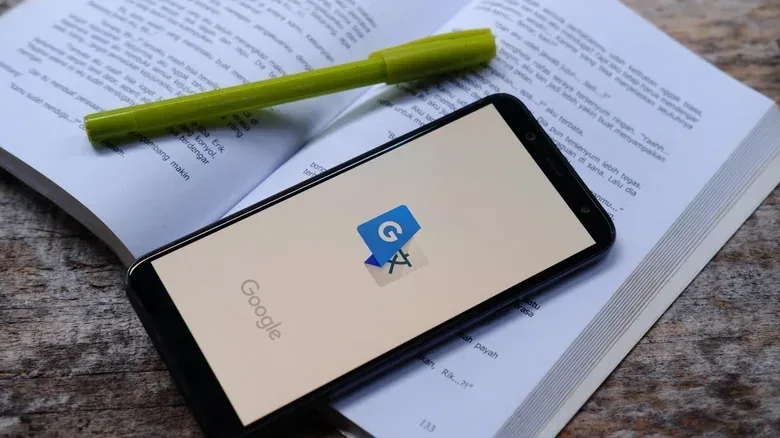
Google Translate offers a dedicated camera mode on both Android and iOS. After installing the app from the appropriate app store, open it and select the Camera control near the bottom of the screen. The app opens a viewfinder, so you can point the phone at physical text instead of manually typing it out.
Choose a source language and a destination language before translating. If the language in front of you is unknown, the source setting can be left on Detect language. This is particularly helpful when the issue is not merely unfamiliar vocabulary but an unfamiliar writing system.
The camera feature works in real time, meaning a still image is not necessarily required. In practical terms, that makes it suited to signs, labels, posters, notices, and other text where a quick reading is more useful than creating a saved record. It can also display a translated interpretation over the camera image, which is useful for matching translated words back to their position on the original text.
Download languages before relying on the camera abroad
Offline preparation is one of the most valuable parts of this setup. Google Translate allows frequently used languages to be downloaded, enabling translation without an active connection. That matters when mobile data is unavailable, unreliable, or simply something you do not want to depend on during a trip.
Downloading a language does not eliminate the need to use judgment, but it does remove a common point of failure. If camera translation will be needed away from dependable Wi-Fi or cellular service, set up the relevant language downloads before leaving. It is a small step that can make a translation tool available exactly when it is most useful.
Related coverage includes How to Translate Real-World Text With Your Phone Camera.
Real-time translation means the phone processes the text it sees through the live camera feed rather than waiting for you to take and submit a photograph. It is fast and convenient, but it is still limited by what the camera can capture: glare, small lettering, an angled surface, motion, and weak lighting can all make text recognition harder.
Android owners may already have Google Lens
Google Lens provides another route to camera-based translation on Android, and many devices include it without requiring a separate translation app. On Google Pixel phones, Lens can be accessed from the home-screen search bar. On other Android phones, it may be available from the app drawer.
This route is useful for people who want to use the tools already present on their device rather than add another app solely for translation. The important part is the same: open Lens, aim the camera at the text, and use its translation capability to interpret what is on screen.
For a quick reading of a sign or label, the benefit of Lens is convenience. It puts visual text recognition and translation close to the camera workflow many Android users already know. If the result seems strange, do not assume the original sign is strange. Move closer if it is safe to do so, hold the phone steadier, and try again with the text framed more clearly.
On iPhone, try Live Text in the Camera app
Recent iOS versions include translation through the iPhone Camera app’s Live Text feature. Open Camera and point it toward the writing. When the phone recognizes text, a yellow outline appears around it along with a grid-style icon toward the bottom of the viewfinder. Tap that icon, then choose Translate.
That built-in path can be especially handy because it starts in the standard Camera app instead of a separate translation app. It is well suited to the small, spontaneous moments where someone spots a sign, label, or printed instruction and wants an immediate explanation.
iPhone owners looking to get more comfortable with everyday phone controls may also find this guide useful: Why your iPhone sometimes has no Decline button—and what to press instead. The broader lesson applies here too: system features can be valuable once you know where Apple places the relevant control.
Why menus and diacritics can be tougher than signs
Camera translation is not equally reliable for all text. One reported difficulty involves diacritics in printed Vietnamese text. Diacritics are marks added to letters, such as accents or dots. They can be essential to meaning, so missing or misreading them can change a word rather than merely making it look slightly wrong.
Restaurant menus are another tricky category. A menu may use abbreviated wording, local naming conventions, or single-word entries. That gives a translation system less context to work with. The camera can successfully recognize the letters but still return an unhelpful or misleading literal interpretation because it cannot confidently determine what the abbreviated phrase refers to.
Context is the information surrounding a word that helps establish its intended meaning. A word appearing beside prices and other dish names suggests a food-related meaning; the same word on a warning label could mean something completely different. This is why a clean, simple sign may translate smoothly while a short menu item produces an odd result.
When the result does not make sense, try treating it as a clue rather than an answer. Translate a larger portion of the menu or sign so the app has more surrounding material to read. Keep the layout, headings, and adjacent entries in frame where possible. A second attempt with clearer framing may be more valuable than repeatedly translating one isolated word.
Use an AI app as a context-aware fallback
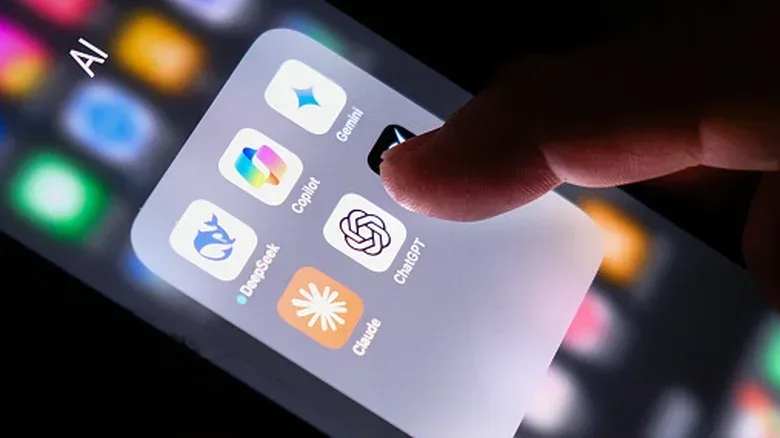
Image-capable AI apps, including ChatGPT, Gemini, and Claude, offer a different workflow. Take a photo of the text, upload it to the app, and provide a concise request such as Translate to English. The response arrives as text rather than an overlay placed onto the image.
The potential advantage is contextual interpretation. These models can use surrounding words and the overall subject of an image to make sense of text that is blurry, abbreviated, or ambiguous. A photograph of a menu, for example, gives the model evidence that food-related meanings are likely. This can produce a more useful interpretation than a tool handling each fragment in isolation.
That does not make an AI response a replacement for care. A model may infer an intended meaning from incomplete visual information, which can be useful, but an inference is not the same thing as a confirmed reading. For consequential information, compare the AI output with a conventional translation tool, ask for the original text to be transcribed alongside the translation, or seek human clarification when possible.
The trade-offs: no live overlay, connection needs and limits
AI image translation has practical drawbacks. It generally does not offer the instant camera overlay that makes Google Translate convenient for reading text in place. It can require an internet connection, may take several seconds to process an image, and free access can limit the number of image uploads. ChatGPT’s free tier, for instance, may allow only a few image uploads each day.
That makes AI best viewed as a backup for the cases that live translation handles poorly: a confusing menu, text with hard-to-read characters, or a phrase that clearly needs more context. For a plainly printed directional sign, the dedicated camera tools are usually the quicker choice. For a stubborn item where a literal translation is nonsense, an AI image prompt may provide a more intelligible interpretation.
A practical decision order for camera translation
- Use live camera translation first for quick signs, labels, and notices. Google Translate is available on Android and iOS; Google Lens can be a built-in Android option; Live Text offers an iPhone route.
- Set the language pair carefully. Use Detect language when the script is unknown, but choose the source language directly when you know it and want to reduce ambiguity.
- Prepare offline languages in advance if you expect to be without reliable connectivity.
- Improve the image before changing tools. Frame the text clearly and capture more of the surrounding material when a short phrase seems unclear.
- Escalate to an AI image tool when context, shorthand, or uncertain characters are producing an unhelpful literal translation.
- Verify anything important. Automated translation is useful assistance, not a guarantee that every character, nuance, or instruction has been understood correctly.
The best choice depends less on brand loyalty than on the text in front of you. Live tools are built for speed and visibility. Offline downloads are about readiness. AI image tools are most useful when meaning depends on context. Knowing the difference lets a phone camera do more than identify foreign text—it helps turn an initially unreadable moment into a manageable next step.