A PC bottleneck is one of those terms that can make a perfectly sensible upgrade plan feel like a spreadsheet ambush. You install a new graphics card, launch a game, and discover that performance does not rise as much as expected. Or you are pricing a new build and encounter a calculator that promises to reduce the entire CPU-and-GPU decision to one percentage.
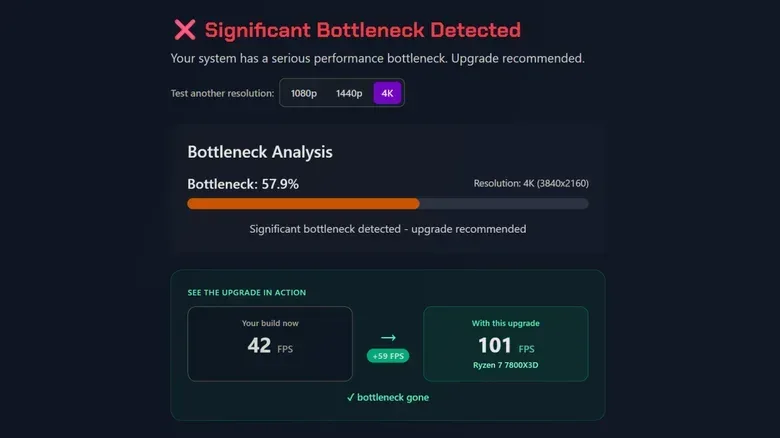
That percentage can be useful, provided it is treated as a quick compatibility clue rather than a ruling handed down from the silicon court. Bottleneck calculators compare a selected processor and graphics card against a target resolution, usually 1080p, 1440p, or 2160p. They attempt to identify whether one part is likely to limit the other. This can help rule out an obviously lopsided pairing before money changes hands. It cannot tell an individual player exactly how their PC will behave in a specific game with their drivers, background software, settings, and remaining hardware.
The practical message is simple: use a calculator to form a question, not to end the conversation. If it suggests a mismatch, investigate. If it gives a reassuringly low score, do not assume every game will be smooth.
What a PC bottleneck actually means
A bottleneck occurs when one component cannot keep pace with the rest of the system for the task at hand. That slower part effectively sets the ceiling for performance until the workload changes or the limitation is addressed. It is not necessarily a sign that a component is defective, old, or bad. It simply means that, in that moment, it is the resource the system is waiting on.
For gaming, the two components people most often discuss are the CPU, or central processing unit, and the GPU, the graphics processing unit. The CPU handles the timely delivery of information across the system. If it is overwhelmed, other hardware can be left waiting. In a performance test, a CPU at 100% usage while the GPU is doing relatively little work is a strong sign of a CPU-side limitation. Stutters can be a common consequence when the processor cannot feed the rest of the system quickly enough.
A GPU bottleneck is the opposite pattern. If the graphics card is around 95% utilization and is struggling to render what is on screen, the GPU is likely the part setting the pace. Low frame rates, inconsistent performance, and screen tearing can accompany this kind of strain. Rendering at a resolution or frame rate beyond what the card can comfortably manage is a frequent reason.
The word bottleneck can sound more permanent than it is. A system may be CPU-limited in one game, GPU-limited in another, and behave differently again after a change in resolution. It describes a workload, not a lifetime diagnosis for a PC.
Why target resolution changes the answer
Resolution is central to these calculators because it changes the graphics card’s workload. A GPU rendering more pixels per second has more work to do. That is why calculator forms commonly ask whether the intended target is 1080p, 1440p, or 2160p.
Related coverage includes What GPU and CPU Bottleneck Calculators Can—and Can’t—Tell You.
This is also why a single CPU-and-GPU combination cannot be assigned one universally meaningful bottleneck number. At a lower resolution, the graphics work may be less demanding, potentially exposing the CPU’s ability to prepare and send work through the system. At a higher resolution, rendering demands rise and the GPU may become the clear constraint instead.
That does not make higher resolution inherently wrong or lower resolution inherently better. It means an upgrade decision should start with the display target and performance target. Someone trying to render demanding graphics at a high resolution has a different priority from someone trying to pursue a very high frame rate at a lower resolution. A calculator can at least force that useful question early in the planning process.
How the calculator turns parts into a percentage
Most bottleneck calculators take the CPU and GPU models you select, compare their expected capability at the chosen resolution, and produce a percentage. A score around 10% or lower is generally presented as a relatively balanced pairing, while a larger percentage signals that one part may be poorly suited to the target benchmark. In that framework, lower is better.
There is a genuine convenience to this approach. It is much faster than buying hardware, assembling a system, installing software, and then discovering an obvious mismatch. It can also be entertaining for enthusiasts who want to explore unusual component combinations without owning every part.
But the tidy number is built from a clinical model of performance, not a measurement of a particular computer. The calculator is generally drawing on specifications and theoretical comparisons. It does not have direct knowledge of the game being played, the installed driver, the applications running in the background, or the quirks of an individual card. The score looks precise because it is numerical; that does not mean it captures every relevant variable.
A bottleneck percentage is best understood as a planning estimate. It is not a substitute for observing CPU and GPU behavior on the PC that will actually run the game.
Why real systems refuse to fit a neat score
Specifications are important, but they do not tell the whole performance story. Two graphics cards may share a model name yet differ in ways that matter in real use, while games can make very different demands of the same hardware. An application’s graphics API and optimization can be just as important as a broad component ranking.
One especially useful example is an Intel GPU running an older DX11 application. That combination may perform differently from what a generic calculator predicts, even when comparable Nvidia or AMD cards run the same application without trouble. A broad CPU-versus-GPU score cannot properly represent that software-specific behavior.
CPU labels can also conceal gaming-relevant differences. The Ryzen 9 7950X is a powerful workstation processor, yet it may not perform as well in games as many Ryzen X3D chips because those X3D models have larger L3 caches. L3 cache is a pool of very fast memory close to the CPU. Its size can matter to gaming performance, so a simplistic comparison based on overall processor class or broad specifications can miss the distinction.
Drivers are another missing piece. The driver is software that enables the operating system and applications to communicate with hardware. Because a calculator does not know what driver is installed or how it behaves with a particular game, it cannot diagnose a driver-related performance issue. Nor can it see browser tabs, recording tools, launchers, or other background applications consuming resources.
That limitation matters most when a user is troubleshooting after an upgrade. A calculator can say two components should work well together, while the actual system still has a problem caused by software, settings, or the specific game being benchmarked. The calculator has not necessarily been “wrong” in its narrow estimate; it simply was never equipped to answer the larger question.
When a calculator is worth using
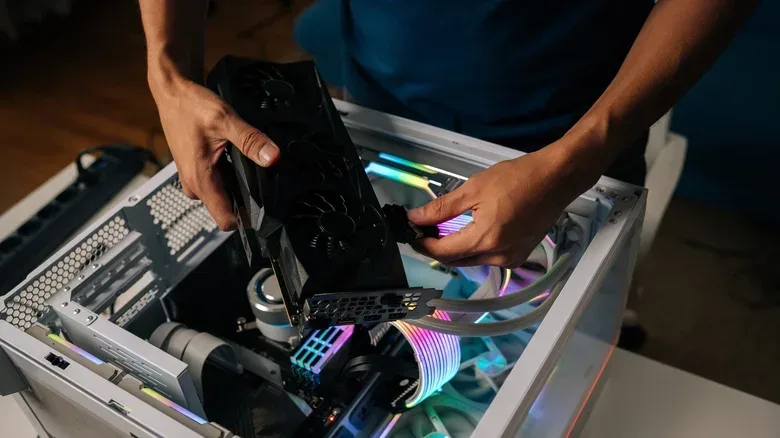
The best moment to use a bottleneck calculator is before building or upgrading. Think of it as a first-pass filter for component compatibility. If a proposed CPU and GPU look dramatically mismatched for the planned resolution, it is sensible to pause and reconsider the budget allocation before purchasing a costly part.
- Set the intended resolution first. The same pair can look different at 1080p, 1440p, and 2160p because pixel rendering demand changes.
- Use the score to identify a possible weak point. A high percentage is a prompt to research further, not proof that the system will fail at its intended task.
- Compare the intended use case. Gaming behavior can differ substantially from broad productivity or workstation expectations.
- Do not buy solely to chase a lower score. A balanced-looking number has little value if it does not match the display resolution and games or applications that matter to the owner.
This planning role is where calculators are most honest. They can make an initial component shortlist less intimidating and may prevent a plainly mismatched purchase. They are considerably less useful as post-build diagnostic tools.
What to do when performance is already disappointing
For an existing PC, performance monitoring software is the more reliable path. Rather than infer behavior from a database, monitoring lets the owner observe CPU and GPU utilization under the actual workload. If the CPU is fully utilized while the GPU is largely idle, that evidence points toward a CPU limitation. If the GPU is close to full utilization and cannot maintain the desired performance, the graphics card is a more likely limiting factor.
Even then, avoid treating a single reading as the whole case. The relevant observation is how the system behaves while the issue occurs: whether stutters happen when the CPU is saturated, whether the GPU is struggling to render, and whether the problem repeats in the same application. Background apps and game-specific issues can distort a test, which is why real monitoring is more informative than a generic percentage but still requires interpretation.
Before declaring a component the culprit, consider the factors a calculator cannot see:
- Installed drivers and their interaction with the game or application.
- Background applications that may need to be closed for a cleaner test.
- The title being benchmarked, including how effectively it uses the GPU.
- The selected resolution and the desired frame-rate target.
There is also a separate practical concern for online games: a PC can be rendering smoothly while a disrupted connection ruins the session. Hardware utilization and network stability are different problems, so it is worth keeping a separate plan for keeping home internet available during a power outage rather than assuming an in-game hitch always originates inside the PC.
Use the number, but keep the context
Bottleneck calculators are not useless; they are limited. They can rapidly compare a proposed CPU and GPU for a target resolution and highlight combinations that deserve a closer look. That is valuable before a build or upgrade, especially when the alternative is making an expensive choice with no compatibility check at all.
What they cannot provide is a definitive account of performance. They cannot account for individual hardware variation, game engines, DX11 behavior, cache differences between processors, drivers, background tasks, or an application-specific issue. A low percentage cannot guarantee smooth play, and a higher percentage does not by itself prescribe an upgrade.
For PC planning, let the calculator narrow the field. For a PC already on the desk, let performance monitoring and the real workload supply the evidence. The first is a map; the second is the terrain.