The Gmail button commonly described as “unsend” is useful, but its name invites the wrong expectation. It does not reach into somebody else’s inbox and remove a message after delivery. Instead, Gmail holds a newly sent email for a short, configurable period before dispatching it. During that pause, the sender can stop the message.
That distinction matters most when an email contains a typo, a forgotten attachment, an incomplete explanation, or the wrong recipient. If the message is still inside Gmail’s cancellation window, selecting Undo prevents it from going out. Once that window has ended and Gmail has delivered the email, there is no stated way here to pull it back — even if the recipient has not opened it.
By default, Gmail allows just five seconds to reverse course. That is enough time to catch an immediate mistake, but it is a very small margin when the problem becomes obvious only after rereading the subject line or noticing that an attachment was never added. Gmail on desktop lets users extend the delay to 10, 20, or 30 seconds.
Thirty seconds is hardly an endless safety net, but it changes the feature from a last-second reflex into a brief, deliberate review opportunity. The practical improvement is not that Gmail suddenly recalls sent mail; it is that it waits longer before sending it in the first place.
What Gmail’s Undo Send option actually does
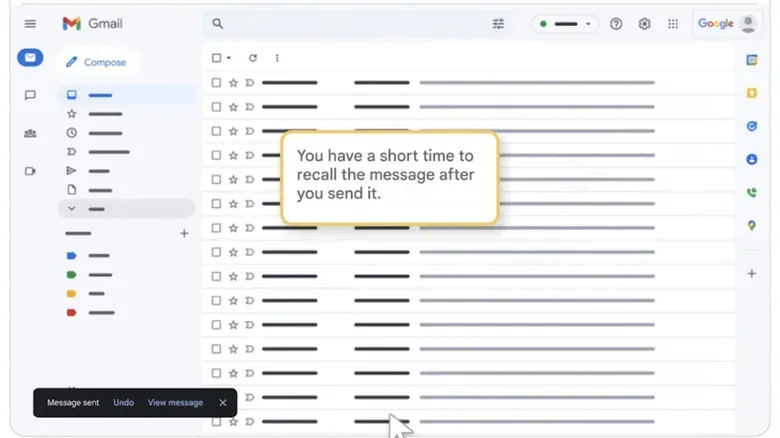
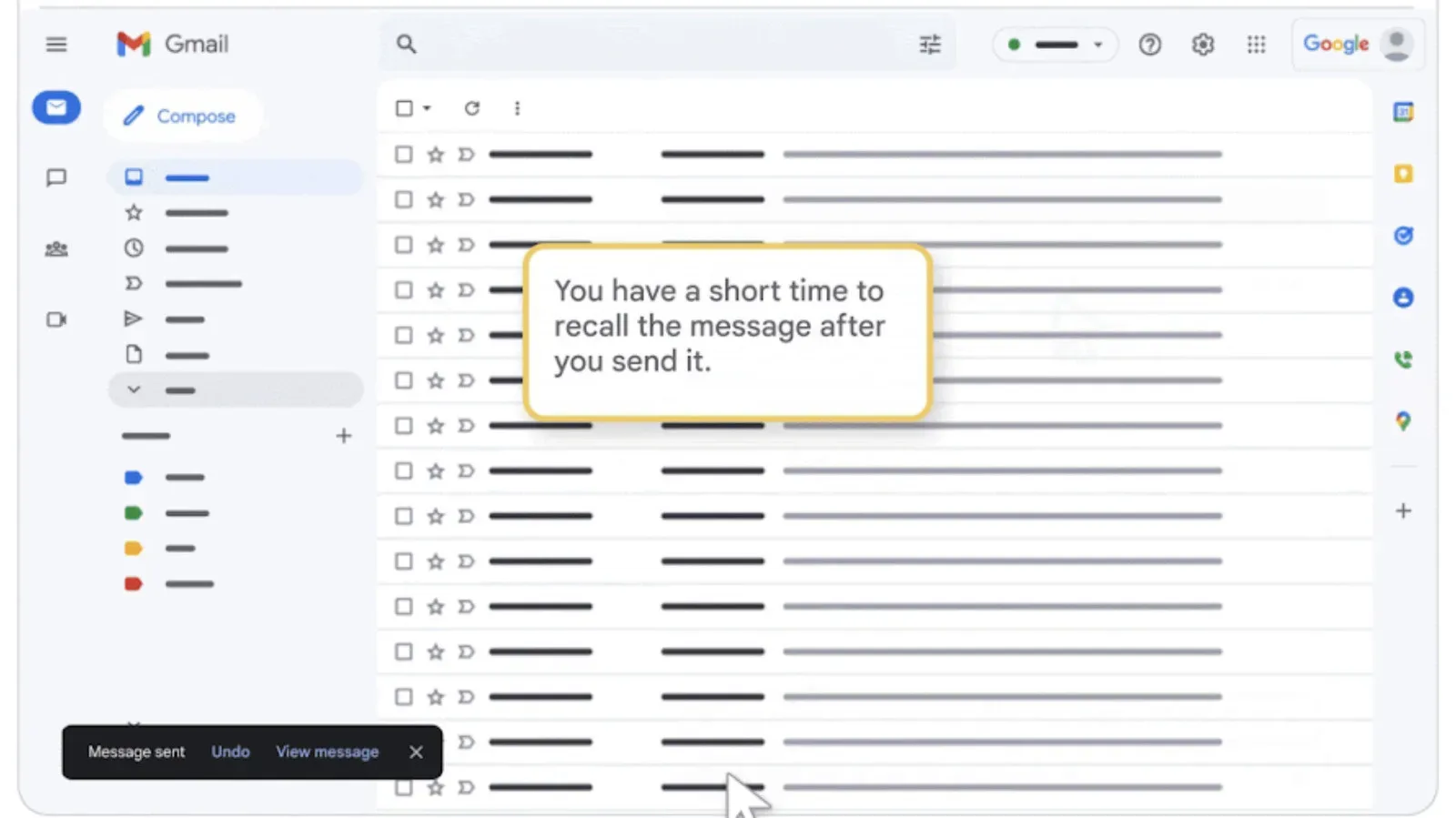
After selecting Send, Gmail shows a small confirmation box at the bottom-left of the screen. It indicates that the message was sent and provides two choices: Undo and View message.
Think of the confirmation as a temporary holding state. Gmail has accepted the request to send, but it has not yet completed dispatch while the cancellation timer is active. Pressing Undo inside that period stops the outgoing message. The intended recipient is not notified that an email was cancelled, because the email was never delivered to that inbox.
This is not a recall system. A recall system would attempt to remove or invalidate mail after it had arrived with a recipient. Gmail’s setting, as described here, is a send delay: it postpones the point of no return. That is why the cancellation period is necessarily limited and why the feature cannot rescue an email once it has landed in the recipient’s inbox.
The wording may seem like a small technicality, but it affects how people should use the tool. It should not be treated as permission to send first and decide later. It is better understood as a compact buffer against an immediate error.
How to extend Gmail’s cancellation period to 30 seconds
The setting is available through Gmail on desktop. To change it:
- Open Gmail on desktop.
- Select the Gear icon at the top right.
- In the Quick settings panel, choose See all settings.
- Stay on the General settings page and scroll to Undo Send.
- Find the cancellation-period control.
- Choose 10, 20, or 30 seconds rather than the five-second default.
- Scroll to the bottom of the General settings page and select Save changes.
The final save is important. Choosing a longer period does not take effect until the changes are saved. The maximum option is 30 seconds, so even the longest setting requires a quick review and a prompt decision.
Why selecting “View message” can end the opportunity early
The post-send box has two actions, but they do not do the same thing. Undo is the choice that cancels the outgoing message. View message, despite sounding like a harmless way to inspect the email, ends the remaining chance to undo it before the timer expires.
That creates an easy trap: a sender notices something might be wrong, clicks View message to check, and loses the brief holding period in the process. If there is any doubt about the message, the safer move is to select Undo first. The email can then be corrected, checked, and sent again when it is ready.
In other words, the confirmation is not an editing screen. It is a fork in the road: cancel the send, or proceed. Users who want time to read the message again should set a longer cancellation period beforehand rather than relying on View message after hitting Send.
A useful routine for high-stakes emails
The 30-second option is most valuable for messages where a small slip could cause confusion or extra work. That might include correspondence with several recipients, an email that refers to a file or key detail, or a message written while switching quickly between tasks. The setting cannot verify that every detail is correct, but it gives the sender a predictable final pause in which to spot an obvious problem.
A sensible workflow is simple:
- Set the cancellation period to 30 seconds if a longer review buffer is preferable.
- Before selecting Send, check the recipient field, subject line, attachments, and the main request or information in the body.
- After selecting Send, use the delay as a final scan rather than immediately moving on to another task.
- If anything looks off, choose Undo rather than View message.
- Fix the draft and send it again only after checking the revision.
This process does not turn email into a risk-free medium. It simply uses Gmail’s built-in pause at the one moment when the sender still has control. For people who frequently spot an error just after sending, the longer delay is a practical default rather than an emergency setting.
What the 30-second setting can and cannot solve
Increasing the cancellation period helps with errors discovered immediately: the attachment that was mentioned but omitted, the sentence that needs clarification, or a detail that was left out while composing. It also provides more time to reconsider whether a message needs another edit before it is released.
It cannot help with an email that has already been dispatched to the recipient. Gmail’s delay ends after the chosen period, and the message cannot be clawed back afterward through this feature. The setting also does not eliminate the need to confirm the basics before sending. A 30-second buffer is limited, and an important correction may take longer than that to recognize or formulate.
There is also a practical attention issue. A longer delay only helps if the sender is still watching for a mistake. Sending an email and immediately changing windows or walking away means the added seconds may pass unnoticed. For sensitive or consequential messages, it is worth remaining on the Gmail screen until the short buffer has elapsed.
The broader lesson: build a pause before an irreversible action
Undo Send is a small example of a useful design principle: add a short checkpoint before an action becomes difficult or impossible to reverse. In Gmail, the checkpoint sits between pressing Send and delivery. It does not undo history; it delays commitment.
That distinction is useful beyond email. When a task involves publishing, sharing, deleting, or sending something important, a clear review step is often more dependable than hoping a recovery option exists afterward. For another example of getting a better result by slowing down for a few deliberate adjustments, see this guide to photographing the Moon with an iPhone.
For Gmail users, the actionable part is straightforward: open the desktop settings, set Undo Send to the preferred cancellation period, save the change, and remember that Undo must be chosen before the timer ends. The longest available option is 30 seconds. It will not recall a delivered email, but it can prevent one from becoming delivered in the first place.