Netflix is built to keep the next choice close at hand: rows of recommendations, a persistent Continue Watching strip, previews that begin while you browse, and another episode waiting at the end of the current one. That design can be convenient, but it also means a few quieter controls make an outsized difference. A profile’s viewing record, more precise genre pages, queue removal, autoplay preferences and subtitle styling each let a viewer decide what the service should surface and how it should behave.
None of these tools changes the catalogue available in a region, and they are not replacements for normal search. They do, however, address very practical problems: remembering an old title, finding something that matches a specific mood, removing an abandoned series from a shared-screen prompt, keeping browsing silent, or making text easier to read at low volume.
The common thread is profile-level customization. On a household account, settings and histories should be checked in the profile that is actually being used. That is especially important where different people have different viewing habits or where a child is using an account without appropriate restrictions. The same principle applies beyond streaming: small preference controls often determine whether a piece of software feels helpful or intrusive, as with the productivity settings discussed in these Microsoft Teams features.
1. Use Viewing Activity as a personal Netflix ledger
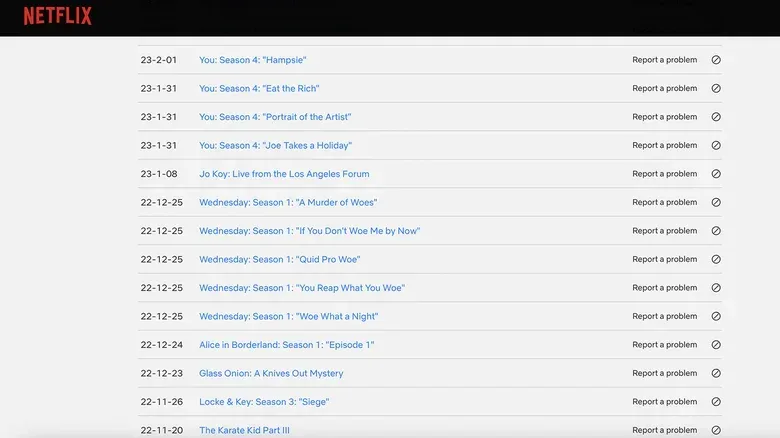
For long-time subscribers, the home screen is not a reliable archive. It is designed around current recommendations and recent behavior, not a complete record of every episode and film watched. Netflix’s Viewing Activity section is the more useful place to look when the question is, “What was that thing I watched years ago?”
In a web browser, sign in, open the menu beside the profile icon, choose Manage Profiles, select the relevant profile, and scroll to Viewing Activity. The resulting list includes watched items and the dates they were watched. That can be useful for reconstructing a half-remembered viewing list, checking the title of something worth revisiting, or simply seeing the scale of a profile’s history.
There is an important limitation: the activity list does not include a search function. Working through a large history can require repeated use of Show More. For a fuller review, the page includes a Download All option. Downloading the record is the practical route for someone who wants to inspect their entire history rather than page through it in the browser.
The same page also has a hide control. That is a useful distinction to understand. Viewing Activity is not merely a nostalgia feature; it is also an account-management tool. On a profile that should have more limited viewing, the record can help an adult notice activity that merits a conversation or a review of the profile’s restrictions. It is not a substitute for setting up an appropriately restricted profile in the first place, but it gives account holders a concrete record to inspect.
When this shortcut is worth the effort
- You remember the premise of a film or episode but not its name.
- You want a broad record of what a specific profile has watched.
- You are trying to locate a title before adding it to a future watchlist.
- You need to review a profile’s activity rather than relying on the recommendation rows.
2. Turn a genre code into a more focused browser page
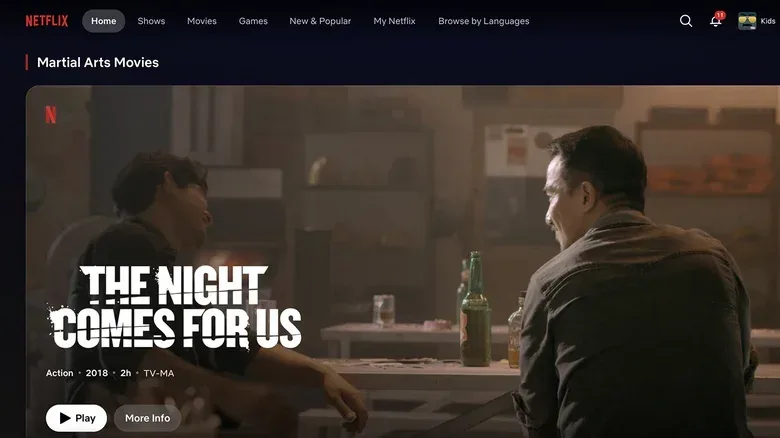
Netflix’s standard navigation groups titles into broad labels such as comedy, action and anime. Those are useful starting points, but they can be far too wide when the real request is something like a martial-arts movie, a western, an action comedy or a particular kind of family holiday film. Genre codes are a browser-based shortcut to much narrower category pages.
Related coverage includes Five Netflix Settings and Shortcuts Worth Using.
The format is straightforward: enter http://netflix.com/browse/genre/ in a browser and append a genre number. Codes can be four, five, six or seven digits. For example, 8985 points to martial-arts films, 7687 to film noir, and 1476024 to Christmas children and family films from the 1990s. A comprehensive code list is available through the Netflix-Codes website.
It is best to think of these as micro-genres: tighter filters inside an enormous overall catalogue. They are particularly useful when normal keyword search is too literal. Searching for “film noir,” for instance, is not the same task as opening a page built around that category. The first seeks titles and metadata that match the words; the second asks Netflix to display the category associated with its numerical identifier.
Availability still depends on where the account is used. A code can open the appropriate genre page without guaranteeing that the same specific titles appear in every country. Catalogues vary by region, so the productive use of a code is to browse what it returns for your own account, then save appealing titles for later rather than expecting a fixed global list.
A quick way to use codes without making them homework
- Choose the kind of movie or show you actually want, not merely a broad genre.
- Find the associated numerical code in a genre-code list.
- Open the browser URL with that code appended.
- Browse the returned page and bookmark or save interesting titles before moving on.
This is also one of the few tips here that is fundamentally easier in a browser. It is less about a hidden button on a TV interface than using a direct URL to reach a specific catalogue view.
3. Evict abandoned titles from Continue Watching
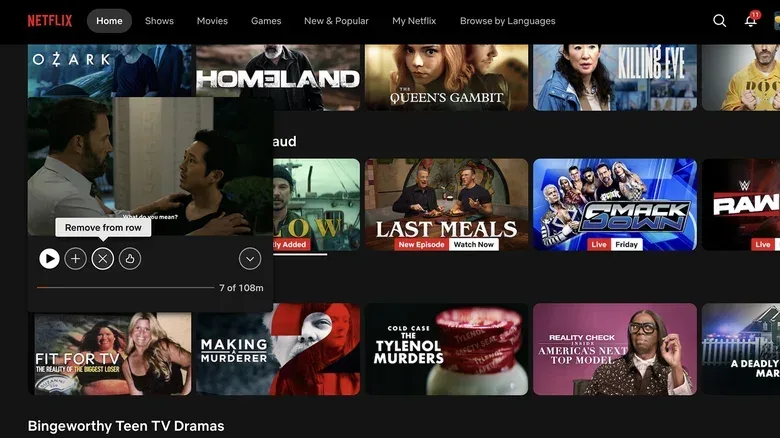
The Continue Watching row is useful until it becomes a graveyard for experiments. A film that lost you after 15 minutes, a show started with somebody else, or a title opened by accident can sit there long after any intention to finish it has disappeared. Netflix provides a manual removal option, so there is no need to keep seeing a reminder of an abandoned pick.
The exact gesture varies by device:
- Mobile: Locate the title in Continue Watching, tap the three-dot menu beneath it, then choose Remove from row.
- TV or other big-screen interface: Highlight the title, press and hold the remote’s select button, then choose Remove.
- Web browser: Hover over the title in the row and select the X.
This is a simple piece of interface housekeeping, but it has a real practical payoff. Continue Watching is highly visible and often treated as a to-do list by a household. Clearing entries that are no longer relevant makes the row a more accurate record of what someone genuinely plans to resume.
It is also worth separating this action from deleting an account’s viewing history. Removing a title from Continue Watching is about cleaning the home-screen row. Viewing Activity, discussed above, is the place to examine watched items and use its own hide control. Knowing which screen governs which behavior avoids the frustrating cycle of changing one thing and expecting another to disappear.
4. Stop previews and next episodes from making the choice for you
Autoplay is one of the most divisive conveniences in streaming. A preview can begin when a viewer pauses on a title while reading its synopsis; an episode can roll directly into the next one when the current credits end. For some people, that momentum is the point. For others, it creates noise, reveals trailer material they preferred not to see, or turns a brief browse into an unexpectedly loud room event.
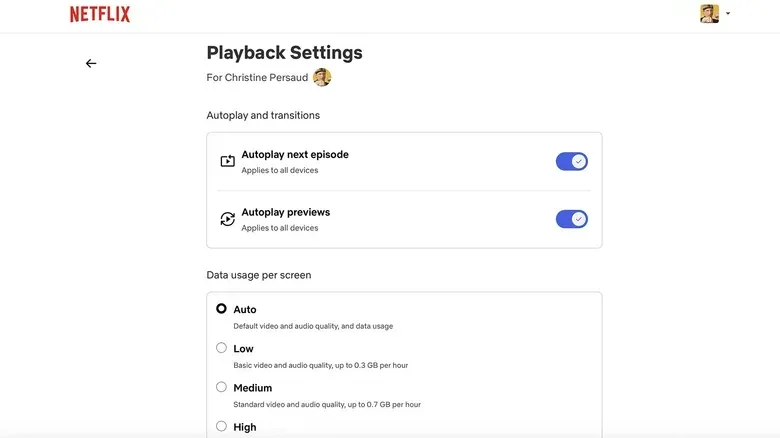
Netflix puts two separate controls under Account and Playback Settings: Autoplay next episode and Autoplay previews. Unchecking them changes two different behaviors. The first concerns what happens after an episode ends. The second concerns previews that play while moving through titles on the service.
The distinction matters because a viewer may want one behavior but not the other. Someone working through a serialized show may welcome automatic progression after each episode but still dislike noisy hover previews while browsing. Conversely, a viewer might tolerate previews as a quick way to sample a title while preferring an explicit decision before starting another episode. Treating the boxes independently makes the setting useful rather than all-or-nothing.
There is a broader browsing benefit too. Disabling previews creates a calmer decision space: title, artwork and description can be considered without a trailer immediately competing for attention. That will not improve the quality of the catalogue, but it can make finding something to watch feel more deliberate.
5. Make subtitles and captions suit the way you watch
Subtitles and captions are often spoken about as if they are interchangeable, but Netflix gives viewers choices that matter. The supplied options distinguish English from English [CC]. In this context, CC means closed captions: text can include dialogue along with descriptive information about sounds and other audio cues. Selecting English rather than English [CC] focuses on dialogue rather than those added sound descriptions.
That difference should not be treated as a quality setting. Descriptions of sounds are essential information for many viewers, and they are not simply visual clutter. But a person using on-screen text solely because the volume is low may decide that dialogue-only subtitles better fit that particular situation. The point is to choose the track that meets the viewer’s needs, not to assume one is universally preferable.
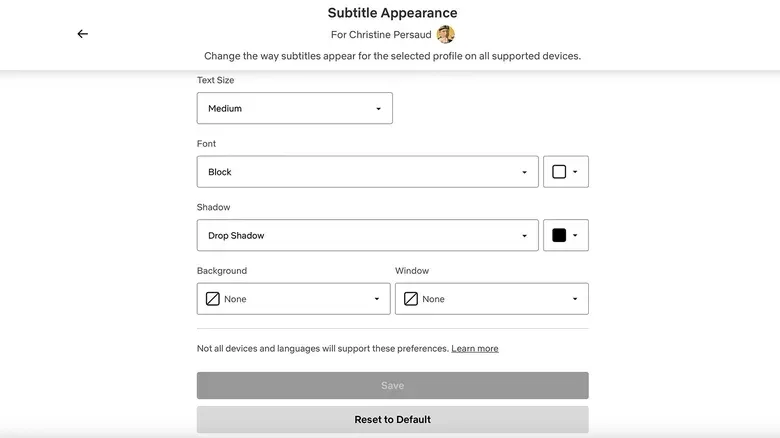
Netflix also offers controls for the visual appearance of subtitles. From the profile menu, go to Manage Profiles, select the profile, and choose Subtitle Appearance. The available adjustments include font size, shadows and backgrounds. These settings are valuable because legibility depends on more than whether text is technically present. A subtitle can be difficult to follow when it is too small, disappears against a bright scene or occupies too much visual space.
Shadows and backgrounds are visual treatments behind or around the letters that increase contrast. In practical terms, they can make text readable over shifting scenery. Font size is the most direct adjustment for viewers sitting farther from a television or watching late at night with subdued sound. Netflix does not offer a position control here, so the focus is on presentation rather than moving the text to a new location on screen.
Build a profile around actual habits
These five options work best as a small profile tune-up rather than as isolated tricks. Check Viewing Activity if you need a record. Keep a few genre codes handy if broad rows are not finding the right mood. Remove titles from Continue Watching when they are no longer a plan. Decide whether previews and automatic next episodes help or distract. Finally, configure subtitle appearance and select the text track that serves the reason captions are on.
That approach does not require a new device, a special plan or a complicated workaround. It simply shifts several small decisions back to the viewer: what stays visible, what starts automatically, how narrowly to browse, and how dialogue appears on screen. For a service designed around endless choices, those are meaningful ways to reduce friction.