A central processing unit is one of the parts of a PC build that can inspire the most long-term anxiety. It is also one of the components least likely to demand replacement simply because it has reached a certain birthday. There is no universal countdown clock for a processor, and manufacturers do not generally publish a fixed service-life figure for every CPU.
For a normally used and reasonably maintained system, a processor can remain functional for a decade or longer. The more common reason to replace it is not that the chip has physically worn out, but that newer games or software ask more of the computer than the older processor can comfortably provide. That difference matters: failure means a part is no longer working correctly, while obsolescence means it still works but no longer delivers the experience its owner needs.
For PC players, that can be reassuring. A CPU does not need to be treated as an annual upgrade obligation. It does need a clean, cool environment, sensible power delivery and occasional diagnosis when the system begins acting strangely. In other words, the processor is usually more like a long-running campaign companion than a disposable consumable—provided the rest of the machine does not turn its case into a dust-filled sauna.
The useful answer: a CPU often outlasts its relevance
Regular computing use alone is not typically the thing that ends a processor’s life. A CPU may still operate long after it has stopped being the right fit for a new game, a demanding creative application or a changed workload. This is why “How long will it last?” needs two answers.
- Physical longevity: whether the processor continues to function. Under ordinary conditions, this can extend to a decade or more.
- Practical longevity: whether it is fast enough for the games and programs a person wants to run. This may end sooner, depending on those demands.
That second category is personal. Someone whose PC is used for ordinary day-to-day work may find an older CPU perfectly satisfactory for years. Someone playing CPU-heavy games or performing intensive tasks may reach the limits of the same processor much sooner. Neither outcome automatically means the chip is defective.
It is also worth separating the CPU from the entire PC. A computer can feel slow because of many different parts or conditions, and unexplained instability can come from hardware other than the processor. Replacing a CPU without identifying the actual bottleneck risks spending money on the wrong upgrade.
That is especially relevant while PC component costs are a serious consideration. GPU pricing pressure linked to AI memory demand has added another complication to upgrade planning, as explored in this look at AI’s impact on the PC GPU market. A measured diagnosis can help builders decide whether a CPU swap is justified or whether the present system simply needs maintenance.
When a processor is actually failing
A defective CPU is most likely to reveal itself early in its life. Manufacturing faults can occur, and a bad processor is likely to cause trouble from the start rather than quietly expire after years of reliable use.
Later-life CPU failure is possible, but it is uncommon and difficult to confirm without eliminating other explanations. System freezes with no clear cause, a PC that will not boot, and random restarts can all be warning signs. They are not, however, a processor-only checklist. Other hardware can produce the same symptoms, so treating any one of them as conclusive proof of a dead CPU is a fast route to an expensive guessing game.
This is the important practical distinction: symptoms are clues, not a verdict. A computer that will not start, freezes unpredictably or restarts at random needs diagnosis across the system. Identifying the exact failed component can be challenging, and professional help may be necessary when the cause cannot be isolated.
Failure versus a CPU bottleneck
Most people asking whether they need a new CPU are not dealing with a failed chip. They are dealing with a system that no longer performs as hoped. That is a bottleneck question.
A bottleneck is the component or system limit holding back the task at hand. In a game, the CPU prepares and manages work while the graphics processing unit, or GPU, handles graphics work. If the CPU is heavily loaded while the GPU has comparatively low usage, the processor may be preventing the graphics card from doing more. That does not mean the CPU is broken; it may simply be the limiting factor for that workload.
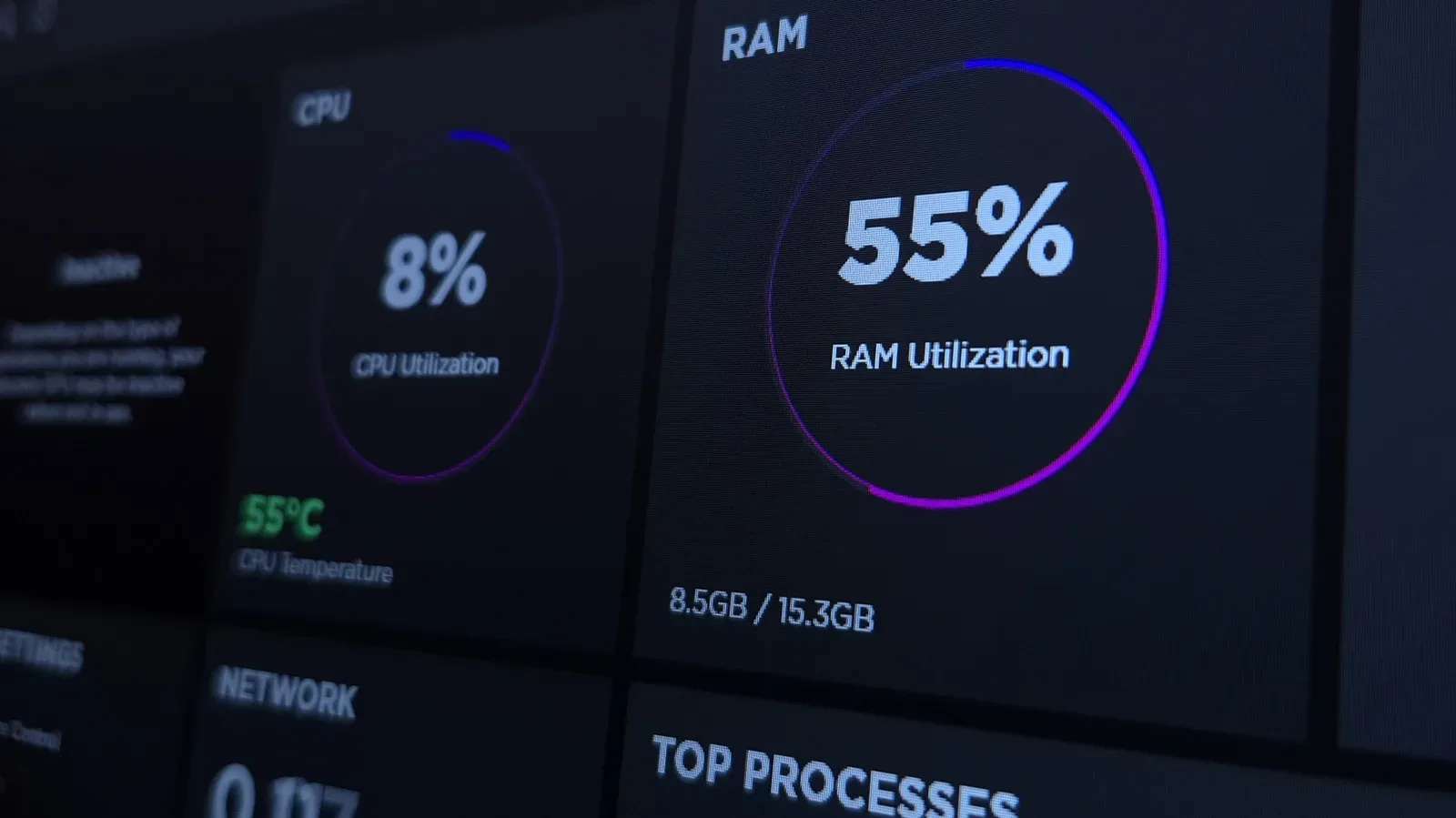
The source-supported signal to watch is sustained CPU utilization. On a Windows PC, open Task Manager and select the Performance tab, then view CPU activity. Under normal conditions, CPU use should generally remain below 20 percent, though brief spikes are normal. A processor that repeatedly nears its limits may warrant an upgrade conversation.
Gaming and other intensive work naturally drive usage higher. The more notable scenario is CPU activity holding at 90 percent or above, particularly when GPU usage remains low at the same time. That combination can suggest the CPU is under sustained pressure while the GPU is not being fully utilized.
It remains a prompt to investigate rather than an automatic purchase order. Look at what is running, consider whether the high load occurs only during a particular demanding task, and distinguish momentary spikes from consistent behavior. A number that jumps high for a short period is different from one that stays pinned there during the activity that matters to you.
Heat is the longevity boss fight
Heat is the central threat identified for PC component longevity. Excess heat degrades performance over time, making cooling and airflow a core maintenance concern rather than a cosmetic detail reserved for windowed cases and RGB admirers.
Good airflow begins with properly installed fans and does not end there. Dust buildup inside a PC case can obstruct airflow, so regularly cleaning dust from the case is a straightforward way to support the processor and every other component sharing that space. The goal is simple: allow the cooling setup to move air effectively rather than making it fight a fuzzy barricade.
Temperature-monitoring software such as HWiNFO can help owners observe whether the system is operating unusually hot. As broad reference points, temperatures above 60 degrees Celsius under normal load, or above 80 degrees Celsius during intensive tasks, are worth investigating. These figures are not a one-size-fits-all judgment: temperature expectations vary by processor, and manufacturer guidance should take priority when available.
What “normal load” and “intensive tasks” mean
These phrases matter because temperature has context. Normal load refers to routine, less demanding use. Intensive tasks include workloads such as gaming, where the processor is more active. Comparing a temperature reading without considering what the computer is doing can lead to bad conclusions.
Monitoring is useful because it turns a vague suspicion—“my PC seems hot”—into something measurable. If temperatures are elevated, the next step is to inspect the cooling situation: check airflow, remove dust and consider the condition of the material transferring heat from the processor to its cooler.
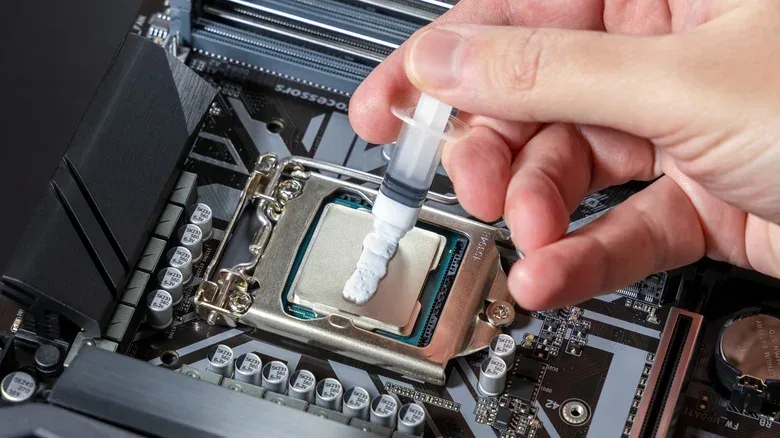
That material is thermal paste. Its job is to help regulate heat at the CPU cooler connection. Thermal paste can remain effective for five years or more, but it eventually becomes less capable of doing that work. If temperature readings are high, replacing aging thermal paste is one of the maintenance items worth considering.
None of this requires panic over a single warm reading. The practical value comes from noticing a pattern, comparing that pattern with the CPU maker’s available recommendations and addressing conditions that persist.
Overclocking: extra speed with a trade-off
Overclocking means running a CPU faster than the manufacturer’s recommendations. It can reduce a processor’s lifespan because it adds stress, but safe overclocking does not necessarily mean a CPU will fail before it becomes obsolete. The central lesson is not that every overclock is catastrophic; it is that increased speed comes with a longevity trade-off and deserves careful attention to temperatures.
For a builder whose priority is keeping the same platform alive for as long as possible, staying within manufacturer recommendations is the less aggressive path. For someone who chooses to overclock, monitoring heat becomes even more important. The evidence here supports a balanced view: the practice can shorten longevity, yet a safely overclocked CPU may still remain useful until performance needs—not physical failure—finally drive an upgrade.
Do not overlook the power side of the PC
A CPU is not only exposed to time and heat. Power surges and faulty power supplies are also potential threats. They are rare, but they are more likely explanations than a processor simply deteriorating from age with no other trigger.
This reinforces the case for avoiding a CPU-first diagnosis when a PC begins malfunctioning. An unstable system may have a power-related issue, another hardware problem or a processor problem; the symptoms can overlap. If basic checks do not make the cause clearer, a technician can be the sensible next step rather than a speculative component replacement.
A practical CPU health checklist
- Decide whether the issue is speed or stability. Slow performance and random reboots are different problems and should not be approached as if they have the same cause.
- Check CPU activity in Task Manager. Use the Performance tab, watch for sustained high usage, and consider whether the load matches the task being performed.
- Compare CPU and GPU behavior during demanding use. CPU usage at 90 percent or more alongside low GPU use can indicate the processor is a concern for that workload.
- Monitor temperatures. HWiNFO is one option. Read the numbers in context, follow manufacturer recommendations where available, and investigate persistently high temperatures.
- Maintain airflow. Ensure fans are properly installed and clean dust from the case on a regular basis.
- Consider thermal paste when heat is elevated. It can last five years or longer, but it does not regulate heat equally well forever.
- Account for overclocking and power risks. Overclocking can reduce lifespan, while a surge or faulty power supply may damage components.
- Escalate uncertain failures instead of guessing. Because multiple components can mimic CPU trouble, professional diagnosis may be the efficient choice.
The sensible expectation for a CPU is durability, not immortality. With minimal care—good airflow, dust cleanup, temperature awareness and sensible handling of power and overclocking—it can keep working well beyond the point at which newer games or programs make an upgrade attractive. The key is to upgrade for a demonstrated need, not because the calendar insists the processor is due for retirement.