Big PlayStation parties have long had a familiar problem: somebody starts talking, somebody else asks who it was, and somebody inevitably opens the voice-chat card while an objective, cutscene or very important menu timer is happening. PS5 system software version 26.06-14.00.00, released on September 16, 2026, formally adds a cleaner answer: an on-screen speaker indicator that shows the name of the person currently talking.
The option is called Display Who’s Speaking. It works on both the standard PS5 and PS5 Pro, and it is intended for PlayStation party voice chat. Crucially, it is not switched on automatically. Players who want the overlay need to enable it from within an active voice chat, then can choose its position to keep it from sitting over a mini-map, health display or another useful part of the game interface.
It is a modest quality-of-life addition rather than a sweeping social-system redesign. Still, in a party that can include up to 16 people, putting a name beside the voice can make a substantial difference. It removes a layer of guesswork, makes it easier to respond to the right person, and gives players a faster route to the individual-volume control when one microphone is dramatically louder than the rest.
How to turn on Display Who’s Speaking on PS5
The setting only becomes relevant after joining or creating a PlayStation party. A party is PlayStation’s system-level voice-chat group, separate from the chat that may be built directly into an individual game.
- Press the PS button to open Control Center.
- Go to Game Base, then Parties, then select Start Party.
- Choose an Open Party or Closed Party, depending on who should be able to join. Players can also simply join an existing party.
- Once the voice chat is active, press the PS button again to return to Control Center.
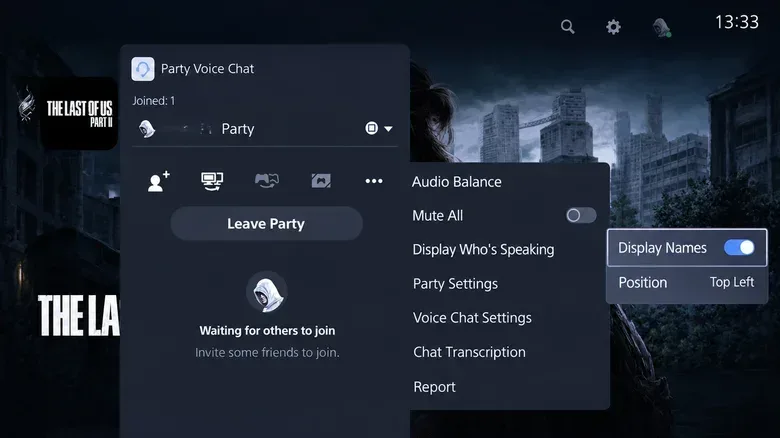
- Open the Voice Chat card.
- Select the three-dot More button, then choose Display Who’s Speaking.
- Turn on Display Names.
With Display Names enabled, the name of the active speaker appears on screen. To remove it later, return to the same menu and turn Display Names off. This is a toggle, not a permanent change that has to remain active for every session.
Move the overlay before it blocks something important
The speaker indicator’s available customization is limited, but positioning is included. In the Display Who’s Speaking area, use the Position setting to relocate the label. That matters because HUDs—short for heads-up displays, the on-screen elements that show game information—often reserve the corners and edges of the screen for essential details.
A lower corner might be occupied by a mini-map. Another part of the interface may display health, ammunition, abilities, objectives or subtitles. The best placement will depend on the game and on a player’s own preferences, so it is worth checking the overlay in a game rather than assuming a default location is unobtrusive.
There are boundaries to the feature’s flexibility. The supplied options do not include controls for the speaker label’s transparency or its size. Position can be changed; opacity and scale cannot. That leaves PS5 party chat behind the comparable Xbox party overlay in those particular customization choices, as Xbox’s overlay has offered both positioning and transparency adjustments since its 2017 announcement.
Related coverage includes PS5 Adds an On-Screen Speaker Indicator for Party Voice Chat.
What the feature does—and does not—identify
Display Who’s Speaking is documented for PlayStation party chat. That distinction is important. The feature does not work with voice chat that is built into a game itself. If a game routes players through its own voice system rather than the console party, users should inspect that title’s own settings for a speaker-name display or other chat accessibility options.
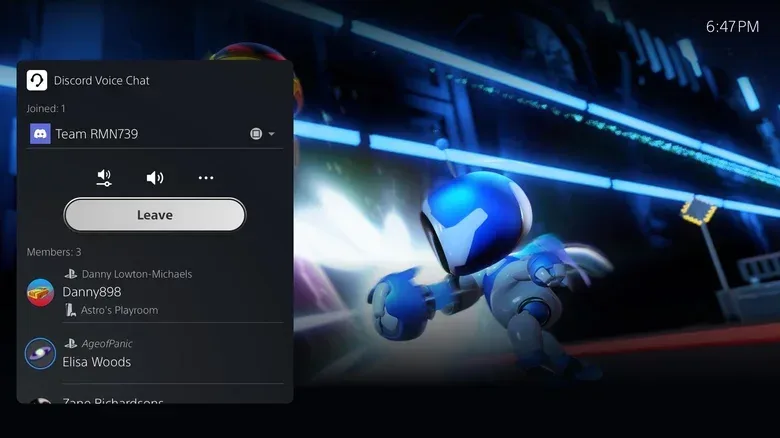
Some players have reported that the indicator also functions with Discord on PS5. That is useful information, but it should be treated differently from the documented party-chat behavior: it is player-reported rather than a stated guarantee for every configuration.
In practical terms, PS5 players should first ask which chat system their group is using. If everyone is in a PlayStation party, this toggle is the relevant tool. If the conversation is happening in a game’s native chat, the console-level setting is not the solution. The same distinction can prevent a frustrating round of menu-diving when the desired name label never appears.
Use the indicator to manage one player’s volume
Knowing who is talking is also useful when the audio balance is off. After identifying a participant, open the Voice Chat card, select that person’s name and choose Volume. This controls that individual’s volume level rather than changing the entire party.
That per-player adjustment persists into other chats with the same person. Put less politely: once the party identifies the owner of the thunderous microphone, PS5 can save everyone from repeating the same volume fix every time the group gets together. It is also a more targeted response than lowering the whole chat and potentially making quieter friends harder to hear.
There is a broader communication benefit here, too. In large groups, speech overlaps, audio quality varies and players may not recognize every voice immediately. A visible name provides attribution without requiring players to stop playing, open a card and scan the party roster. It does not repair a poor mic or prevent overlapping conversations, but it makes the party easier to parse in the moment.
Check that the PS5 system software is current
If the Display Who’s Speaking entry is absent from the Voice Chat card, check the console’s system software. The path is:
Settings > System > System Software > System Software Update and Settings > Update System Software
The feature is formally included with version 26.06-14.00.00. Updating is therefore the first troubleshooting step when the menu item cannot be found. The September release also enabled enhanced PSSR upscaling by default on PS5 Pro, though that PS5 Pro-specific graphics change is separate from the speaker indicator. Display Who’s Speaking itself is available on both PS5 models.
For players organizing regular social sessions around forthcoming games and game news, keeping console software current avoids missing small usability additions like this one. That can be especially handy when groups are coordinating conversations around major releases, including the latest reporting on GTA 6’s Edge cover feature and November 19 release.
Why some players remember seeing it earlier
The September 16 update was the feature’s formal appearance in public release notes, but it was not necessarily the first time every PS5 owner could encounter it. Some players shared reports and screenshots of using the setting as early as November 2025. Others said the option was not present on their consoles, while a few reported that they initially had access and later lost it.
There is no stated explanation for how that earlier availability was controlled. It could not be treated as a universally available PS5 feature at the time because player reports were inconsistent. The 2026 system update is significant because it establishes the indicator as part of the public software release, not because it proves that no player had ever used it beforehand.
That history also explains why a player might be certain the setting is familiar while another has never encountered it. Both experiences can fit the available information. What has changed is that the setting now has a clear, standard path in the current software: active party, Voice Chat card, More, Display Who’s Speaking, then Display Names.
A small interface feature with a clear purpose
Display Who’s Speaking will not transform PS5 voice chat into a fully customizable broadcast overlay. It lacks size and transparency controls, it is not meant for in-game chat, and its Discord behavior rests on player reports rather than the documented party-chat scope. But it solves a specific annoyance with an equally specific visual cue.
For duos, the benefit may be slight. For a full party, where several friends are talking over a match and one voice needs to be turned down quickly, it is far more useful. Enable it once, move it away from the game’s important UI, and the next mystery microphone can be identified without pausing the social detective work on screen.