
When a PS5 refuses to sign in, drops out of an online match, or acts as if the internet has vanished into a particularly rude cloud, the first challenge is not fixing it. It is identifying which part has failed.
The possible culprits sit in different places: PlayStation Network itself, an individual game’s servers, the connection supplied to your home, the router and modem in that home, or the console’s own saved network settings. Treating every failure as a PSN outage can waste time; treating a broad service outage as a router problem can lead to equally pointless cable shuffling.
The sensible approach is to work from the widest possible problem toward the most local one. Check the service, check whether the issue is PSN-wide or game-specific, then test the PS5 and your home connection. That sequence gives each result a useful meaning.
Start with PlayStation’s service status
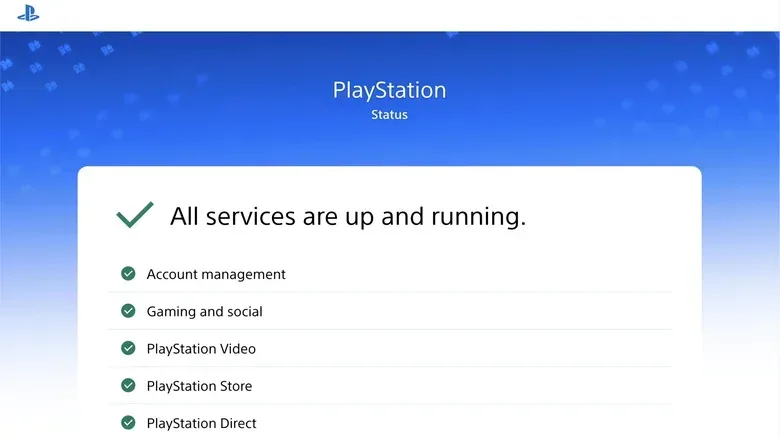
Before restarting hardware, visit PlayStation’s Service Status page. It can be viewed without signing in, which makes it useful precisely when the console cannot get online. The page reports the condition of PlayStation’s services: green checks indicate normal operation, while a warning icon indicates that an issue is known.
This is the fastest way to distinguish a confirmed platform-side problem from a fault closer to home. If the status page identifies an outage, repeatedly changing PS5 settings is unlikely to restore access. The productive move is to wait for service to return and check the status page again later.
A user-report outage tracker can provide a second signal. Such trackers aggregate reports from people experiencing issues, so a sudden rise in reports can suggest that a problem is widespread even before every detail is clear. It is still important to separate that signal from proof: a wave of reports can show that many people are struggling, but it does not by itself identify the exact service or cause.
When PlayStation’s services look normal, look for signs that the disruption is local rather than widespread. If other devices on the same home network work normally but the PS5 does not, the console or its network configuration becomes a stronger suspect. If the PS5 signs into PSN but one game’s online mode is unavailable, the game’s own servers become the next place to check.
Know the difference between PSN and a game server
Signing in to PSN does not guarantee that every game’s online mode will work. PSN is the platform network; individual games can also rely on services operated by their developers or publishers. That means a player may be able to access PSN successfully while a specific title cannot connect to its multiplayer features.
Related coverage includes Is PlayStation Network down? How to check and fix your PS5 connection.
For that narrower kind of failure, check the relevant game developer’s server-status page. Examples include status resources for Rockstar Games, NBA 2K, Epic Games and Activision. The order matters: first establish whether the PS5 can reach PSN; then, if the trouble is isolated to one title, investigate that title’s service.
This distinction also makes bug reports more useful. “My PS5 is offline” and “I can sign in, but this game cannot access online play” point to very different troubleshooting paths. The latter does not automatically call for resetting a router or forgetting the Wi-Fi network.
Restart the network cleanly before changing settings
If there is no obvious platform-wide outage, rebooting the modem and router is a sensible first home-network step. Do not use Rest Mode as the console reboot for this purpose: fully turn off the PS5.
For a setup with separate modem and router units, use this order:
- Fully power down the PS5.
- Unplug the router.
- Unplug the modem.
- Wait about one minute.
- Plug the modem back in and allow it time to initialize.
- Plug the router back in.
- Wait a couple of minutes for the network to come back, then turn on the PS5 and try again.
The order is deliberate. The modem is the device connected to the internet service, while the router distributes that connection through the home network. Bringing the modem back first gives it time to establish its connection before the router begins handling the devices behind it.
If your setup combines both jobs in one unit, there is only one device to restart. The point is not to perform a ritual sacrifice to the blinking-light gods; it is to clear a temporary networking problem and let the connection establish again.
Use the PS5 connection test to narrow the fault
The PS5 includes a built-in test that breaks connectivity into useful stages. On the console, go to:
Settings > Network > Connection Status > Test Internet Connection
The test can show whether the PS5 is able to obtain an IP address from the router, access the internet, and sign in to PSN. An IP address is the local network address assigned to a device so the router can communicate with it. If the console cannot obtain one, the PS5 is not completing a basic connection to the router.
That makes the test more informative than simply retrying a sign-in screen. A failure before the console gets an IP address points toward the connection between PS5 and router. A console that reaches the internet but cannot sign in to PSN points elsewhere. A successful PSN sign-in combined with trouble in one game should redirect attention to that game’s server status.
If other devices work but the PS5 does not
When the rest of the home network is functioning normally and the PS5 is the exception, remove and re-add the console’s saved connection. Go to:
Settings > Network > Set Up Internet Connection
Highlight the current network, press the Options button on the controller, choose Forget, then set up the connection again. This targets the PS5’s saved network information rather than disrupting every device in the household.
Re-entering the connection is especially useful as a diagnostic step because it tests whether the console can freshly join the network. If it cannot, focus on the local connection rather than assuming an online game or PSN account is to blame.
NAT Type 3: what “Strict” means for online play
The PS5 connection test also reports NAT type. NAT, short for Network Address Translation, is the mechanism a router uses when devices on a home network communicate with the wider internet. On PS5, Type 3 is labelled Strict.
A Type 3 result can interfere with consistent in-game online performance. The required remedy is port forwarding on the router. Port forwarding is a router configuration that directs certain incoming network traffic to a particular device on the home network—in this case, the PS5.
This is a targeted configuration task, not a button to press blindly on the console. Router interfaces vary, and the information needed for a game can differ. The important takeaway is diagnostic: if the PS5 test reports Type 3, a strict NAT configuration may be contributing to multiplayer inconsistency, and router port forwarding is the indicated next step.
Do not overlook software updates or account prompts
A connection that appears broken can occasionally be blocked by a simple prerequisite. Check for a pending PS5 system software update at:
Settings > System > System Software > System Software Update and Settings
The Welcome Hub will usually flag an update, but checking manually removes uncertainty. Some online features may not work until a pending update has been installed.
Also watch for updated terms of service. In some cases, PSN sign-in will not proceed until those terms have been accepted. Restarting the console should surface the prompt if it has not appeared during a normal sign-in attempt.
These checks are quick, low-risk, and easy to miss when the immediate instinct is to blame a failing Wi-Fi signal. Keeping network-connected devices current is not a guarantee against outages, but it prevents an unfinished update or unacknowledged prompt from masquerading as one.
Separate Wi-Fi trouble from connection trouble
If the PS5 is using Wi-Fi, an Ethernet cable is a direct way to rule out wireless connectivity as the problem. A wired connection does not answer every possible networking question, but it changes one important variable: it removes the wireless link between console and router.
If the console connects reliably over Ethernet but has trouble on Wi-Fi, the issue is likely related to the wireless portion of the setup rather than PSN availability. If the same failure remains over a wired connection, that result points away from Wi-Fi and back toward the router, internet connection, PSN, or the specific game service involved.
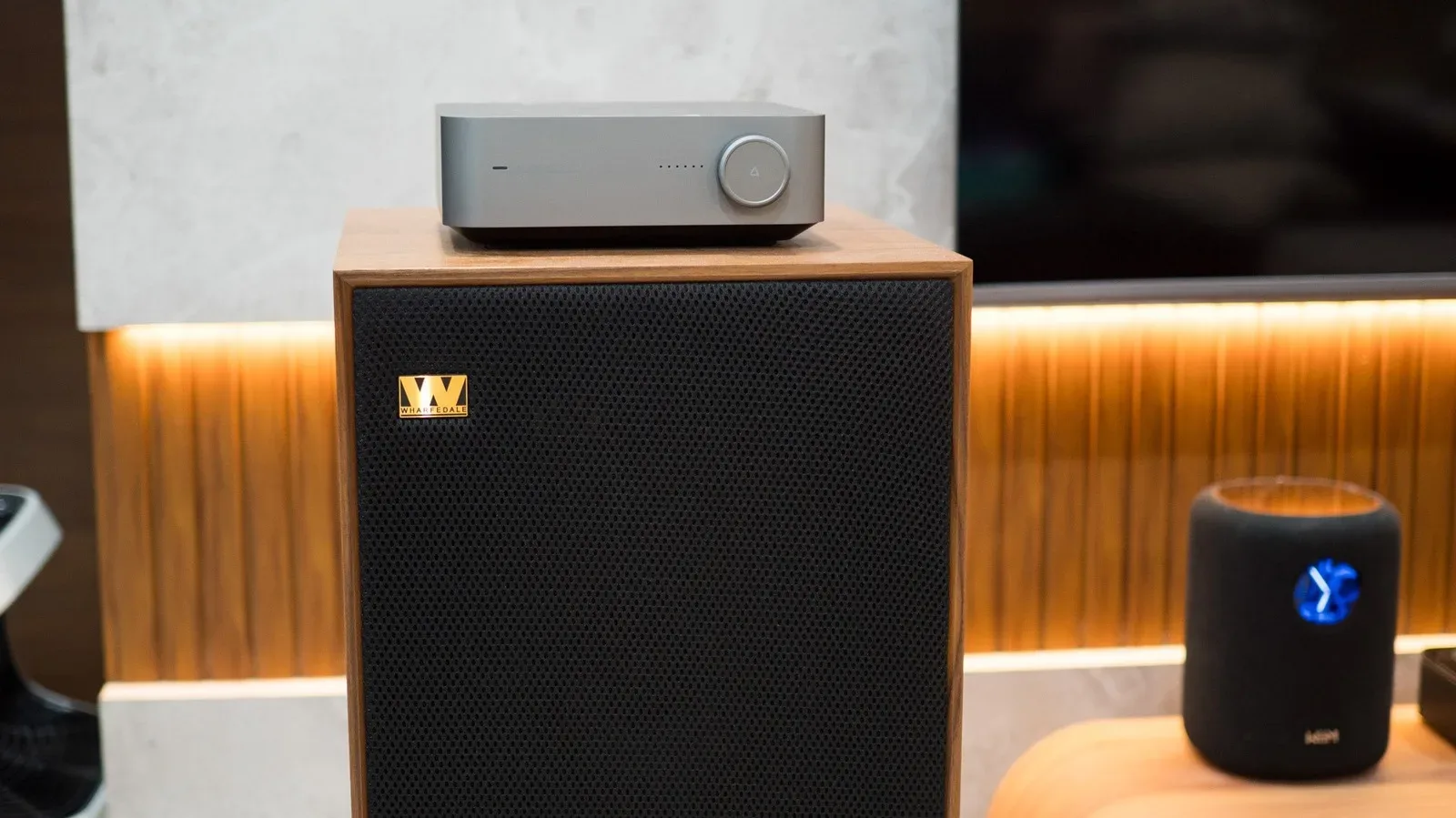
Wired networking can be inconvenient when a console and router live in different rooms, but it remains a useful troubleshooting comparison. Households considering broader wireless improvements can apply the same practical mindset to other connected gear; for example, this guide to giving an old stereo a Wi-Fi upgrade instead of replacing it explores how network connectivity can extend the useful life of existing hardware.
A quick decision order when PS5 online play fails
- Check PlayStation Service Status. A known outage means the issue is on the service side.
- Check whether the problem affects all online functions or one game. If PSN works and only one title fails, inspect that developer’s server status.
- Restart the modem and router, then fully restart the PS5. Restore the modem first when using separate units.
- Run Test Internet Connection. Use its results to identify whether the PS5 gets an IP address, reaches the internet, and signs into PSN.
- Forget and reconnect the PS5 network if the console alone is affected.
- Review NAT type. Type 3 (Strict) calls for router port forwarding to support consistent in-game performance.
- Check system software and any terms-of-service prompt.
- Try Ethernet if the console is on Wi-Fi. It is a clean way to test whether wireless networking is involved.
The key is to avoid solving the wrong problem. Service-status checks identify outages; the PS5 test identifies where connectivity stops; an Ethernet trial isolates Wi-Fi; and a game server check prevents one title’s outage from being mistaken for a platform-wide collapse. With that sequence, the next move is based on evidence rather than panic, even if the party chat has already declared the router guilty.