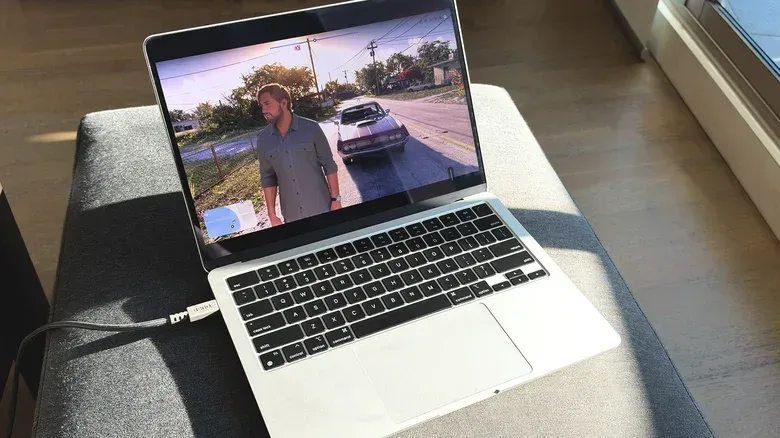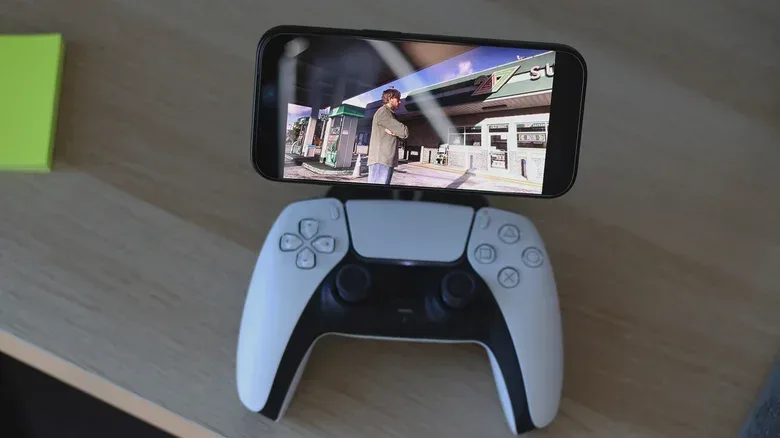
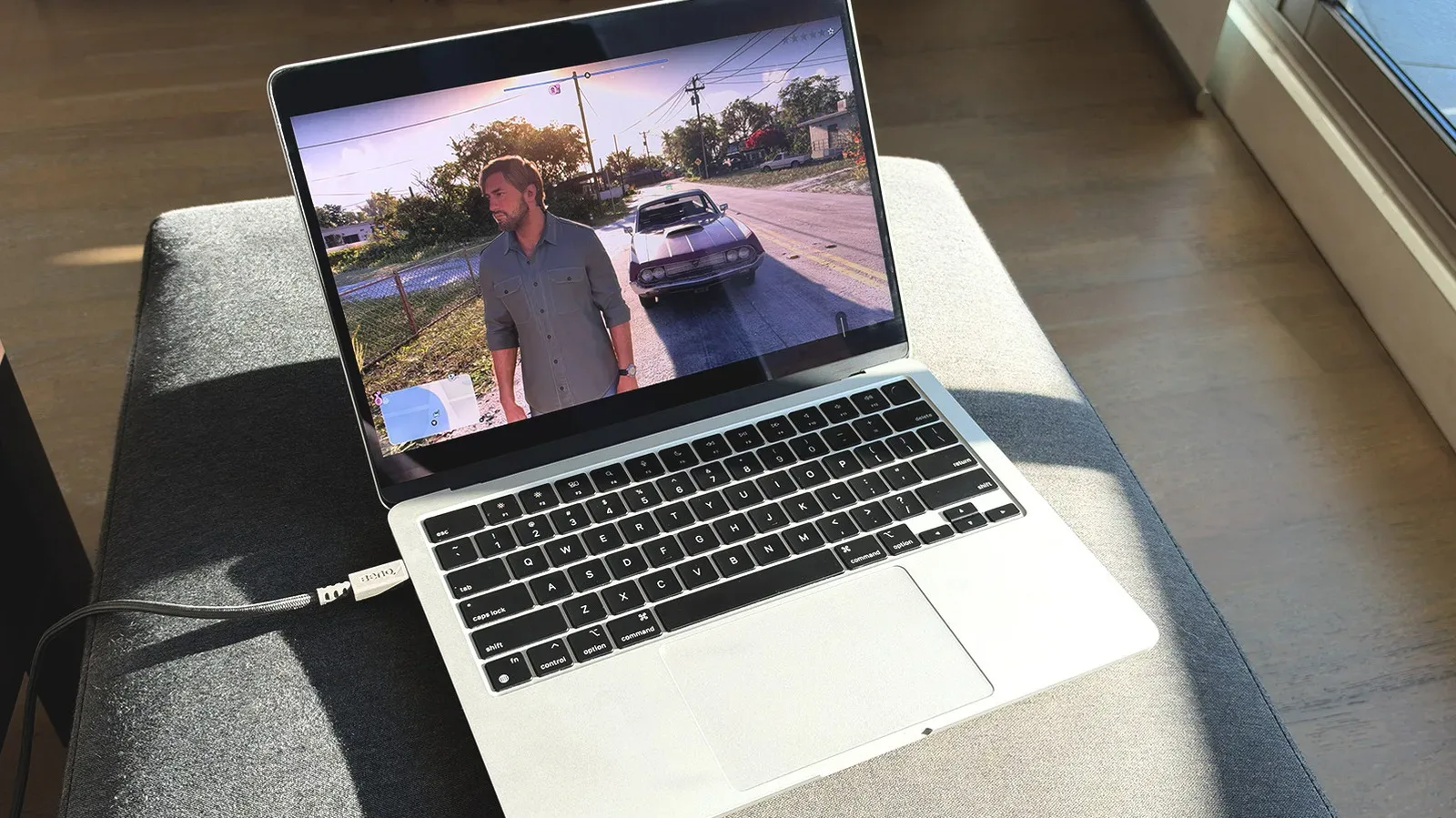
Grand Theft Auto VI’s vast Leonida setting makes it the sort of game players may want to keep exploring even when the living-room display is unavailable. On PlayStation 5 and Xbox Series X/S, remote play provides a way to continue from an iPhone, iPad, Mac, Android device or Windows PC by sending the console’s picture and audio to that second device.
The important distinction is that this is remote play, not necessarily cloud gaming. Your own PS5 or Xbox Series X/S is doing the work of running GTA VI. It encodes the game’s video and audio, sends that feed across a network, then receives controller inputs back from the device in your hands. That setup means a compatible console and a purchased, downloaded copy of GTA VI remain essential.
For a game built around driving, shooting and moving through a detailed open world, a proper controller is strongly preferable to touch controls. A DualSense with PlayStation Remote Play or an Xbox controller with Xbox remote play will make the experience substantially more practical on a phone, tablet or computer.
Before starting a long session away from the TV, it is also worth sorting out the game’s early basics at home. Our GTA VI checklist for saving, navigation and Chapter 1 choices covers a useful starting point before remote-play convenience turns into uncertainty about progress.
What you need before streaming GTA VI
- A PlayStation 5 or Xbox Series X/S.
- A copy of GTA VI that has been purchased and downloaded to that console.
- An iPhone, iPad, Mac, Android phone, Windows PC or another compatible device for the relevant remote-play method.
- The same PlayStation or Microsoft account used on the console.
- A fast, stable internet connection for both the console and the device receiving the stream.
- Ideally, a paired DualSense or Xbox controller.
You do not have to be connected to the same local network as the console. That is what makes remote play useful beyond another room in the house. However, streaming over separate connections adds more variables: the upload quality at the console, the download quality at the receiving device and the consistency of both connections all affect the session.
Why connection quality matters
Input lag is the delay between pressing a button and seeing the resulting action on screen. With remote play, the command must travel from the controller or receiving device to the console, then the console’s newly rendered video must travel back. A little delay may be tolerable while checking a map or browsing menus. It is more noticeable when steering at speed, aiming, or reacting to sudden events.
Sony recommends a 15 Mbps connection for Remote Play. For Xbox remote play, a 5 GHz Wi-Fi connection with at least 7–10 Mbps is suggested. These figures are useful starting points rather than promises of identical results everywhere. Speed is only part of the picture; connection stability matters because dropouts and fluctuating bandwidth can produce stutters, image degradation or disconnects.
5 GHz Wi-Fi refers to a Wi-Fi band that can provide higher speeds over a shorter range than 2.4 GHz in many home setups. It is not an automatic cure for streaming issues, but it is the recommended wireless option for Xbox remote play. If the signal is weak where you plan to play, moving closer to the router may be more useful than repeatedly changing game settings.
Set up PS5 Remote Play for GTA VI
PlayStation uses the PS Remote Play app. It is available for Android, iOS, macOS and Windows, meaning the same basic PS5 setup can support an iPhone, iPad, Mac, Android phone or Windows computer.
1. Enable Remote Play on the PS5
- Turn on the PS5.
- Open Settings.
- Go to System, then Remote Play.
- Turn on Enable Remote Play.
This allows the console to accept a remote-play connection. It is the core setting; without it, the app on the second device cannot establish the intended session with the PS5.
2. Let the PS5 wake from Rest Mode
Keeping a console fully powered on solely for later remote access is inconvenient. The PS5 can instead be prepared to wake through the network while in Rest Mode.
- Return to Settings.
- Open Power Saving.
- Select Features Available in Rest Mode.
- Enable Stay Connected to the Internet.
- Enable Enable Turning on PS5 from Network.
These two Rest Mode options are important for playing away from the console. The first keeps the PS5 network-capable in Rest Mode, while the second permits a remote connection to wake it. If either option is off, a player may find that Remote Play works only when somebody has already manually turned on the console.
3. Sign in through the PS Remote Play app
- Install and open the PS Remote Play app on the phone, tablet or computer.
- Sign in with the same PlayStation account used on the PS5.
- Select the PS5 when it appears among the available consoles.
- Allow the app time to connect.
Once connected, the receiving device presents the PS5 interface remotely. From there, open the game library and launch GTA VI as you would from the console itself. The game is not running natively on the phone, iPad or Mac; the PS5 remains the system actually running it.
4. Pair a DualSense controller
To pair a DualSense over Bluetooth, press and hold the PS button and the Create button together until the controller begins flashing blue. Then open Bluetooth settings on the iPhone, iPad, Mac, Android device or Windows PC and choose DualSense Wireless Controller.
There is a feature caveat worth knowing in advance. Remote-play use on Android and iPhone has been reported to work smoothly on the same network without noticeable input lag, but the DualSense’s haptics and adaptive triggers did not appear to activate in that situation. Those features did work on Mac and Windows with a wired connection.
Haptics are detailed vibration effects designed to convey different sensations through the controller. Adaptive triggers are triggers that can vary their resistance. If those controller effects are a central part of the experience for you, a wired DualSense connection on Mac or Windows is the configuration described here with confirmed support. Treat wireless phone or tablet play as potentially less feature-complete in that respect.
Set up Xbox remote play for GTA VI
Xbox Series X/S remote play follows the same broad idea but uses a browser on the phone, tablet or computer rather than a dedicated app in this setup. The console must first be configured to permit remote connections.
1. Enable remote features and choose Sleep
- Turn on the Xbox Series X/S.
- Go to Profile & system.
- Open Settings.
- Select Devices & connections, then Remote features.
- Turn on Enable remote features.
- Under Power options, select Sleep.
Sleep is the relevant power state for this configuration because it keeps the console ready for remote access. As with PS5 Rest Mode, the goal is to avoid leaving the machine running all the time while still allowing a remote session to begin when you are away.
2. Connect through a browser
- Open a browser on the phone, tablet or computer you plan to use.
- Navigate to the Xbox remote play website.
- Sign in with the Microsoft account used on the Xbox console.
- Select the Xbox console.
- Choose Remote play on this device.
After the session begins, launch GTA VI from the Xbox interface. As on PlayStation, the receiving device is acting as a screen and input endpoint, while the Xbox Series X/S is running the game.
3. Pair an Xbox controller
Hold the Xbox controller’s Pair button for three seconds to enter pairing mode. Then use the Bluetooth settings on the phone, tablet or computer to add the controller. A controller is particularly worthwhile for GTA VI because its control demands go well beyond occasional taps: movement, camera control, vehicle handling and menus all compete for inputs.
Remote play versus Xbox Cloud Gaming
Remote play and cloud gaming can both put GTA VI on a smaller screen, but they are not the same service. Remote play runs from hardware you own: your PS5 or Xbox Series X/S. Xbox Cloud Gaming runs games from remote servers instead of from a console in your home.
That difference has practical consequences. Remote play requires the appropriate console to be configured, reachable and connected. Cloud gaming can offer a route for Xbox One users even though GTA VI is only natively available on current-generation PlayStation and Xbox consoles. The cloud option still requires buying the game digitally, and additional cloud-gaming time may be necessary: the Game Pass Ultimate tier includes 15 hours of cloud play per month.
Neither method eliminates the need for a reliable connection. They simply place the game-running hardware in different locations. With remote play, the quality of the home console’s connection remains especially important because it is the source sending the stream.
Practical troubleshooting checklist
If the connection will not start or feels poor, work through the basics before assuming GTA VI itself is the problem:
- Confirm Remote Play is enabled on PS5, or that Xbox remote features are enabled.
- Check the PS5 Rest Mode options, or make sure the Xbox power option is set to Sleep.
- Verify that the same PlayStation or Microsoft account is signed in on the console and receiving device.
- Make sure GTA VI is installed on the console.
- Use the recommended connection baseline: 15 Mbps for PlayStation Remote Play, or 7–10 Mbps and 5 GHz Wi-Fi for Xbox remote play.
- Pair a controller through Bluetooth rather than relying on on-screen controls for extended play.
- If you are testing at home, try the same network first. A stable local session helps separate setup problems from issues caused by playing over the internet.
Remote play is best thought of as an extension of the console rather than a replacement for it. A well-configured PS5 or Xbox Series X/S, a stable connection and a real controller can make GTA VI accessible from an iPhone, iPad, Mac or other supported device without giving up the progress stored on the main system.