An Android phone can feel slow even when it is not technically struggling. A delayed-looking app opening, a leisurely transition between screens, or a lock screen that seems to take its time can all create the impression that the device is behind. One setting tucked inside Developer Options offers a straightforward way to change that perception: reduce the duration of Android’s system animations.
The adjustment is not a processor upgrade, it does not add memory, and it will not make an app load its data faster. What it changes is the time Android spends showing the visual movement between one state and the next. Set the relevant controls to 0.5x and many animations take half as long, making routine taps and navigation appear more immediate.
That distinction matters. This is a responsiveness tweak, not a cure for genuine lag. Still, for people who find an Android interface overly deliberate, it can be one of the quickest and most noticeable personalisation changes available.
Where Android keeps the animation controls
The controls are in Developer Options, a menu that is hidden by default. Despite its name, it is available on Android phones generally, rather than being reserved for people who write apps. The menu is deliberately less prominent because it contains a long list of settings that can affect system behaviour. Enabling access does not require installing anything, but it is wise to change only the settings you understand.
On many devices, the route begins in Settings, then About. Look for Build Number; on some phones it can sit inside a submenu such as Software Version. Tap Build Number seven times. Android should display a temporary confirmation message indicating that developer access has been enabled.
Return to the main Settings page afterward. Some phones place Developer Options directly on that screen, while others place it under System. Menu labels and placement can vary by manufacturer, so the important part is locating the Developer Options page rather than expecting every device to use identical navigation.
The three values to change
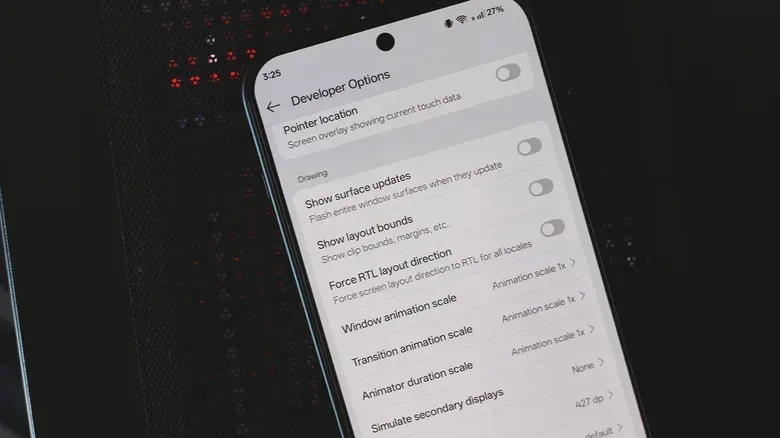
Inside Developer Options, find the Drawing section. The three animation entries relevant here are:
- Window animation scale
- Transition animation scale
- Animator duration scale
Set each one to 0.5x. In practical terms, that asks Android to play these interface animations at half their usual duration. Opening an app, moving between screens, unlocking a phone, and jumping quickly among recent apps can consequently feel quicker because there is less animated time between the input and the completed visual transition.
The three separate labels are useful because Android does not present every bit of motion in precisely the same way. Windows, screen-to-screen transitions, and other interface animation timing each have their own scale. Changing all three to the same value creates a more consistent result than adjusting only one and leaving the others at their defaults.
Users who want a less drastic change can experiment with the available values instead of treating 0.5x as a rule. The point is preference: a shorter animation can feel energetic and direct, while the standard pace may feel calmer and easier to follow.
Why a shorter animation feels like a faster phone
Animations provide visual continuity. Rather than instantly replacing one screen with another, the interface shows where an element appears to come from, where it goes, or how one view becomes the next. This movement can make navigation feel coherent and polished. It also occupies a little time while the next screen or app finishes appearing.
At the default pace, that design can be pleasing. At a faster pace, the same action ends sooner, so the phone can feel more responsive even when the underlying work has not changed. That is the key limitation and the key appeal of the tweak.
Consider an app launch. If the app is ready promptly, a long opening animation may be the most visible part of the wait. Reducing the animation duration removes some of that visible delay. The result is a snappier impression without altering the app’s actual loading capability. The same principle applies to unlocking and switching between apps: the interface reaches its final on-screen state faster.
It is a form of interface tuning, not performance tuning. A phone with a real problem—such as persistent stutters, an app failing to load properly, or slowed behaviour caused by something other than its animations—will not be fixed simply by changing these scales. Keeping Android and installed apps current remains a sensible baseline for smooth operation. Clearing an app’s cache may also help in cases where that app’s files are corrupted or overly bloated, but it is not a general speed button.
When 0.5x can make the experience worse
Faster is not automatically better. Animations can conceal brief loading time and help the interface feel smooth while the next menu or app becomes ready. On a phone that cannot keep up, cutting the animation time may expose that delay instead. The motion finishes, but the expected screen is not fully ready, making the device feel rougher rather than quicker.
This is especially relevant for budget-oriented phones. A half-speed animation can reduce the visual buffer that made navigation seem seamless. If app launches or menus begin to look abrupt, incomplete, or hesitant after the change, returning to the default value is a sensible response. The tweak should improve comfort, not turn every tap into a race against a loading screen.
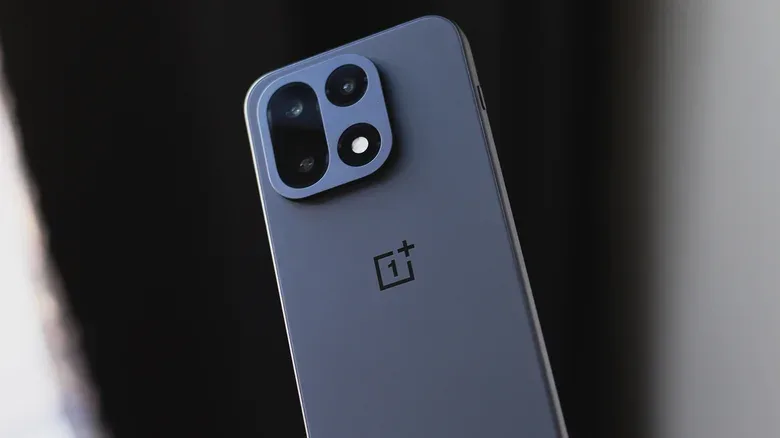
Manufacturer software also shapes the result. Google’s Pixel interface is described as using more drawn-out animations, so a reduction can be particularly noticeable there. OnePlus’ OxygenOS begins with somewhat faster animation timing, which may make a move all the way to 0.5x less necessary. There is no universal best setting across Android brands, price tiers, or individual tastes.
That variability is also why this adjustment is useful. It is reversible and personal. Someone who values rapid navigation may prefer 0.5x; someone who values the visual flow of an interface may prefer the default. It is even possible to slow animations down intentionally for a more deliberate experience, particularly if watching each transition unfold is part of what makes the interface satisfying.
A cautious way to try the setting
Because Developer Options includes many unrelated switches, use a narrow approach:
- Enable Developer Options with the seven Build Number taps.
- Open the menu and go to the Drawing section.
- Change only Window animation scale, Transition animation scale, and Animator duration scale.
- Set all three to 0.5x for the half-duration option.
- Use the phone normally for a while, paying attention to app launches, unlocking, menus, and task switching.
- If transitions feel too abrupt or expose loading pauses, select a slower value or restore the defaults.
There is one important reset behaviour to remember. Turning off the main Developer Options toggle resets the animation-scale choices to their default values. That is useful if the goal is to undo the change completely, but it also explains why a preferred animation setting may disappear after Developer Options is disabled.
A small setting with a practical payoff
Animation scale has existed since at least Android 4.0 Ice Cream Sandwich, yet it remains easy to miss because it is buried in a menu most people never need to open. Its longevity makes sense: it changes the character of the interface without requiring a new phone, a launcher replacement, or a complicated maintenance ritual.
For Android users, especially those who prefer a brisker, more game-menu-like sense of response, 0.5x is an easy setting to test with clear expectations. It makes animations shorter; it does not make hardware stronger. When the phone already loads screens quickly, that may be enough to make everyday use feel transformed. When it does not, the setting can reveal the difference between a slow transition and a slow device.
That same attention to small controls can be worthwhile elsewhere on a phone or console setup. For example, autoplay preferences can change how video sessions behave across devices; see how to turn YouTube autoplay on or off on phones, PCs, TVs and consoles. In the case of Android animation scales, the value is simpler: less waiting for interface motion, with the trade-off plainly visible if the hardware or software cannot keep pace.