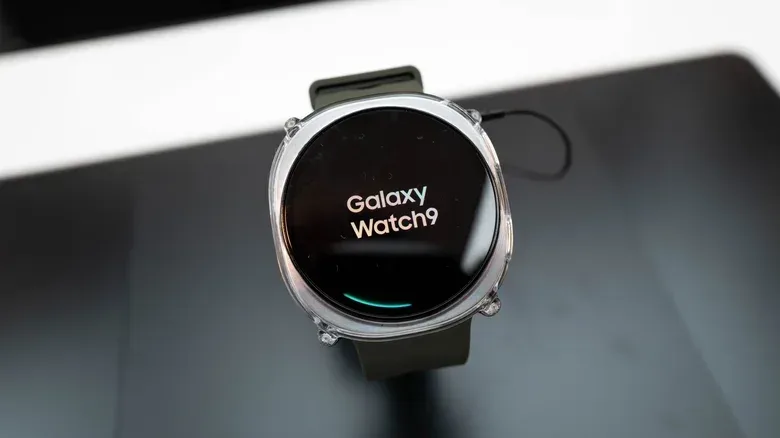
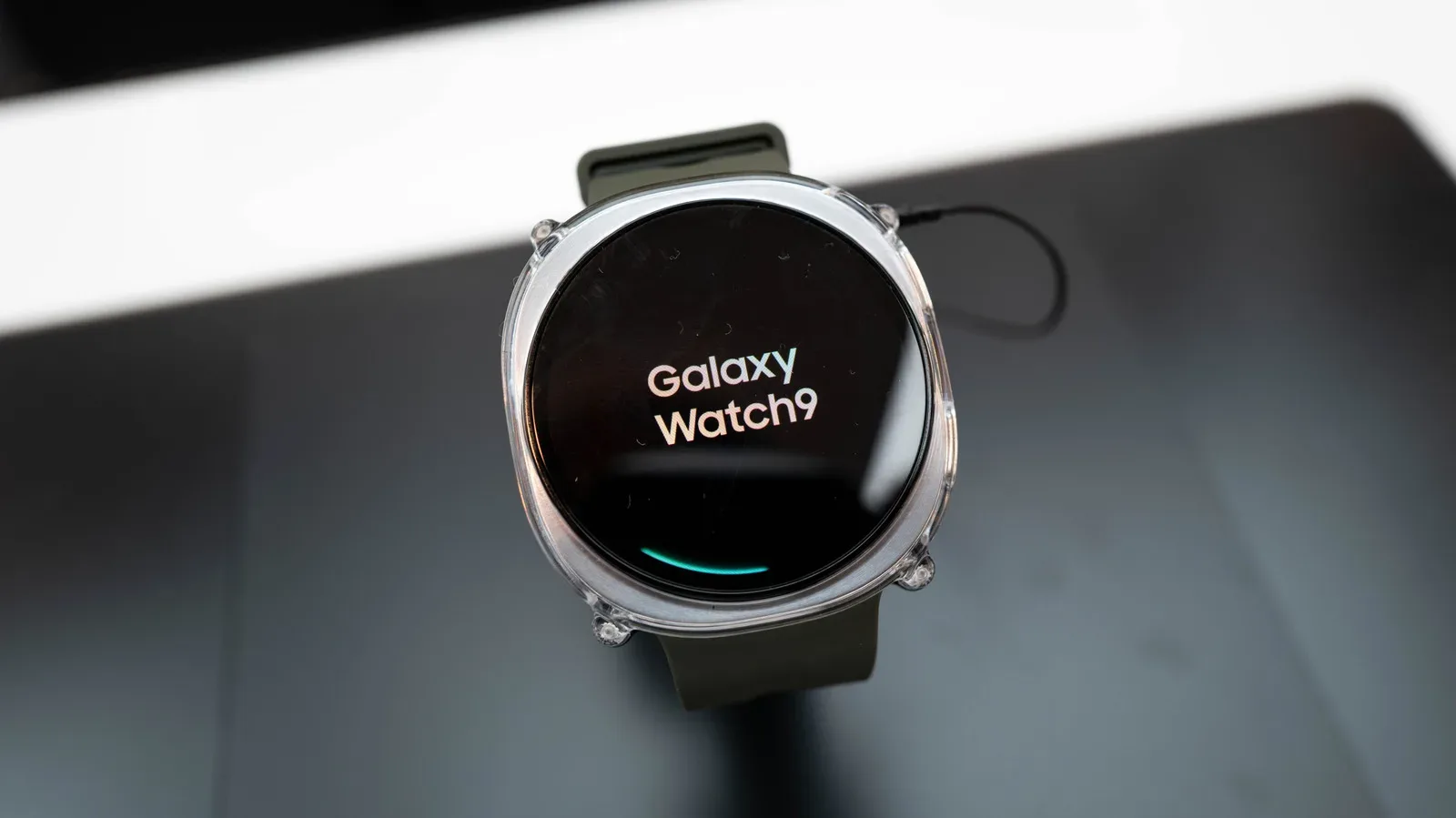
A Samsung Galaxy Watch can be a remarkably capable little screen when the phone is inconvenient, tucked away or deliberately left behind. The useful part is not simply installing lots of apps; it is choosing the few that reduce a real bit of friction: starting a run, checking whether the next bus is still worth catching, remembering a task before it vanishes from your brain, or turning off something at home without hunting for a handset.
Five apps stand out for those everyday jobs: Spotify, Citymapper, Todoist, SmartThings and Strava. They are free to download, but “free” does not mean that every feature is free or that every app works without preparation. Spotify’s offline listening, for example, requires Premium, while SmartThings depends on compatible devices already being added through a phone. That distinction matters. The best Galaxy Watch setup is less about filling the app drawer and more about knowing what the watch can do independently, what still requires the phone, and where a paid plan changes the experience.
All five are Wear OS apps, the smartwatch platform used by Galaxy Watch models. They cover media, transport, personal organization, connected-home controls and activity tracking—five areas where a glanceable interface can genuinely be more convenient than taking out a phone.
Spotify: make the watch a phone-free music companion
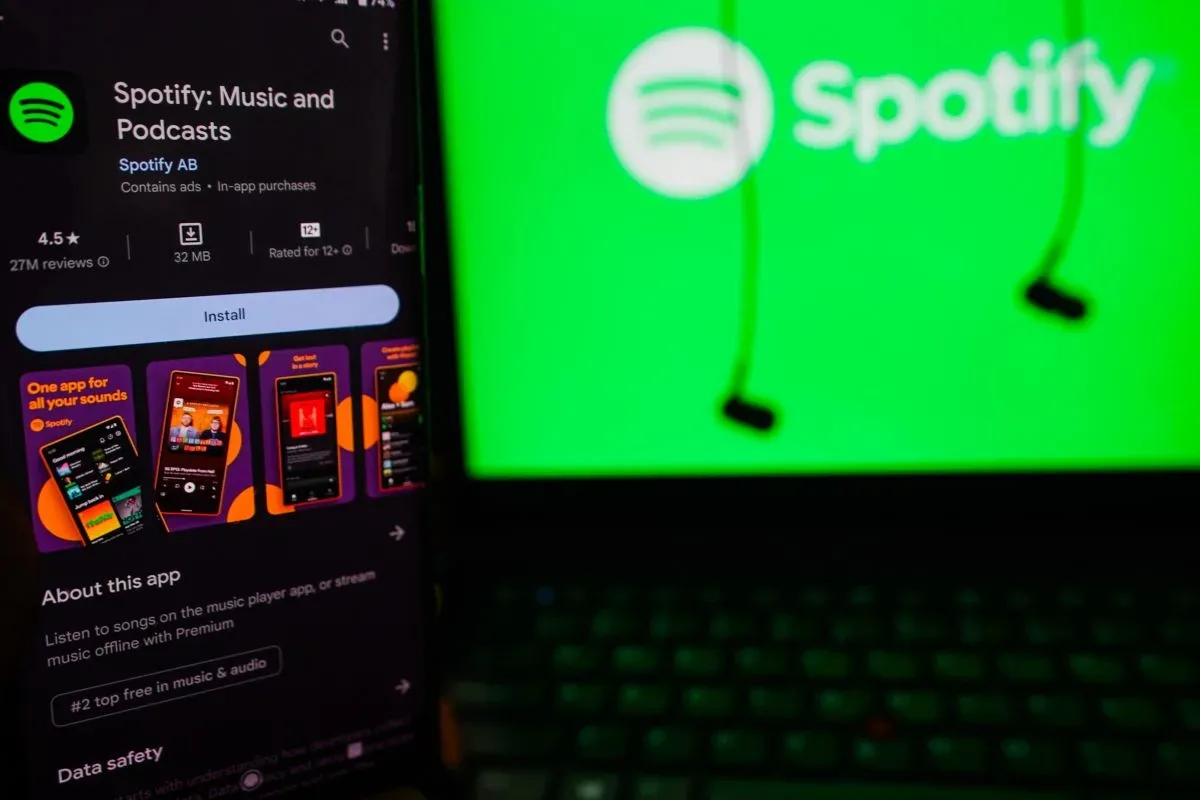
Spotify is the clearest example of a Galaxy Watch feature becoming useful once the right app is installed. Galaxy Watch owners can download music to the watch for offline playback with a Spotify Premium subscription. In practical terms, that means playlists can accompany a run or gym session without the phone being part of the trip.
Offline playback means the audio has been downloaded ahead of time to the watch’s onboard storage rather than being streamed over a data connection. The benefit is straightforward: playback does not rely on carrying a phone. The important limitation is just as straightforward: downloads are a Premium feature. Spotify’s free tier can still be used, but it includes advertising and does not provide those offline downloads.
For listeners who use Spotify’s curated and algorithm-driven selections, including daylist and Discover Weekly, the appeal is not merely that a watch can hold songs. It is that familiar playlists can move to a smaller, more exercise-friendly device. The watch becomes a control point and, with downloads prepared, a standalone player for that session.
There is no need to treat Spotify as the only option. Amazon Music and YouTube Music also have Wear OS apps for people who already subscribe to those services. The decision should usually follow the catalog and subscription someone already uses rather than a vague idea that one music app must fit every watch owner. For a broader look at the compromises in no-cost listening tiers, see the limitations attached to free music streaming services.
What to check before relying on it
- Confirm that the subscription level supports the offline feature you expect to use.
- Download music before leaving, rather than assuming a playlist will be available once away from the phone.
- Remember that a free app download and ad-free, offline music service are separate things.
Citymapper: transit details where a quick glance matters
Navigation on a watch is most valuable when it offers a single, timely answer. For public-transit riders in its supported cities, Citymapper is built around that kind of information. It supplies live updates for trains and buses, including the number of stops remaining, and it can show later vehicle arrivals if the first available option is missed.
That last detail is more useful than it sounds. A transit plan often changes at the station or stop, not at the beginning of a journey. If a bus has gone, knowing when the next one is due can be more actionable than simply being told that the original route has failed. A watch display cannot replace a full map for every decision, but it can keep the immediate next step visible while walking, waiting or moving through a station.
Citymapper’s strength here is its urban-transit emphasis. It focuses on routing for public transport in supported locations rather than trying to be the universal answer to every type of navigation. That scope also points to its limitation: people should check whether their city is supported and keep expectations tied to transit information, not assume the watch can handle all destination searches on its own.
In particular, destinations beyond predefined Work and Home locations still need to be entered on the phone. This is a sensible split between devices. Typing a detailed place name is better suited to a phone; checking arrivals and progress is exactly the kind of repeat glance a watch handles well.
Best use case
Set up the locations you use repeatedly, then use the watch during the journey for the live, moment-to-moment questions: Which vehicle is next? How many stops remain? If this one is missed, when is the following option expected?
Todoist: a small task list that stays in view
Todoist approaches the watch differently. It is not trying to reproduce a full productivity workspace on a round display. Instead, it keeps the core actions close at hand: add tasks and subtasks, review upcoming items and work through the inbox.
Voice-to-text is particularly relevant on a watch. Rather than attempting to type a task into a tiny interface, a wearer can dictate task information. This is the practical meaning of voice-to-text: spoken words are converted into written task text. It is a convenience feature, not a promise that every spoken detail will be flawlessly interpreted, but it makes capturing an idea much more realistic when a phone is not immediately accessible.
The app’s day-progress tile provides a compact count of completed daily tasks. A tile is a watch interface panel designed to surface a specific kind of information or shortcut without opening into a full app flow. Todoist also offers watch complications, despite the name having nothing to do with a software problem.
A complication is a small information element placed on a compatible watch face. In Todoist’s case, it can show progress toward daily or weekly goals, or summarize how many tasks remain today. This is potentially more useful than an app icon because the information appears as part of the watch face itself. The task list is not waiting inside an app; it is visible at the point someone checks the time.
There is still a sensible division of labor. Reminders for larger projects can be configured on a smartphone and then appear on the watch. That setup reflects what each screen is good at: project planning on the phone, prompts and quick completions on the wrist.
SmartThings: the wrist as a remote for the home
For Galaxy Watch 4 and later, SmartThings can turn the watch into a control surface for connected devices. Once devices have been added through a phone, the watch can be used to adjust television volume or channels, manage lighting, set an air conditioner’s temperature, alter speaker volume, and direct a robot vacuum to begin cleaning or return to charging.
The key phrase is “once devices have been added.” The watch is not presented as the place to enroll a new device. Initial setup happens on the phone, after which the watch supplies convenient controls. This is worth understanding before trying to build a smart-home routine from the wrist: pairing and organization are phone tasks; quick actions are watch tasks.
SmartThings also supports scenes. A scene is a preset routine: a collection of actions saved together so they can be triggered as one command rather than manually repeated. A scene might be used to control several elements of a space at once, and Galaxy Watch users can trigger such routines from the wrist. The advantage is less about novelty than repetition. The more often the same cluster of adjustments happens, the more sense a one-tap routine makes.
Compatibility is the practical boundary. SmartThings can interact with a variety of devices, but the useful controls are the ones connected to a person’s existing setup. Before treating the watch as a universal remote, confirm that the relevant TV, lights, air conditioner, speakers or vacuum are already configured in SmartThings.
Strava: activity tracking with deeper workout context
Strava is the activity-focused pick for Galaxy Watch owners who want more workout analysis than they find in Samsung Health. The services can be synced to share activity and route information, and the watch app can track outdoor runs and bike rides. It also supports activity metrics that can include heart rate, calories, distance and current speed, depending on the workout.
Those measurements are easier to understand when separated into two categories. Live metrics are values useful while moving—such as current speed, distance or heart rate—because they describe the session in progress. Activity data is the record retained after the session, including route and participation information that can be shared through syncing. Strava’s appeal is that it can provide both an on-wrist check during exercise and a broader activity record afterward.
Importantly, the watch can track and show relevant metrics without the phone being present. That does not eliminate the phone’s role altogether. Creating a training plan still requires a smartphone. Once again, the split is functional: the watch is for starting, monitoring and checking an activity; the phone remains the better place for deeper planning.
Galaxy Watch 9 and Galaxy Watch Ultra 2 include a 60-day Strava trial subscription. That is a trial benefit rather than a statement that all Strava features are permanently free. Anyone considering it should distinguish between the watch app’s core presence, the available trial and whatever subscription access may be required after that period.
Choosing the apps that match the moments you actually have
The common thread among these apps is not that a watch should replace a phone. It should not. The stronger argument is that a watch can cover the short interactions for which unlocking and navigating a phone is unnecessarily disruptive.
- Choose Spotify if exercise or walks are better without a phone and offline music is worth maintaining through a Premium subscription.
- Choose Citymapper if regular travel takes place in a supported city and live transit status is more important than full destination search from the wrist.
- Choose Todoist if task capture, reminders and a visible daily-progress count would help keep small commitments from slipping.
- Choose SmartThings if compatible devices are already configured and repeated home controls would be useful as watch shortcuts.
- Choose Strava if runs, swims or rides call for more activity insight and the Samsung Health sync fits an existing fitness routine.
The most honest version of “free Galaxy Watch apps” is therefore a qualified one. Each app can be downloaded without an upfront app purchase, but value depends on subscriptions, supported services, compatible home devices and whether setup has already been completed on a phone. With those conditions clear, the five apps show a Galaxy Watch at its best: not a miniature phone demanding attention, but a faster way to act on information at exactly the moment it matters.