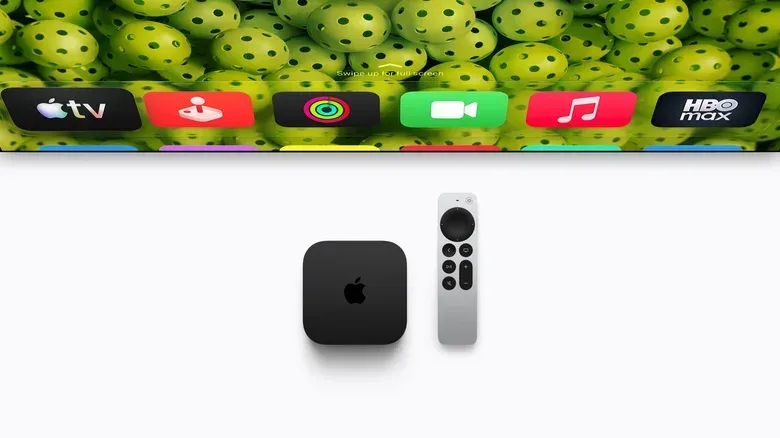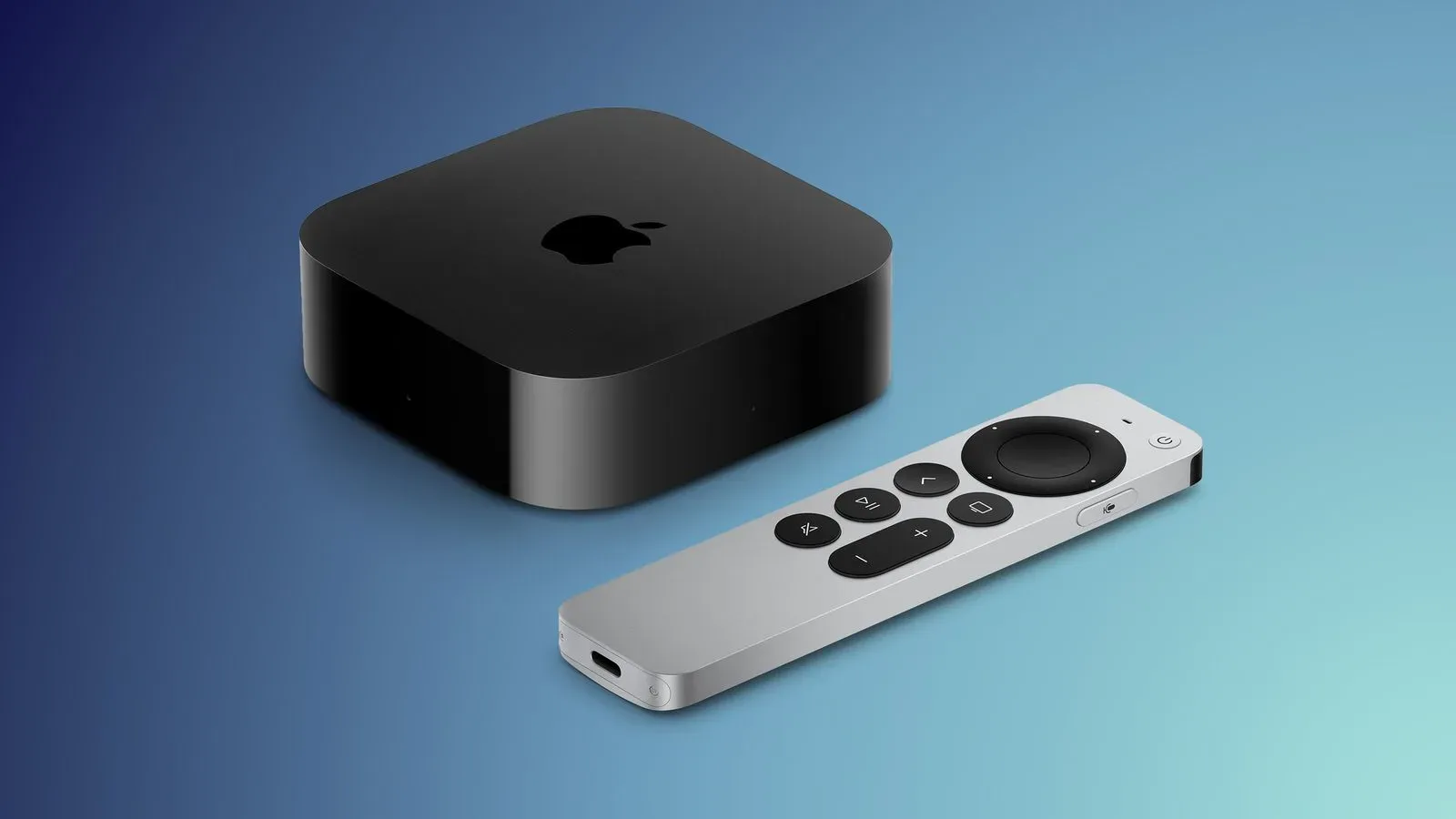
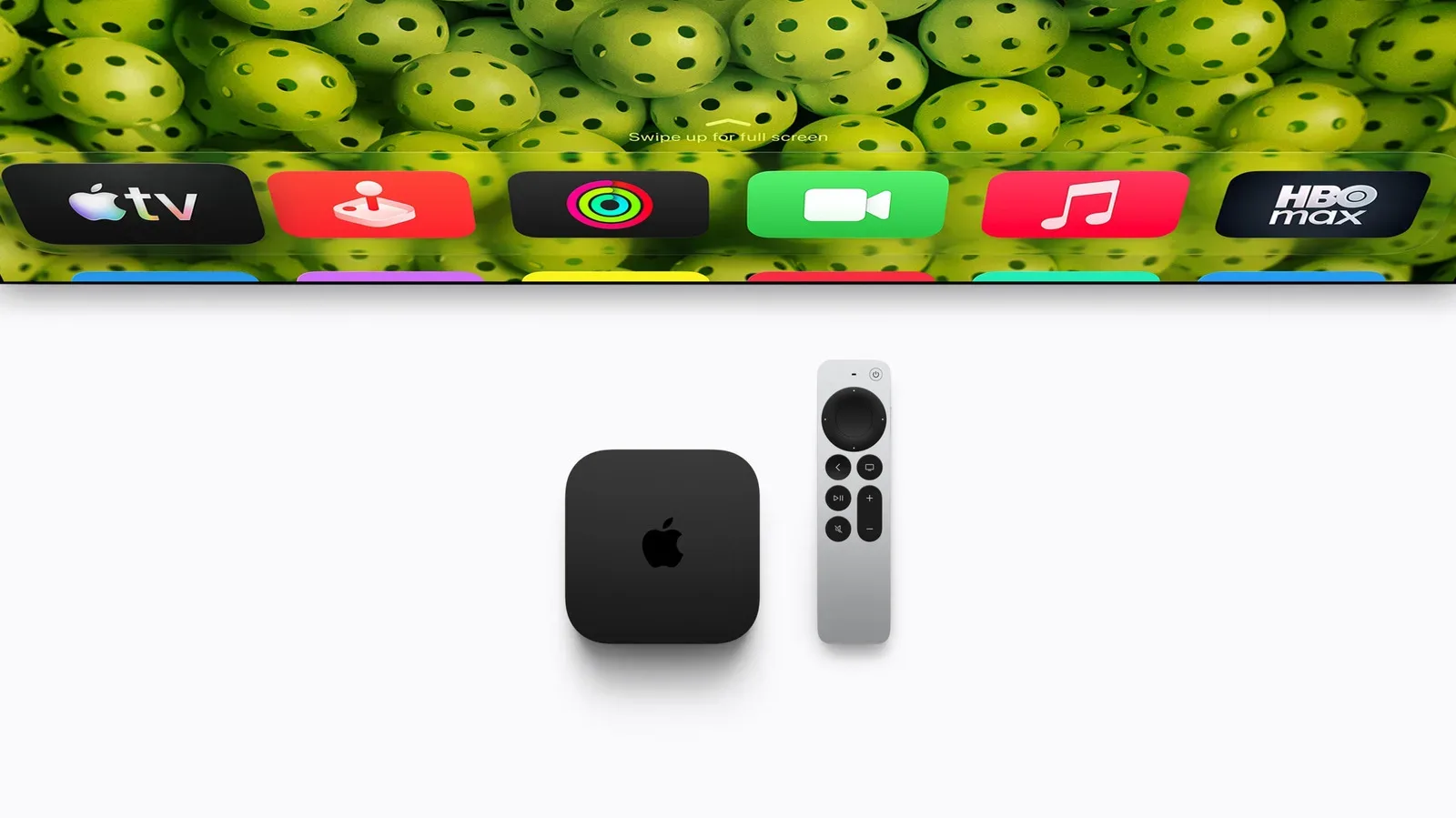
The least glamorous upgrade in a living-room setup may also be the one people use most: the ability to find the remote before a movie night turns into a full-scale excavation of the sofa. Apple’s fourth-generation Apple TV 4K, released November 13, 2026, ships with an updated Siri Remote that supports Find My. The feature can make the small aluminum remote emit a sound, while supported iPhones can provide more direct on-screen guidance to its location through Precision Finding.
That distinction matters. There are really two versions of the lost-remote experience here. One is a simple but useful audible alert: trigger the remote to play a sound, then listen for it. The other is Precision Finding, which uses a compatible newer iPhone to guide the owner toward the remote. Owners of older compatible iPhones can still use Find My, but will receive a less detailed proximity status rather than directional assistance.
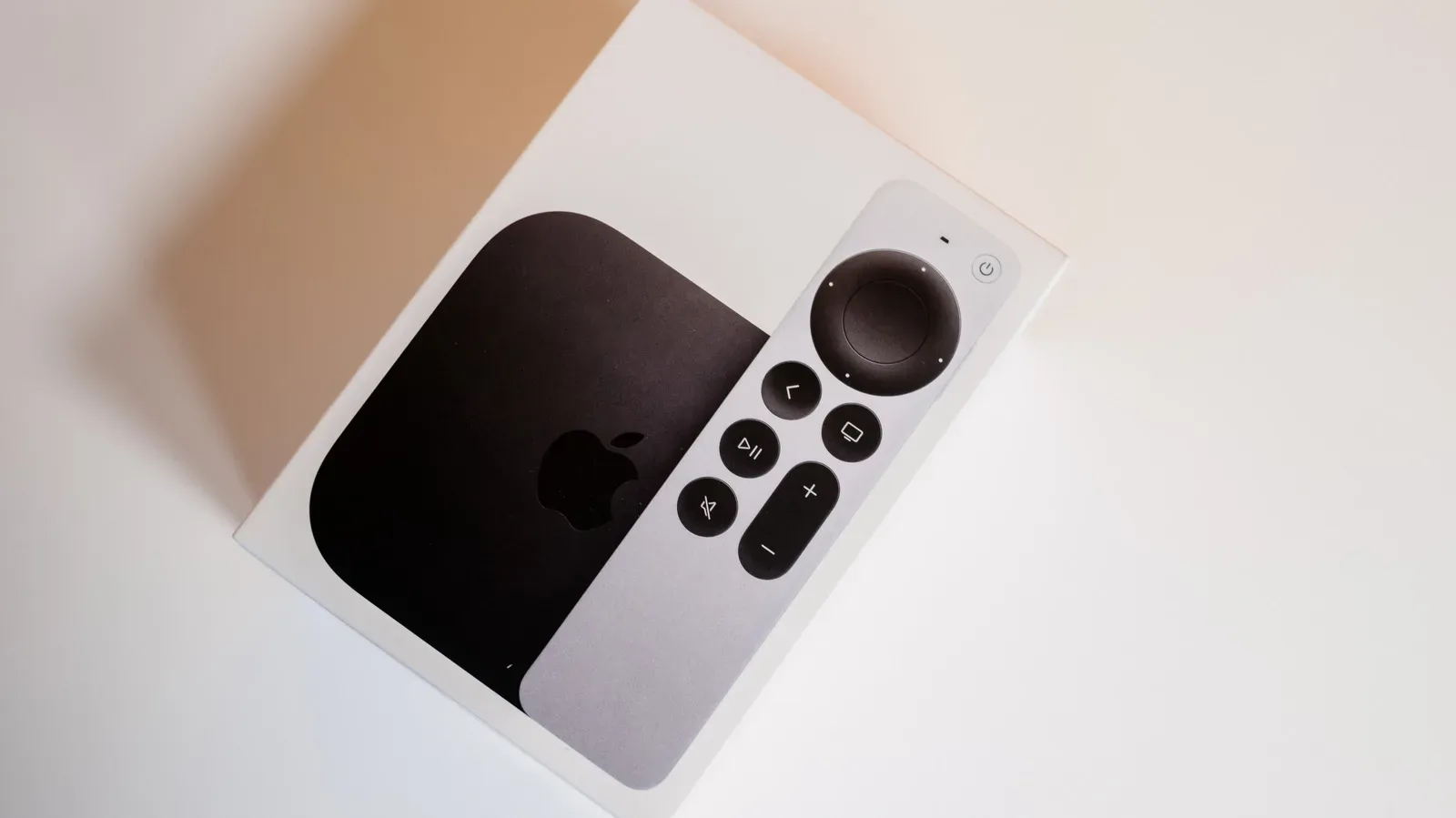
The remote is included with the $299 fourth-generation Apple TV 4K. It is also sold separately for $59. Crucially, its Find My capability is not confined to the latest Apple TV box: the current Siri Remote works with all four Apple TV 4K models and Apple TV HD. That makes the remote upgrade potentially relevant to people who are not replacing their streaming box.
What Find My does for the Siri Remote
Find My is Apple’s device-location system. For this remote, its most immediate purpose is straightforward: it helps establish whether the remote is nearby and provides a way to make it audible. That is likely enough for the common cases—a remote slipped between cushions, put on a shelf, or carried from the living room into another part of the house.
Precision Finding is the higher-detail layer. On eligible iPhones, it can point the user toward the remote rather than merely indicating approximate proximity. It is designed for the moments when a sound alone is not enough, such as when the remote has fallen behind furniture or is hidden under another object.
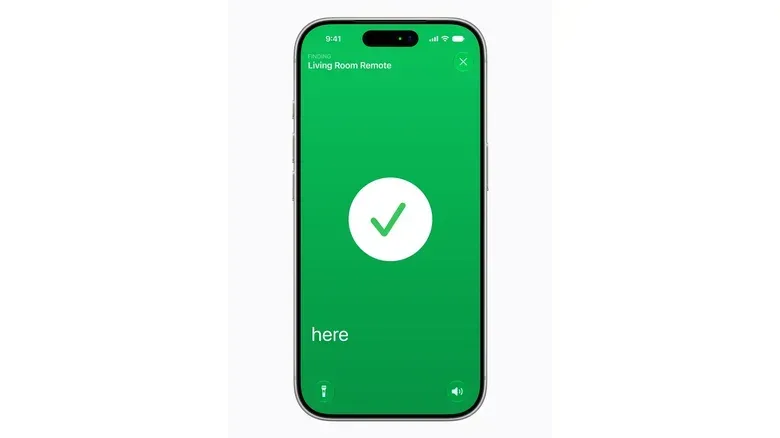
Users should not assume that every phone able to run Find My also receives that navigation-style experience. Apple limits Precision Finding for the new Siri Remote to the iPhone Duo, iPhone Air, and iPhone 17 or later. The iPhone 17e is specifically not included. Earlier iPhones can still show one of three simpler indicators: near, far, or here.
That device split is worth checking before treating the feature as the reason to buy the standalone remote. Sound playback and basic proximity feedback may solve the problem perfectly well, but the on-screen directional guidance depends on the phone in hand.
Method one: ask Siri on Apple TV to ring the remote
If Siri AI is enabled on the Apple TV 4K, asking “Where’s my remote?” can activate the Siri Remote’s Find My sound. This is the quickest option when the television is already available and the missing remote is probably somewhere in the home.
Related coverage includes How to Find a Lost Apple TV 4K Siri Remote With Find My.
There are account and software conditions behind that convenient command. The owner of the home in the Home app must have an Apple Intelligence-enabled iPhone or iPad running the latest software, with Siri AI enabled and configured in a supported language. In other words, the request is not simply a setting on the Apple TV box; it depends on the Home configuration and a qualifying mobile device as well.
When the Apple TV voice request is the sensible first move
- The Apple TV is on and accessible without the remote.
- The remote likely remains in the same room or close enough to hear.
- Siri AI and the relevant Home setup are already enabled.
For practical purposes, listen first rather than immediately searching every surface. The sound function is the least complicated path because it does not require interpreting distance labels or moving around with a phone to establish a connection.
Method two: find the remote from an iPhone
The iPhone route adds the Find My interface and, on qualifying phone models, Precision Finding. Before starting, the iPhone must run iOS 27.2 or later. The user must also be signed in on the Apple TV 4K as either its default profile or as a member of a family group connected to that Apple TV.
Once those requirements are met, the in-app process is short:
- Open Find My on the iPhone.
- Select Devices.
- Choose the Siri Remote by name.
- Tap Find.
If Siri AI is enabled on the iPhone, the user can instead ask, “Siri, where’s my remote?” This can trigger the sound and, where the iPhone qualifies, Precision Finding.
Find My may need a moment to establish the connection. If the screen is not immediately helpful, move through the room and point the phone in different directions. That action is not a substitute for the feature; it is part of helping the phone connect with the missing remote. Once it has been recovered, tap the X to exit the finding view.
Precision Finding versus proximity: what the result on screen means
The practical difference between the two modes is easy to miss in feature lists. Precision Finding is an active search aid that can direct a supported iPhone user toward the Siri Remote. Basic proximity reporting is broader but less specific: it tells the user whether the remote is near, far, or here.
Neither outcome should be read as a guarantee that the remote is in plain sight. “Near” narrows the search but may still mean looking under blankets, behind a television stand, or around the last place the remote was used. “Here” is the cue to stop widening the search and inspect the immediate area carefully. The audible alert can be particularly useful at that point.
For readers interested in how iPhone hardware can turn real-world signals into a useful interface, there is a related limitation to keep in mind: sensors can be excellent at reporting a measurement without always supplying human context. An iPhone’s barometer, for example, can track elevation but cannot inherently explain the cause of a change. Remote-finding tools similarly work best when users interpret the feedback alongside the layout of the room and likely hiding places.
Compatibility checklist before buying the separate remote
The $59 Siri Remote is compatible with every Apple TV 4K generation and Apple TV HD, but a prospective buyer should separate compatibility into three questions:
- Streaming-box compatibility: Does the household use an Apple TV 4K of any generation or Apple TV HD? Those devices support the latest Siri Remote and its Find My feature.
- Phone software: Is the iPhone updated to iOS 27.2 or later for the Find My workflow?
- Precision Finding hardware: Is the phone an iPhone Duo, iPhone Air, or iPhone 17 or later? If not, the remote can still be located with near/far/here proximity feedback, but not full Precision Finding. The iPhone 17e does not qualify.
A fourth check concerns household setup. To use the iPhone-based tools, the person searching needs to be signed in to the Apple TV as its default profile or as part of a family group associated with it. For the Apple TV voice command, the Home app owner needs the required Apple Intelligence-enabled iPhone or iPad, current software, and Siri AI set to a supported language.
Why this is more useful than it sounds
Streaming remotes are designed to be unobtrusive. Their size is convenient until it makes them easy to lose among similarly colored furniture, blankets, bags, and clutter. A conventional remote search is also disruptive: playback pauses, someone gets up, and multiple people start repeating that they “just had it.” A sound-based location command addresses the problem without requiring an accessory attached to the remote.
The more advanced phone guidance has a separate value. A remote can be close enough to be in the house yet not close enough to hear easily, especially if it has moved into a different room. Directional locating can reduce the amount of aimless searching, while basic proximity labels still offer a useful fallback for iPhones outside the Precision Finding list.
There is also a small but meaningful upgrade path for existing Apple TV owners. Since all Apple TV 4K generations and Apple TV HD support the newest remote, the $59 accessory makes the finding functionality available without requiring the $299 fourth-generation Apple TV 4K. Whether that is worthwhile depends on how often the old remote goes missing and whether the household has a qualifying iPhone for the precise mode.
A sensible lost-remote routine
- Start by trying the Apple TV Siri request, “Where’s my remote?”, if Siri AI and the Home prerequisites are in place.
- Listen for the remote’s sound in the room where it was last used.
- If that does not resolve it, open Find My on an iPhone running iOS 27.2 or later, then choose Devices, the remote, and Find.
- Walk slowly through the likely area and point the phone in different directions if it has difficulty connecting.
- Use Precision Finding if the phone is an iPhone Duo, iPhone Air, or iPhone 17 or later. Otherwise, use the near/far/here reading to narrow the physical search.
- Tap the X after recovering the remote to end the search screen.
The key is to start with the simplest signal available and escalate only as needed. Ringing the remote is ideal for a fast recovery; Find My provides a more structured search when the remote is not immediately audible; and Precision Finding is the extra layer reserved for the supported iPhone lineup.