The Nintendo Switch 2 may feel immediately familiar to anyone who spent time with the original Switch, but that familiarity can make its most useful system features easy to miss. The console’s interface, controller approach and portable-to-docked routine encourage players to get straight to a game. A few minutes in Settings, the Controllers menu and the Home screen can nevertheless make daily use less fiddly, more accessible and potentially more sustainable for the hardware over time.
These options are not all aimed at the same person. Some are small quality-of-life fixes, such as skipping an unnecessary profile prompt on a one-person console. Others have a more direct practical benefit: the charging limit is meant to reduce long-term battery strain, while system-level button mapping can make a preferred control layout available even when a game has limited options of its own. Sharing tools add another wrinkle, with virtual game-card loans for family groups and GameShare for certain multiplayer games.
Below is a closer look at five Switch 2 feature groups worth understanding, including where to find them, what their limits are and when it makes sense to turn them on.
1. Use the console to find a misplaced Joy-Con 2
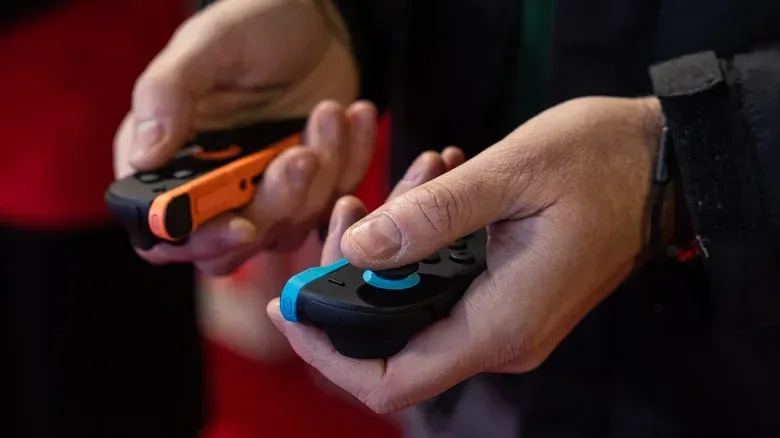
Small controllers have an impressive talent for disappearing into the furniture directly after everyone agrees they were “put somewhere safe.” Joy-Con 2 controllers are larger than their predecessors, but they can still slip beneath a blanket or between sofa cushions. The Switch 2 includes a built-in search tool that can make the hunt considerably less theatrical.
From the main menu, open Controllers and choose Search for Controllers. The system lists compatible controllers that have been paired with the console. Highlight the controller being sought, then hold L or R, or use the touchscreen. While that input is held, the selected controller vibrates and emits a sound. That turns the process from a visual search into an audio-and-vibration search, which is particularly helpful if the controller is under something rather than merely nearby.
Range matters. If the controller is not immediately detected, carrying the console around the room can help bring it back into range before trying again. This is a locator aid, not a magical inventory system, and it has important boundaries:
- It cannot locate a controller with a dead battery.
- It cannot locate a controller paired with a different console.
- Original Switch controllers can be paired with Switch 2, but the search feature cannot locate those older controllers.
- Compatibility with third-party Switch controllers may vary.
The distinction is useful because it prevents a wasted half-hour repeatedly pinging hardware that cannot respond. If a Joy-Con 2 fails to appear or stays silent, charging status and pairing status are the sensible first checks. For paired, powered Joy-Con 2 controllers lost in the usual living-room geography, however, this is one of the most immediately useful tools on the system.
2. Decide whether battery lifespan or maximum charge matters more today
In Settings > System, the Switch 2 offers Stop Charging Around 80-90%. Turning it on limits charging rather than routinely holding the system at a full charge. The purpose is long-term battery health.
Related coverage includes Nintendo Switch 2 Settings and Features Worth Using Before Your Next Game.
The relevant technical term here is lithium-ion battery, the rechargeable battery type used broadly in portable electronics. Keeping such batteries at 100 percent for extended periods can wear them faster than maintaining a lower charge level. A charge cap is therefore most compelling for a Switch 2 that spends much of its life sitting in its dock. In that situation, the owner may reasonably value preserving battery condition over having every possible minute of portable runtime ready at a moment’s notice.
It is not a setting that needs to be treated as permanent doctrine. A long trip, a day away from a power outlet or any situation where maximum portable playtime is the priority gives a clear reason to temporarily switch the limit off and charge fully. The helpful approach is to match the choice to the use case: leave the cap enabled during normal docked life, then disable it when a fully charged system has a practical advantage.
In the same System area, System Battery (%) changes the display from a general battery symbol to an exact percentage. It is a simple companion setting, but an exact figure makes decisions easier. A vague icon can tell a player that power is declining; a percentage gives a more concrete basis for deciding whether to dock, save, or keep playing.
3. Treat button mapping as an accessibility tool, not merely a novelty
The Switch 2’s system-wide remapping options live under Settings > Accessibility > Button Mapping. This is more powerful than waiting for each individual game to provide a satisfactory control menu. A game may offer extensive customization, minimal customization or none that solves a specific reach, comfort or habit issue. System-level mapping lets the player adapt the controller instead.
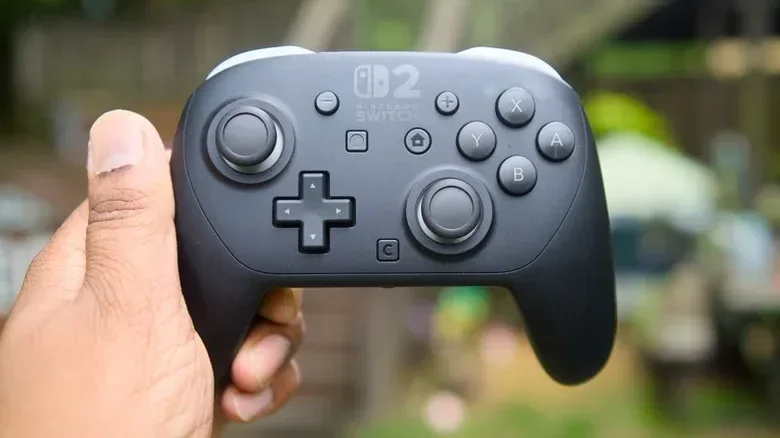
Select a connected controller in the menu, then choose Edit Controller’s Mappings. Most inputs can be reassigned. Someone who wants shoulder inputs arranged differently, for example, can swap ZR and ZL with R and L. A difficult-to-reach command can be moved to a more convenient button. This can be about physical comfort, accommodation, familiarity with another controller layout, or simply reducing accidental inputs.
The C button offers a particularly clear case. Players who do not use GameChat can disable the button to avoid triggering it by mistake. It can also be assigned as an additional input for another command, such as a D-pad direction or a stick press. Under Control Stick Settings, there are options to swap the left and right sticks or use a Joy-Con 2 vertically when a game expects a horizontal orientation.
There are two practical caveats. First, mapping is applied at the system level rather than assigned automatically to a particular game. Second, games do not know that the mapping has changed. If a game’s on-screen prompt says to press ZR but ZR has been exchanged with R, the player must remember to press R. The prompt will not update to explain the personal layout.
The console supports up to five saved presets per controller. After choosing Save, select Save as a Preset and name the configuration. That makes it realistic to maintain separate arrangements rather than rebuilding one layout every time: a familiar default, a layout designed for a particular control need, or a layout intended for a specific style of game. When a remap is active, a blue wrench icon appears at the lower left of the menu and wherever that controller icon is shown.
For quicker access, enable Button Mapping in Quick Settings. Holding the Home button will then expose a shortcut to the tool. There is also a more sweeping option under Settings > Controllers & Accessories: Swap A and B. As the name suggests, it reverses those two buttons. Players accustomed to a bottom-position confirm button and right-position cancel button on other controller ecosystems may find that toggle more useful than detailed remapping.
4. Understand the difference between lending a game and GameShare
Switch 2 game sharing has two distinct ideas behind it, and they should not be confused. Virtual Game Cards handle lending within a Nintendo family group. GameShare lets compatible games be streamed so another nearby player can join multiplayer, with an online option through GameChat for Switch 2 friends.
There is also a basic household benefit that needs no special lending step: a game loaded onto a Switch 2 can be played by other user profiles on that same system. For people sharing one console at home, that means each person can use their own profile while accessing the installed game.
For a family-group loan to another system, start from Virtual Game Cards on the Home screen. Select the game, choose Lend to Family Group Member, then choose the intended user. The two people must be physically near one another to initiate the loan. The loan lasts two weeks, and the lender cannot play that game during that period.
The limits make virtual lending more like lending a physical copy than creating an unrestricted duplicate. A lender can have no more than three games out at a time, and a borrower can have only one title checked out at once. Either person can return the game early. After the 14-day period, it can be lent again if desired. For families that coordinate their libraries, those rules can still be valuable: they create a defined way to circulate games without assuming the lender retains simultaneous access.
GameShare addresses a different situation: getting a compatible multiplayer game running for more people without each participant necessarily owning the title. The system streams a copy of a supported game to another Switch or Switch 2 nearby. Through GameChat, it can also work online for friends with Switch 2 systems. Support is limited rather than universal. Donkey Kong Bananza, Clubhouse Games and Super Mario Odyssey are among the supported titles, so it is worth checking compatibility rather than expecting every multiplayer game to qualify.
The practical takeaway is straightforward. Use a virtual game-card loan when a family-group member wants to borrow a game for their own play over a defined period. Use GameShare when a compatible game and a multiplayer session are the goal. Both can reduce friction around shared libraries, but their rules and intended uses are not interchangeable.
5. Remove a few recurring delays from everyday use
Several Switch 2 settings concern small waits that become noticeable only because they happen repeatedly. They will not transform a menu into a game, but they can make the console feel more direct.
Skip the profile selection screen on a one-user console
If only one person uses the system, visit Settings > Users and enable Skip Selection Screen. This bypasses the step of choosing a profile whenever opening a game or the eShop. The option does not appear if the console has multiple users, which makes sense: where more than one profile exists, the choice still serves a purpose.
Use Handheld Mode Boost carefully with original Switch software
For original Switch games, Settings > System > Nintendo Switch Software Handling > Handheld Mode Boost may improve the experience away from the dock. When enabled, Switch 2 runs those games as though it were in TV mode, which can improve graphics or performance. It may also help reduce loading times.
The trade-offs are important. The feature will likely consume more battery, and certain control quirks are possible, including the touchscreen not working. This is therefore not necessarily an always-on upgrade. It is better understood as an optional performance-oriented mode for compatible older Switch software, especially when improved visuals or smoother operation matter more than battery efficiency or touchscreen use. A Quick Settings shortcut can be enabled for easier switching.
Let the system move screenshots and clips to the phone app
Media sharing is another routine task that benefits from automation. In the Home screen’s Gallery, select the settings cog at left, choose the relevant profile and enable Automatic Uploads. The Switch 2 can upload up to 100 items and retains them for 30 days.
After installing the Nintendo Switch app on a phone and signing in with the Nintendo account, use the Album icon in the app to see those uploads. From there, screenshots and video clips can be shared through chat apps, social media or similar services. The 100-item cap and 30-day retention window mean this should not be mistaken for permanent archiving. It is a convenient transfer channel, so players who want to keep a capture long term should save or share it before it ages out.
These settings reflect a useful side of the Switch 2’s continuity with earlier Nintendo hardware: familiar fundamentals, with refinements that reward a little exploration. For a broader look at Nintendo’s relationship with its hardware and software history, see the report on Nintendo of America seeking a digital archivist for legacy hardware and software.
None of these features needs to be enabled just because it exists. The better approach is selective. A docked-at-home player may prioritize the charging cap; a household with several users may care most about lending and GameShare; someone with specific control needs may find button mapping essential. The useful part is knowing that the Switch 2 has these options, their constraints, and the few menu paths needed to make the console fit the way it is actually used.