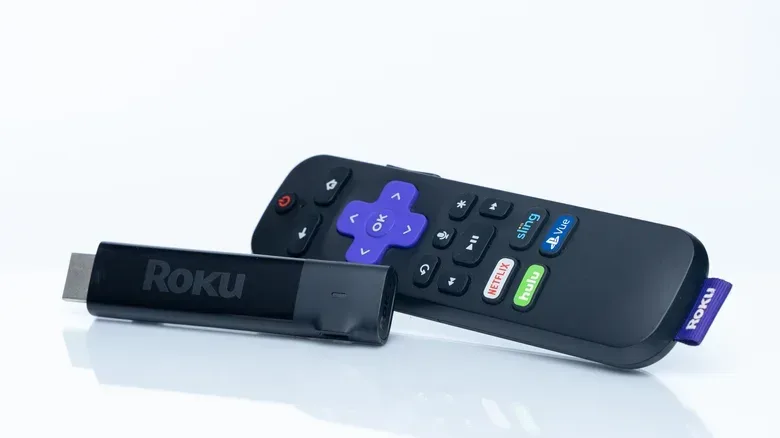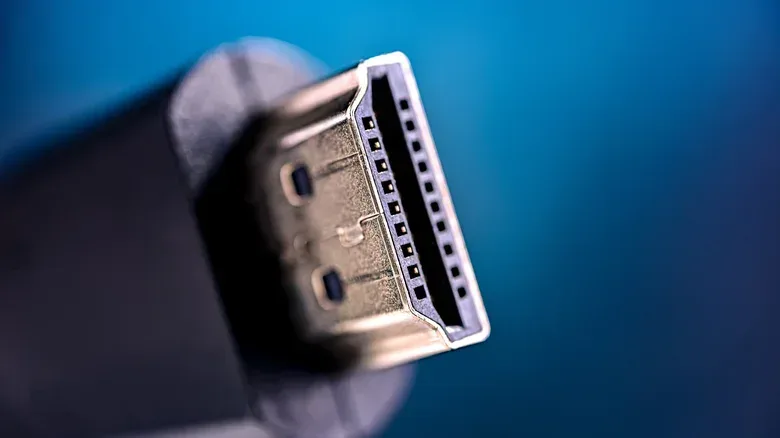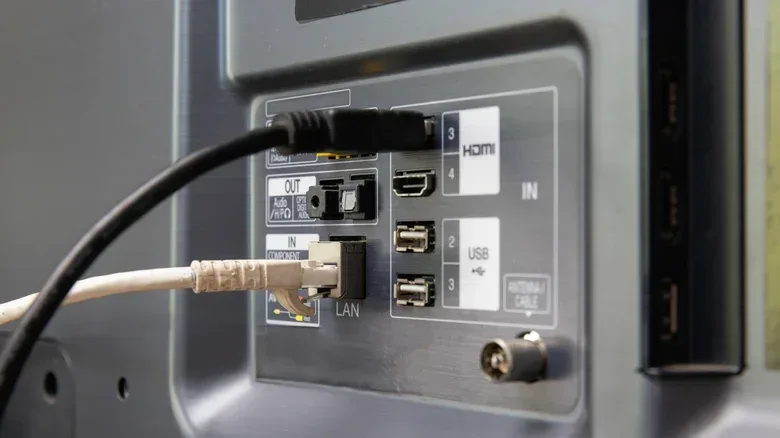
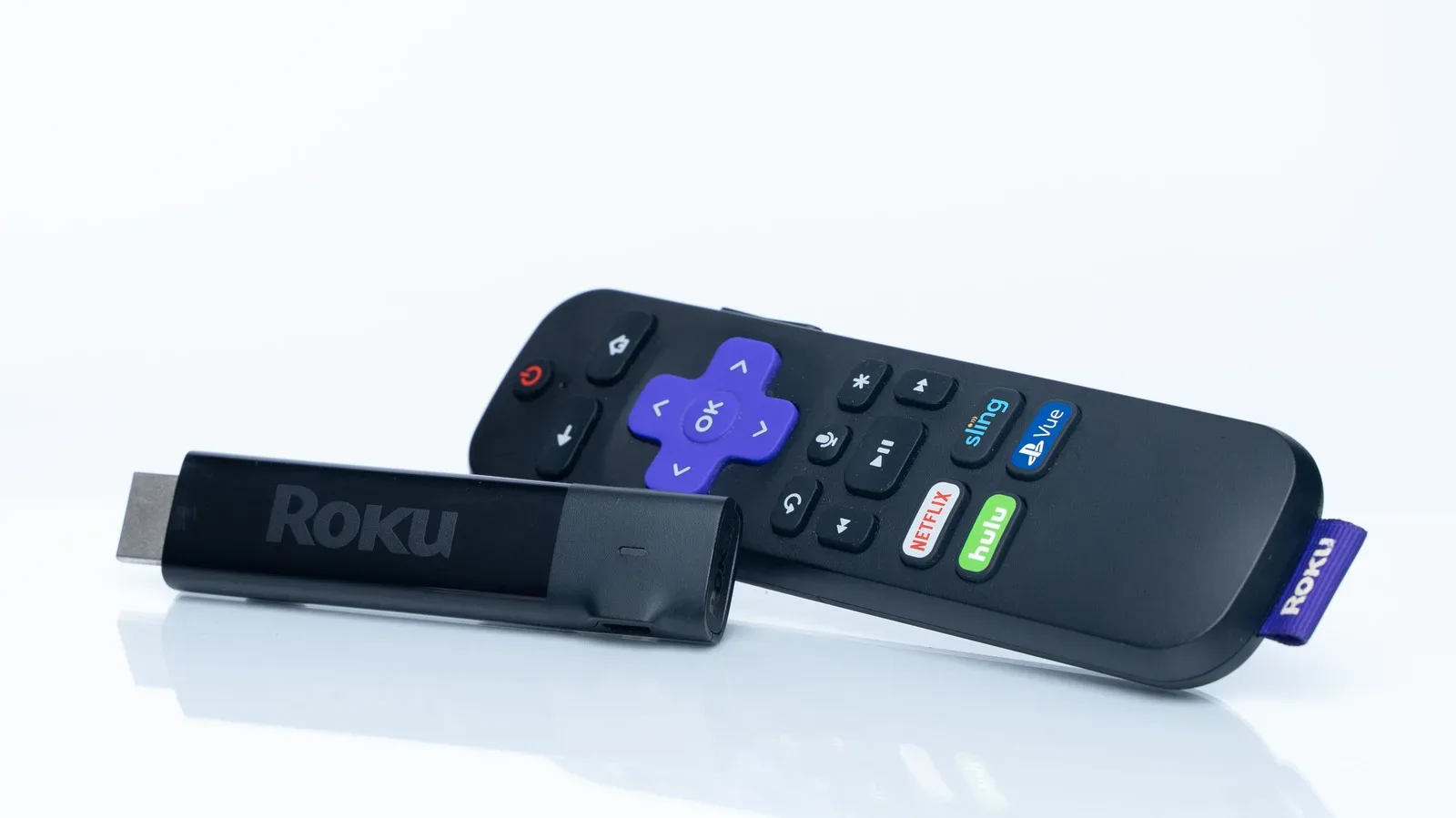
A Roku is usually one of the less demanding devices connected to a modern television. That is good news: plugging one into a standard HDMI input will often deliver 4K streaming, high dynamic range formats and surround-sound compatibility without much drama. It also creates an easy assumption that every HDMI port is interchangeable.
They are not always interchangeable. A TV may reserve some capabilities for particular inputs, or leave an input in a compatibility-focused mode until its settings are changed. The result may not be a total failure—your Roku will probably still show a picture—but it could mean losing an HDR format, missing a seamless refresh-rate transition or using an audio connection in a way that complicates a soundbar setup.
The practical goal is simple: give the Roku an input that supports the video formats it needs, configure that input for its full available capability, use a cable suitable for the features involved, and leave the television’s ARC or eARC connection for audio equipment. The finer details matter most for the Roku Ultra, but they are useful for any streamer sharing a TV with consoles, computers and speaker hardware.
The key point: a Roku does not need the TV’s fastest gaming port
HDMI versions describe the capabilities available over a connection, including bandwidth and features such as high refresh rates. HDMI 2.0 is enough for the core formats relevant to Roku streaming: 4K, HDR10+, Dolby Atmos and Dolby Vision can work over HDMI 2.0, though not necessarily in every best-case implementation a newer television may offer.
That makes an HDMI 2.0-capable port a sound baseline for a Roku. Modern televisions support at least HDMI 2.0, and Roku hardware generally does not make broad use of the features that distinguish HDMI 2.1 and later standards. In particular, even the Roku Ultra tops out at 60Hz. Connecting it to a 120Hz-capable input does not turn it into a 120Hz streamer.
Refresh rate, measured in hertz (Hz), is how often a display updates each second. A 60Hz output can show up to 60 frames per second. For much streaming video, that ceiling is entirely appropriate:
- Film and many television productions commonly run at 24 frames per second (fps).
- News programming commonly uses 30fps.
- YouTube, Twitch and many live-TV streaming services frequently offer 60fps material.
Since 60fps corresponds to 60Hz, a modern Roku can handle the formats that are especially common for streamed video. A 120Hz display can improve motion clarity, but its biggest practical advantage is usually for games and computer use, where fast, interactive content can take greater advantage of it.
That division of labor is important when a TV has only one or two HDMI 2.1 or newer inputs. A gaming PC or current game console has a stronger claim on those ports because it can use high refresh rates and variable refresh rate, or VRR. VRR allows a display to vary its refresh timing to better match a game’s changing frame output, which can improve how motion is presented. A Roku generally belongs on a capable remaining input rather than displacing hardware that can exploit those gaming-oriented features.
Related coverage includes How to Choose the Right HDMI Port for Your Roku.
For players trying to make a limited set of TV inputs do double duty, that prioritization is more useful than treating the newest HDMI label as an automatic upgrade for every device. It also pairs with a broader lesson from game hardware preservation: the connection path and configuration around an old or new machine can matter as much as the box itself. That is part of why documentation work around legacy systems remains valuable, as discussed in Nintendo’s effort to organize its legacy game and hardware records.
One Roku Ultra exception: Quick Media Switching
The Roku Ultra has one HDMI 2.1-specific feature worth identifying: Quick Media Switching, usually shortened to QMS. QMS is designed to make changes between refresh rates less disruptive. For example, it can smooth the move from a 30fps news program to 24fps film-style video.
Without QMS, a television can briefly blank its screen while it adjusts to the incoming rate. That temporary black screen is the visible symptom users are most likely to notice when switching content. QMS is not about making a 24fps movie look like 120fps gaming; it is about making the transition between compatible rates more seamless.
To benefit, the relevant pieces of the setup must support the feature: the Roku Ultra, the television input and the cable path all matter. In a TV with a mix of HDMI capabilities, that may give the Ultra a reason to use a particular newer port. It still does not mean that every Roku needs the same treatment, or that a port’s high-refresh gaming features suddenly become essential for ordinary streaming.
HDR support can vary by HDMI input
The more likely port-specific issue is HDR. High dynamic range expands the range between dark and bright parts of an image and can improve color presentation when the content, streamer and display all support the same format. HDR10+, Dolby Vision and related labels therefore are not merely decorative badges on a TV: their availability can depend on the input being used and its configuration.
Some televisions limit formats such as Dolby Vision to selected HDMI inputs. On other models, the port may be capable but initially set to a reduced mode intended to maximize compatibility with older gear. The name of the required setting varies by manufacturer, but it may be called an enhanced setting or otherwise indicate expanded input capability.
This is why simply moving the Roku cable can be only half of the job. If video looks ordinary or a desired HDR option fails to appear, check the TV’s input settings for the specific HDMI port rather than assuming the Roku itself lacks the feature. Where the television allows it, enabling its modern input capability across ports can avoid an unnecessary limitation. The appropriate menu and supported formats remain TV-specific, so the manufacturer’s documentation is the reliable place to confirm which input supports which HDR standard.
There is a practical distinction worth keeping in mind. An enhanced setting is not a promise that every program will become HDR. The content and devices must support the format. It is instead the permission structure that stops a compatible input from being artificially restricted.
Do not use the ARC or eARC port for the Roku
The labels ARC and eARC on a television can make one HDMI port look especially important, but it is usually the wrong destination for a streaming stick or set-top box. ARC means Audio Return Channel, while eARC means enhanced Audio Return Channel. These connections are intended for audio output equipment such as soundbars, AV receivers and speaker systems.
That direction matters. ARC and eARC carry audio from the TV to the external sound device. They are particularly relevant to audio arrangements involving formats such as Dolby Atmos. A Roku is a source device that sends video and audio into the television, so it does not need to occupy the soundbar-oriented port.
If a TV supports ARC or eARC, it can pull audio from its HDMI 2.x inputs regardless of which input label the Roku uses. In other words, connecting a Roku to a normal HDMI input does not prevent its audio from reaching a compatible sound system through the TV’s ARC or eARC connection. Keeping the audio port clear for the soundbar or receiver is generally the cleaner arrangement.
This is also a useful troubleshooting order: establish that the Roku has a proper video input first, then make sure the sound system is connected to the TV’s designated ARC or eARC port. Changing the Roku’s port in an attempt to fix a speaker connection can otherwise create a second, unrelated configuration problem.
The cable is part of the feature chain
An HDMI connection is only as capable as the components in that chain. Using an older HDMI 2.0 cable with Roku hardware and a TV setup intended to use HDMI 2.1 features can block those features from working. That is particularly relevant to the Roku Ultra’s QMS support.
If the cable’s specification is uncertain, HDMI 2.1 cables are readily available, and HDMI 2.2 cables—also referred to as Ultra96—exist as well, although Ultra96 is not yet in widespread use. The sensible choice is not automatically the most ambitious label; it is a cable that matches the capability a setup is actually trying to use.
For a typical Roku placed on an HDMI 2.0 input for 4K streaming, the central concern is that the cable and port reliably support the formats selected by the television and Roku. For a Roku Ultra using QMS through a compatible HDMI 2.1 path, the cable must not be the older link that prevents the feature from engaging.
A sensible setup checklist
- Identify the TV’s inputs. Check the television manufacturer’s information to see whether particular ports have distinct HDR, HDMI 2.1 or QMS support.
- Reserve ARC or eARC for audio gear. Connect a soundbar, receiver or compatible speaker system to that labeled TV input rather than using it for the Roku.
- Give consoles and PCs first claim on scarce high-spec ports. They can take advantage of 120Hz-or-higher refresh rates and VRR in ways a Roku cannot.
- Use a suitable remaining input for the Roku. HDMI 2.0 is sufficient for its principal streaming duties; select a compatible newer port when the Roku Ultra’s QMS support is a priority.
- Check that input’s television setting. Enable the appropriate enhanced capability when the TV requires it for HDR formats such as Dolby Vision.
- Match the cable to the intended feature set. An HDMI 2.1-capable path needs a cable that does not hold it back.
The outcome is less about chasing the highest HDMI number and more about avoiding a mismatched role. A Roku can deliver its most relevant streaming strengths through the right properly configured input, while the TV’s premium gaming connection remains available for the hardware that can fully use it.