ChatGPT’s image tools can now be used to make and revise GIFs, giving users a route to create a custom reaction loop rather than hunt through the usual library of familiar clips. OpenAI rolled out Images 2.6 for ChatGPT, Codex and its API on November 4, 2026, adding GIF generation from either a written prompt or an image.
The update is less about replacing every established reaction GIF than making a particular idea easier to express. A short animated image can communicate a moment, a mood or a joke with more specificity than a generic loop. With Images 2.6, the starting point can be a description, a photo, or even a simple sketch; the result can then be edited before it is downloaded or shared.
Access does not require a subscription through ChatGPT or Codex, although the number of images a person can generate depends on their subscription status. For developers using the API, the update also introduces Flare and Sunburst options, intended for different needs around generation speed, visual detail and consistency.
What Images 2.6 adds to ChatGPT GIF creation
The core addition is animation generation from a prompt. A user can sign in to ChatGPT and enter a request in the main prompt field. A simple request might describe a tortoiseshell cat yawning, while a more deliberate prompt can spell out the subject and the action that should repeat in the finished loop.
In this context, a prompt is the plain-language instruction given to the system. It is not merely a topic label. If the goal is an expressive GIF, the action matters: “yawning,” “waving,” “spinning,” or “looking surprised” gives the animation a behavior to work with. The supplied description also provides the visual subject. That makes a prompt the central creative brief for a text-led GIF.
Images 2.6 also accepts an uploaded photo as a starting point for a GIF. It can use a minimal drawing as well, including a simple owl sketch. That expands the possible workflow beyond text-only requests: users can begin from something already visual and ask ChatGPT to turn it into an animated image.
OpenAI says Images 2.6 generates images about 50% faster than the preceding version. The claim is about image generation speed, and it does not establish a fixed generation time for every GIF. Actual output may still vary with the request and the generation allowance attached to an account.
How to make a GIF in ChatGPT
- Sign in to ChatGPT. Start from the prompt box at the bottom of the interface.
- Write the request. Describe the GIF you want to create. Include a clear subject and an action, such as a tortoiseshell cat yawning.
- Alternatively, provide an image. Upload a photo to use as the basis for a GIF. A minimal sketch can also serve as a starting image.
- Review the generated animation. Once ChatGPT produces a GIF, decide whether its motion and visuals match the idea.
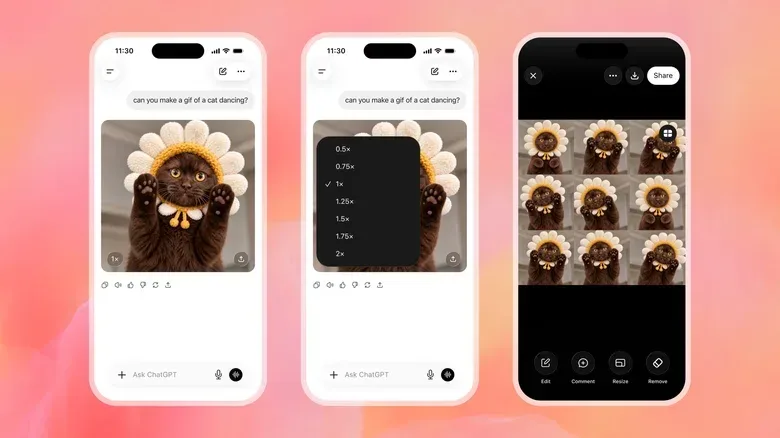
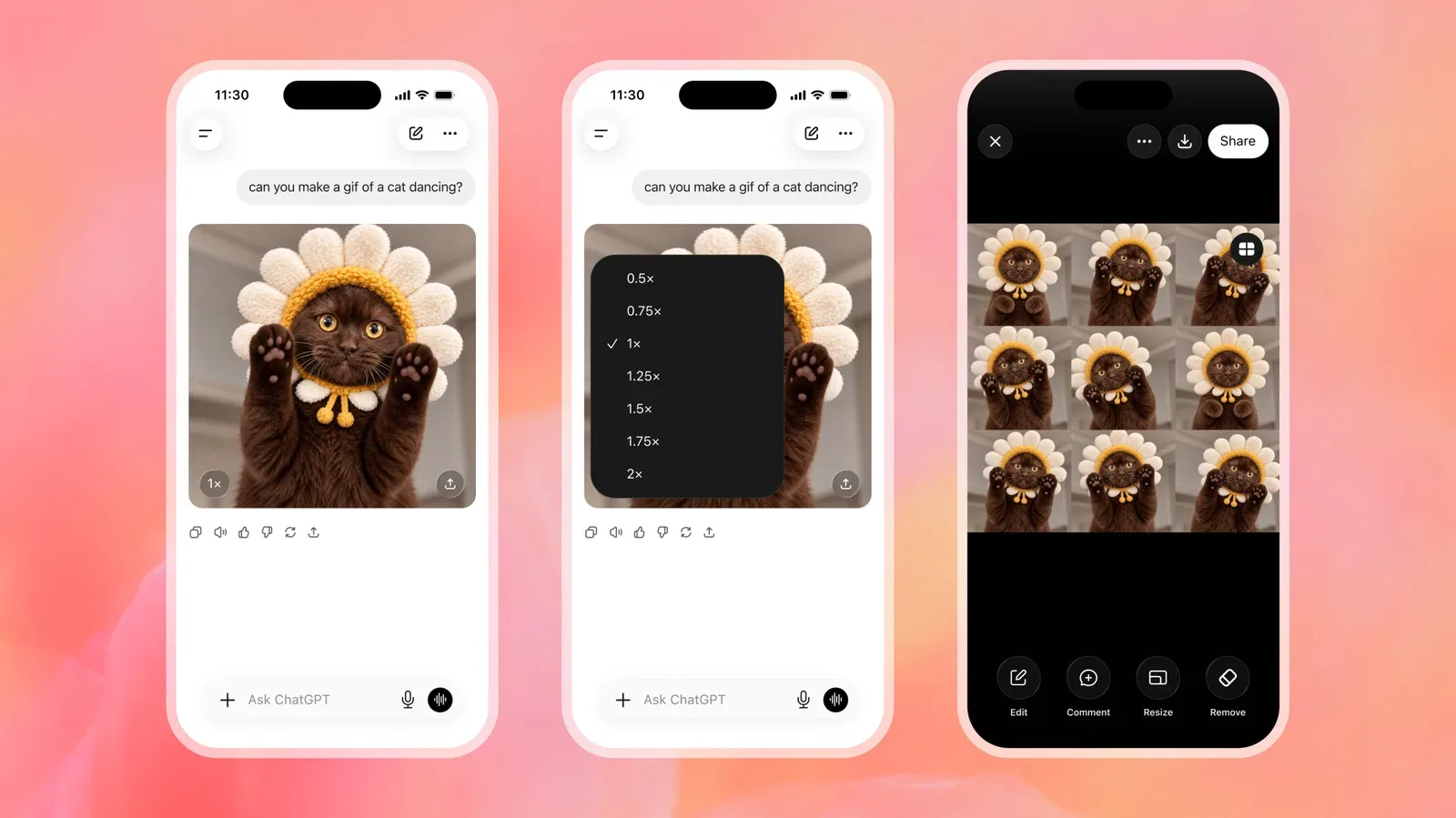
- Adjust the playback speed if needed. Use the control marked with a value such as “1x” at the bottom-left of the image to make the loop faster or slower.
- Edit the image. Select or tap the GIF, then choose Edit. In the field labeled “Describe edits,” enter the changes you want ChatGPT to make.
- Inspect the frames. Select Sheet to see the GIF’s individual frames and add comments or markups.
- Save the result. Use the Download or Share buttons after the GIF is ready.
The controls make this more than a one-shot generator. A first result is a draft; speed changes, written edit requests and frame-level inspection provide separate ways to refine it.
Related coverage includes ChatGPT Can Now Create and Edit GIFs With Images 2.6.
Why speed and frames matter in a looping image
A GIF is designed to repeat, so timing changes can alter how the same animation reads. The “1x” control changes the loop’s speed. A quicker loop may make an action feel more abrupt, while a slower one gives viewers more time to register the image. The update provides that adjustment directly on the generated GIF rather than requiring the user to remake the idea from scratch.
The Sheet option is useful for a more granular look at the animation. A frame is one of the still images that together make up the moving loop. Seeing the frames individually can help a user identify which moment needs attention and attach a comment or markup to it. The available information does not specify exactly how every markup is processed, but the feature clearly shifts review from the whole loop to its component images.
That distinction is practical. A request to change “the GIF” is broad; a frame view gives a user a place to point out a particular visual moment. The Edit workflow remains text-driven through the “Describe edits” field, while Sheet adds a way to examine and annotate the frames behind the result.
Reference images can make repeated work more consistent
Images 2.6 also lets users save and tag an image as a reference for later work. This can apply to people, pets and characters. A reference image is an image retained for reuse as a visual basis in future generations, rather than something that must be uploaded and described again every time.
For someone making more than one GIF around the same subject, that option can simplify the setup. Instead of beginning each request with a new description alone, a saved reference can be brought back into the process. The update’s stated purpose here is reuse; it does not guarantee that every later output will look identical to the original reference.
Saving and tagging references may be particularly useful when a prompt describes a recurring pet, person or character. Tags function as labels for finding and organizing those references again. That is a modest but meaningful addition to a tool that otherwise begins with a blank prompt box.
People using ChatGPT on a phone may also find broader interface personalization useful alongside creative tools; Joking Joystick has a separate guide on customizing app icons, menus and gestures on a Samsung Galaxy phone.
ChatGPT, Codex and the API: what each availability path means
Images 2.6 is available through ChatGPT and Codex, as well as via the API. ChatGPT is the direct consumer-facing route described by the GIF creation steps above. Codex is another supported OpenAI surface under the rollout. The API is the developer-facing route, allowing software makers to access the available image-generation capabilities from their own applications or services.
For API use, developers can select between Flare and Sunburst. The provided details characterize the choice as a trade-off involving speed, detail and consistency. In plain terms, it gives developers a selection based on whether their use case places more emphasis on how quickly images are generated, how detailed they are, or how reliably their look carries across output.
No further specifications for Flare or Sunburst are provided here, so it would be premature to treat either as universally better. The appropriate choice depends on the developer’s own balance of those three stated priorities.
Availability and generation limits
OpenAI has made Images 2.6 available to everyone through ChatGPT and Codex without requiring a subscription for access. That does not mean every account has the same capacity. Subscription status determines how many images a user can generate.
This is an important distinction for anyone planning a longer iteration cycle. Generating an initial GIF, experimenting with alternate prompts, revising the image, and building around saved references can involve multiple generations. The feature is open to free users, but the available image count is not necessarily the same for every user.
What the update means for everyday GIF use
OpenAI says users generate more than 500 million images per day on average. It has not said how many of those images become GIFs. Still, the addition of GIF tools moves animation into the same conversational workflow as image prompting and image revision.
The notable practical change is the combination of generation and adjustment. Users can make a GIF from an idea, a photo or a sketch; alter its speed; request visual changes; inspect its component frames; and then download or share it. For a format often used as a fast, context-heavy response in chats, that offers a more direct path from an in-the-moment thought to a custom loop.