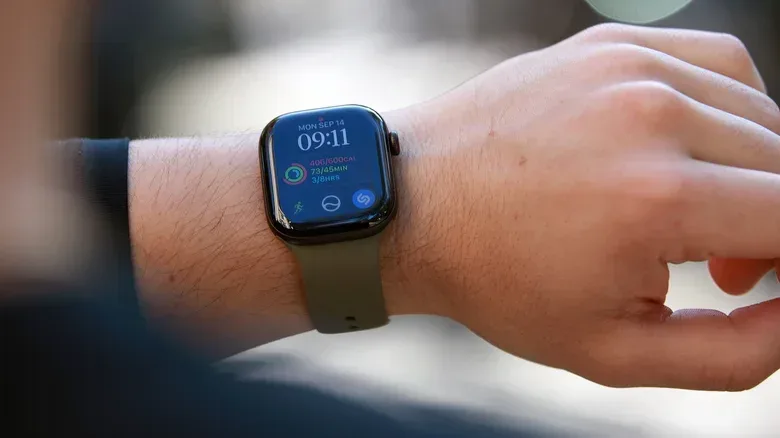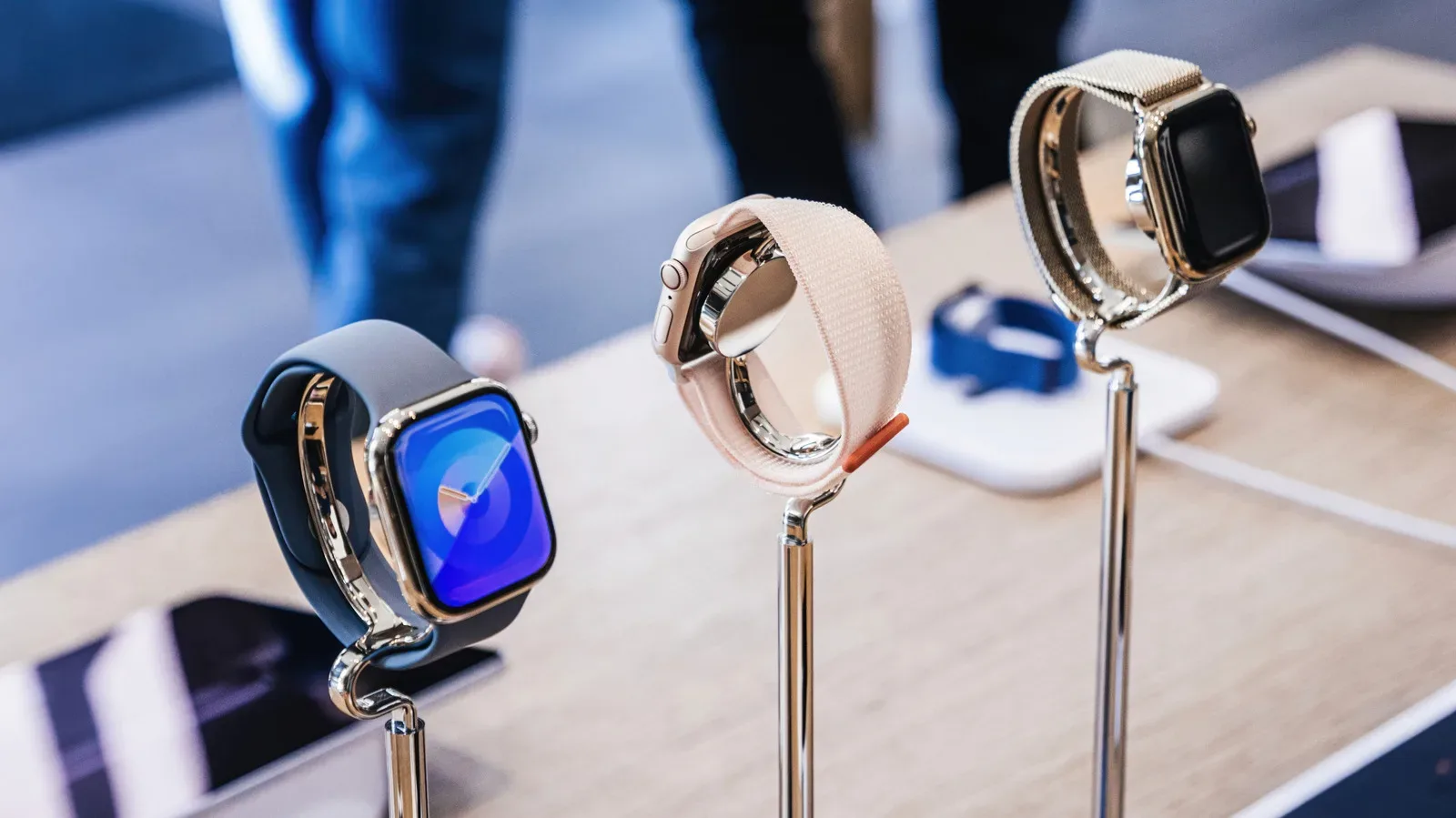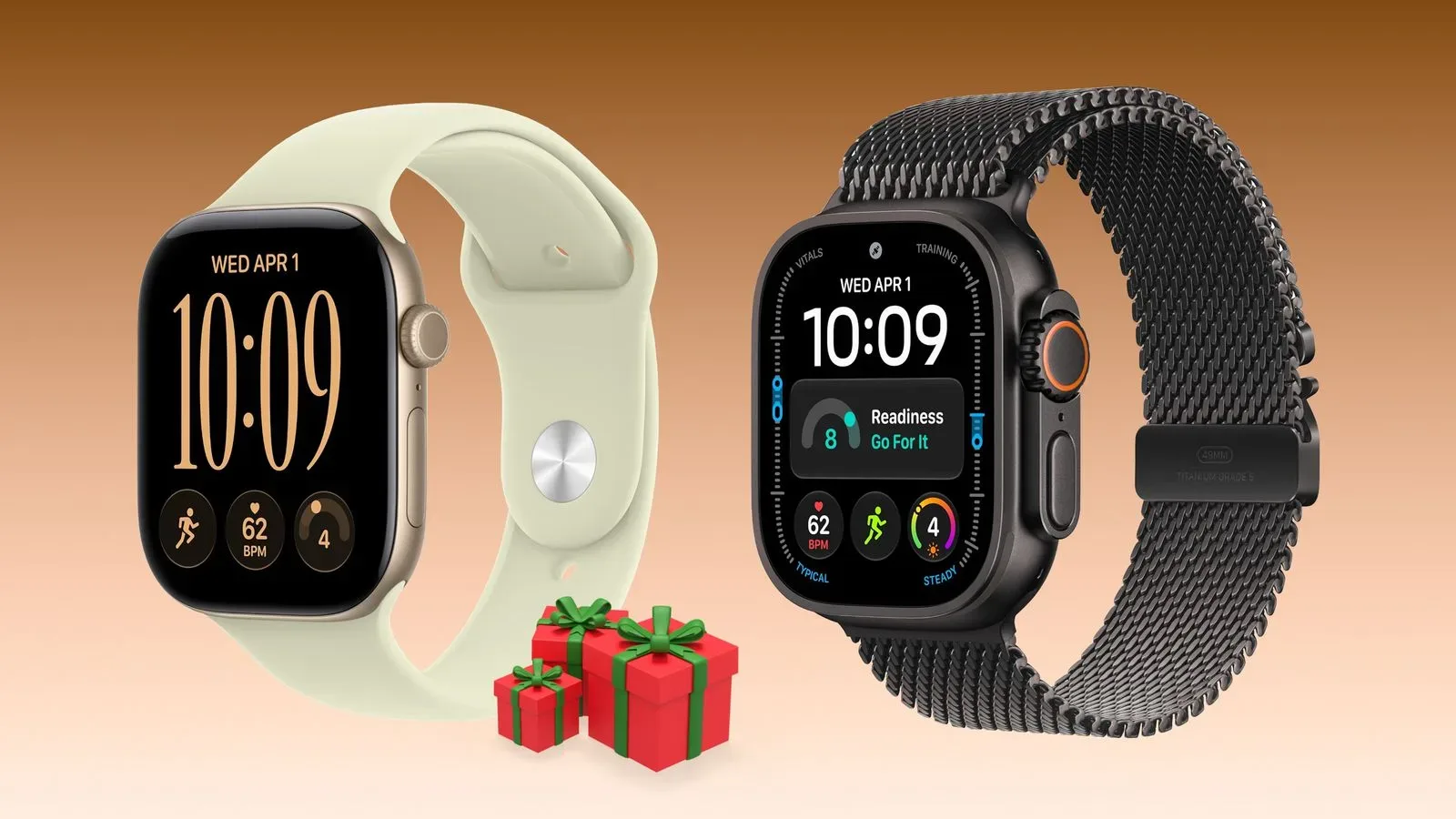
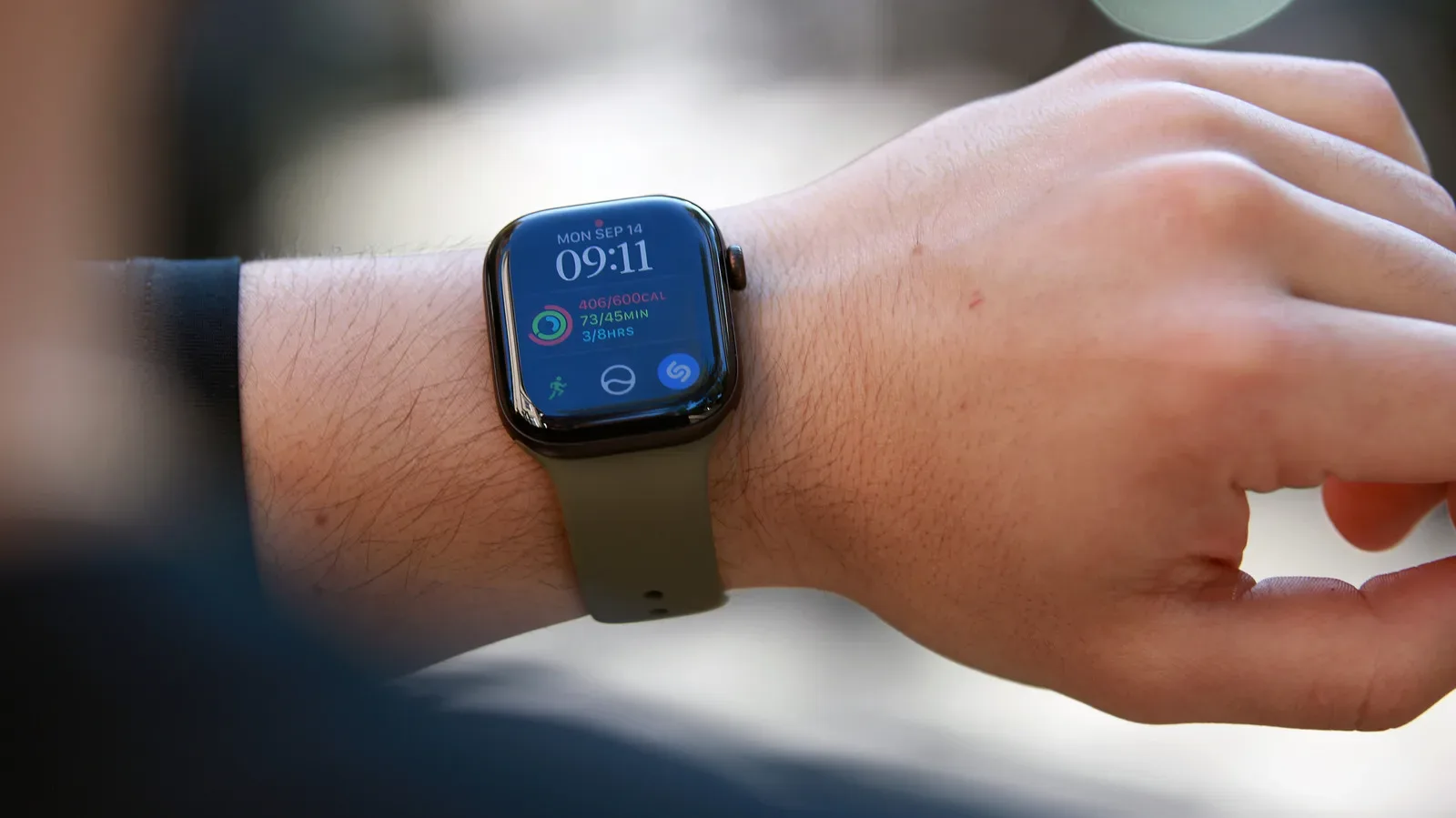
A tiny red dot at the top of an Apple Watch face can look more urgent than it is. It is not a hardware warning, battery-health alert, or mysterious sign that the watch has entered an alarming new mode. It is a notification indicator: the watch has notifications waiting that have not been read and dismissed.
That sounds simple, but the dot can be surprisingly persistent if alerts arrive while your attention is elsewhere. Apple Watch and iPhone also share notification duties. When the iPhone is unlocked, notifications are delivered there; when the iPhone is locked and the Apple Watch is unlocked, they can be sent to the watch instead. The red dot is the useful little receipt left behind when an alert has reached the wrist but has not been dealt with.
For anyone who treats a watch primarily as a glanceable companion rather than a second inbox, the important part is that Apple provides several levels of control. You can read the pending alerts, remove one, clear the backlog, hide the indicator itself, mute an individual app for a while, or stop particular apps from reaching the watch. The best choice depends on whether the annoyance is the dot, the interruptions, or one especially chatty app.
What the red dot is telling you
The red dot means there are unread notifications on the Apple Watch. It is an indicator, not the notification itself. In other words, it signals that there is something to inspect in Notification Center; it does not identify which app sent the alert or whether the alert is important.
That distinction matters. Turning off the red dot does not necessarily stop notifications from arriving. It simply removes the on-screen reminder that pending alerts exist. Likewise, clearing the dot by deleting notifications does not change an app’s future notification behavior. If the same app keeps recreating the red-dot problem, its notification settings are the more useful place to look.
The delivery split between phone and watch can also explain why an alert feels as if it has gone missing. An unlocked iPhone receives notifications on the phone. If the phone is locked while the watch is unlocked, the watch can take over. The alert may therefore appear on a different screen from the one a person expected, with the red dot serving as the watch’s low-key reminder that it is still waiting.
Open Notification Center and deal with pending alerts
To see what is behind the red dot, press and hold the watch face to open Notification Center. From there, swipe down the screen to move through notifications, or use the Digital Crown to scroll.
The Digital Crown is the watch’s physical rotating control. Using it here is an alternative to repeated touch-screen swipes, which can be handy when there is a long list of alerts. Tap a notification to read it. If an alert no longer needs attention, swipe left on it and tap the X button to delete it.
Clear everything at once
If the list is all old news, Notification Center includes a faster cleanup route. Scroll to the top by swiping down or turning the Digital Crown until the Clear All button is visible, then tap it. This removes all unread notifications from the Apple Watch and should remove the red dot because there are no pending alerts left for it to represent.
Clearing all is a cleanup action, not a notification preference. It gets rid of the current stack, but does not unsubscribe the watch from future alerts. That makes it a good option after a busy day, after a run of notifications that were already handled on another device, or whenever the dot is simply advertising a queue that no longer matters.
Hide the indicator without changing every alert
Some people want notifications available in Notification Center but do not want a colored marker on the watch face. Apple offers a setting specifically for that. On the paired iPhone, open the Apple Watch app, tap Notifications, then switch off Notifications Indicator.
This is the least disruptive setting change. The watch can still receive alerts, and Notification Center remains available for checking them, but the red dot no longer appears. It is a sensible compromise for anyone who finds a permanent visual prompt distracting or anxiety-inducing but still wants notifications saved for later.
It is worth separating that choice from muting. Hiding the dot changes a visual cue. Muting or disabling an app changes whether the app interrupts or contacts the watch in the first place. One setting tidies the face; the other reduces the stream.
Mute one noisy app from the notification itself
When one particular app is responsible for most unwanted alerts, you do not have to make a broad change to every notification. In Notification Center, swipe left on that app’s notification and choose the ellipsis button instead of the X. The menu provides options to mute alerts from that app for an hour or turn them off completely.
This approach is practical because it starts with the evidence in front of you. Rather than guessing which app is creating the clutter, use the alert that prompted the irritation to reach its controls. A one-hour mute is useful when a notification burst is temporary; turning notifications off completely is better suited to an app whose wrist alerts are never useful.
The same menu includes an option related to Time Sensitive notifications. Time Sensitive is a notification priority that can be delivered immediately even when Focus is delaying most alerts. Focus is Apple’s mode for reducing interruptions by postponing many notifications. The Time Sensitive control is therefore relevant for people who want tighter limits on which alerts can bypass that quieter mode.
Choose which iPhone apps can mirror to the watch
Most apps mirror their iPhone notification settings to Apple Watch. In plain terms, their behavior is linked: the alert choices made for the phone are reflected on the watch. But the Apple Watch app on iPhone offers a useful extra layer for stopping selected mirrored alerts from appearing on the wrist.
Open the Apple Watch app, go to Notifications, find Mirror iPhone Alerts, and switch off the toggle for any listed app you do not want alerting you on Apple Watch. This is particularly useful when a notification makes sense on a larger phone screen but not as a wrist interruption. A person might still want to see that app’s messages when they next use the iPhone, without having the watch tap, buzz, or accumulate a Notification Center entry.
Some apps expose their own watch notification controls instead of only mirroring the iPhone. Those apps show a Custom option when selected in the Apple Watch app. Their settings can include Notifications Off or Send to Notification Center.
“Send to Notification Center” is an especially useful middle ground. Alerts are sent to the watch’s list for later reference, but the watch does not actively alert you when they arrive. That makes it suitable for low-priority information that is worth retaining but not worth interrupting a meeting, a game session, or a moment away from the phone.
A quick decision guide for the red dot
- You want to know what happened: Open Notification Center, then tap the relevant alert.
- You handled the alerts elsewhere: Delete individual notifications or use Clear All.
- You want notifications but dislike the marker: In the Apple Watch app, go to Notifications and turn off Notifications Indicator.
- One app is briefly overwhelming: Swipe left on its alert, tap the ellipsis, and mute it for an hour.
- One app never needs wrist access: Turn its alerts off from the notification menu or disable it under Mirror iPhone Alerts.
- You want an archive without interruptions: For apps with Custom settings, choose Send to Notification Center.
The broader lesson is that notification control works best when it is specific. A red dot is only a status signal, so clearing it solves the visible symptom. If it comes back too often, app-by-app settings solve the underlying flow. That same preference for adjustable, less intrusive digital experiences is appearing elsewhere too, including tools that let users choose whether they want spoken commentary at all, as in Spotify’s AI DJ commentary controls.
For Apple Watch owners, the cleanest setup is not necessarily zero notifications. It is a deliberate split: urgent alerts that deserve immediate attention, quieter updates that can wait in Notification Center, and everything else kept off the wrist. Once that division is in place, the red dot becomes a helpful reminder rather than a tiny red source of stress.