Twitch viewing does not have to stay confined to a phone, laptop, or desktop monitor. A television can be a more comfortable screen for long broadcasts, tournament coverage, watch parties, and co-streamed events—such as the programming promised for the next Convergence Games Showcase. The right method depends less on Twitch itself than on the equipment already connected to the TV.
The simplest route is an official Twitch app installed directly on the television. When that is not an option, casting from a phone or computer is usually the next cleanest approach. Consoles and dedicated media players can also put Twitch on the big screen, while a direct video cable remains the dependable fallback when wireless casting is unavailable or temperamental.
Here is how each option works, what it requires, and where the common setup snags tend to appear.
Start with the TV’s own app library
Before adding another box, cable, or controller to the living-room ecosystem, open the smart TV’s app store or app library and search for Twitch. Many modern smart TVs offer downloadable applications, and an installed TV app is generally the most straightforward way to watch: open it on the television, choose a stream, and stay on the TV without routing video through another device.
That check is worthwhile even if the TV does not visibly advertise Twitch on its home screen. App availability is handled through the television’s software storefront, so the answer is found in the app library rather than by assuming that a smart TV either does or does not support the service.
If Twitch is available, installing it avoids the two main dependencies of casting: a separate device must be present, and that device must be able to discover the television over the local network. It also means the television interface, rather than a phone or PC, handles selecting streams.
If the app is not available, that does not mean the TV is unusable for Twitch. It simply shifts the job to casting, a console, a streaming device, or a wired connection.
Cast Twitch from a phone or tablet
For mobile viewers, casting is designed to be the quick handoff from a small screen to a large one. Open a Twitch stream in the mobile app and look for the cast control. Tapping it should present compatible devices; select the television or attached streaming hardware to send the stream there.
Casting is the process of sending playback from one device to another display-capable device over a network. In practical terms, the phone is used to initiate playback and choose content, while the TV becomes the screen for the stream. This is different from plugging a handset into the television with a cable, and it is also different from simply opening Twitch on the TV itself.
The essential requirement is that the phone and the television—or the device attached to that television—are connected to the same Wi-Fi network. If they are on different networks, the casting destination may not appear at all. That is the first thing to verify whenever the cast icon is missing or the intended television is absent from the device list.
Keep the software side current as well. The phone and television should have their latest available firmware. Firmware is the core software that runs hardware such as a television or streaming unit; updates can affect network discovery and casting compatibility. It is also sensible to review Twitch settings and make sure no unwanted preferences or security-related settings are enabled before beginning a session.
Mobile casting checklist
- Open the Twitch mobile app and select the stream you want to watch.
- Use the cast button on the stream.
- Choose the TV or compatible attached streaming device.
- If no destination appears, confirm both devices use the same Wi-Fi network.
- Check that the phone and TV have current firmware.
- Review Twitch settings if an unexpected preference or security option may be affecting the experience.
Mobile casting is especially useful when browsing streams, channels, and categories feels more natural on a touchscreen. It also leaves the phone as the convenient place to find a different broadcast while the television handles the viewing.
Cast Twitch from a computer with Google Chrome
A computer offers another route to the television, particularly for viewers who already use Twitch in a browser. Google Chrome includes its own casting controls. Load Twitch in Chrome, open the three-dot menu in the upper-right corner, select Cast, Save and Share, then choose Cast. Select the desired television from the available devices to begin.
As on mobile, the computer and TV must be on the same Wi-Fi network for discovery to work. When a TV does not show up as a destination, treat the network setup as the first troubleshooting point rather than repeatedly reopening Twitch or refreshing the browser.
Chrome may offer more than one casting approach. If sending the particular Twitch window does not work as expected, try casting the entire screen instead. A window cast focuses on the chosen browser window, while a screen cast shares the desktop display more broadly. The latter can be useful as a fallback, but it also means anything displayed on that screen can potentially be shown on the TV. Closing unrelated windows and notifications first is a sensible precaution.
Chrome casting steps
- Connect the computer and TV to the same Wi-Fi network.
- Open Twitch in Google Chrome.
- Select Chrome’s three-dot menu in the upper-right corner.
- Choose Cast, Save and Share, then Cast.
- Select the television or casting-capable device.
- If casting the Twitch window fails, attempt a full-screen cast.
The computer method is also a helpful option for setups where the viewer wants to keep browsing Twitch from a keyboard and mouse. The TV acts as the larger display, but stream selection remains on the computer.
Use a console as the Twitch device
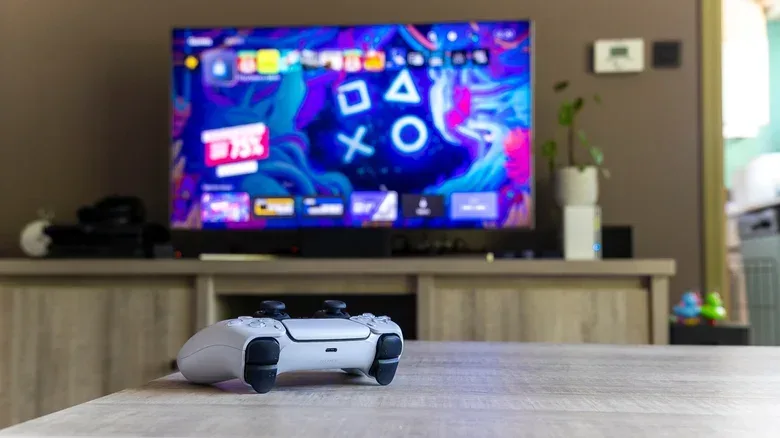
A gaming console can be a particularly tidy solution when it is already connected to the television. Previous-generation and current PlayStation and Xbox systems have a Twitch app available to install. Open the app from the console, sign in if required by the app, then browse and watch streams directly through the TV setup.
This approach has a clear practical benefit: it removes casting from the equation. There is no requirement to start playback from a phone or browser and no need to keep a computer near the television. The console runs Twitch itself, and its controller becomes the primary navigation device.
There is an important platform distinction, however. Nintendo Switch and Switch 2 do not have a Twitch app. A Switch being connected to a television does not by itself create a route to watch Twitch. Viewers using those consoles will need another method, such as a phone or computer cast, a compatible streaming device, or a direct wired connection from a computer.
That distinction matters because “a game console” is not a universal answer. It is accurate for PlayStation and Xbox generations with the app, but not for the two Nintendo systems named above.
Dedicated streaming devices: Fire Stick, Roku and Apple TV 4K
Dedicated streaming hardware is another way to give a television Twitch functionality. An Amazon Fire Stick supports an official Twitch app that can be installed. Apple TV 4K is also an option for watching Twitch on a television.
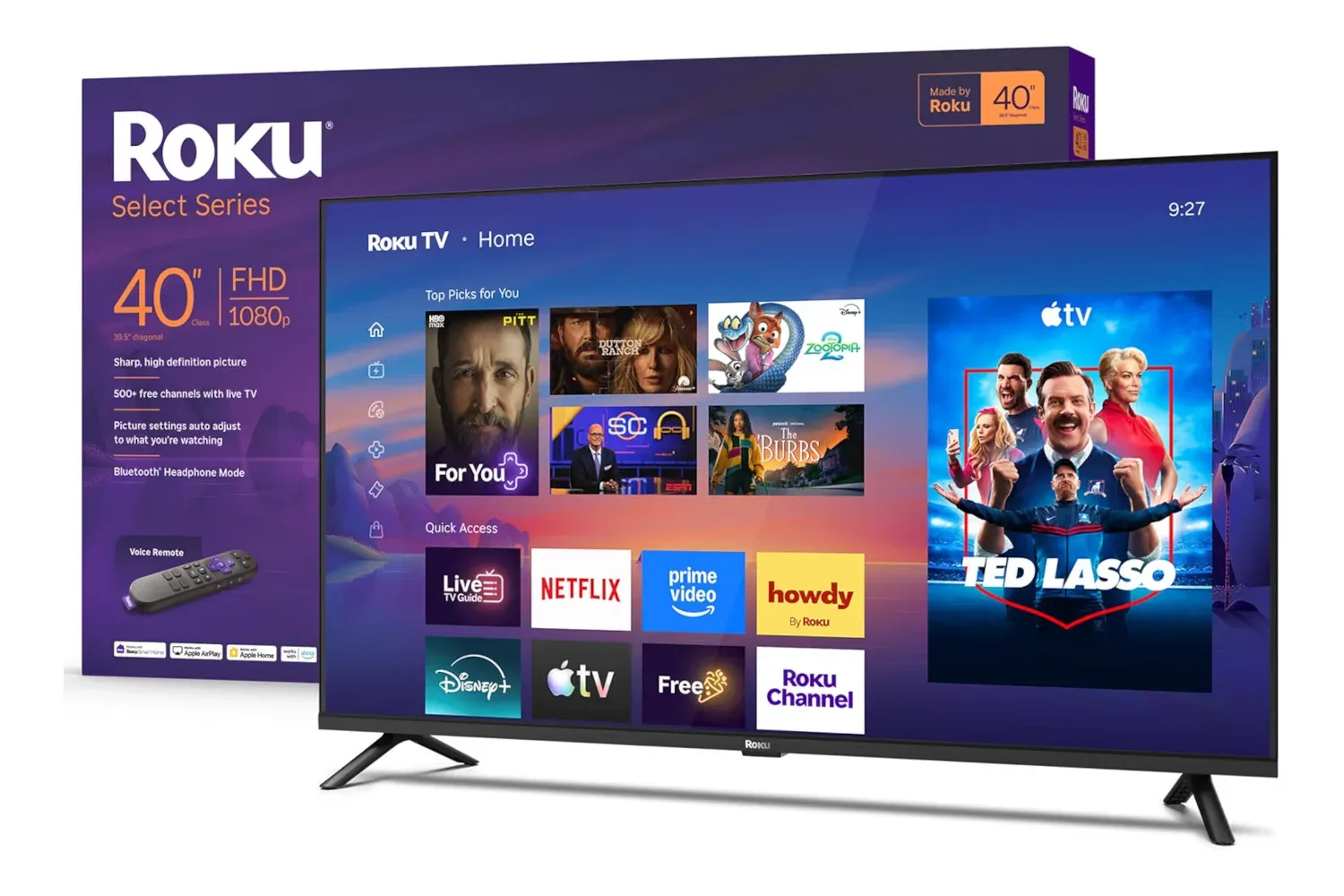
Roku requires a different expectation. It does not have an official Twitch app in this setup, but it does support casting and screen mirroring. Screen mirroring means displaying one device’s screen on another display. For Twitch, that makes Roku a potential receiving device for content started elsewhere, rather than a device where viewers necessarily open an official Twitch app directly.
The difference is small in terminology but meaningful in use. An official app approach places Twitch on the streaming device itself. Casting or mirroring uses another device as the place where streams are chosen and controlled. Neither is automatically wrong; the better choice is the one that fits the hardware already in the room and the way the viewer prefers to navigate.
The wired fallback: connect a computer directly to the TV
When app availability and wireless casting are not working out, a direct connection from a laptop or desktop to the TV remains an effective last resort. Connect the computer with HDMI or DisplayPort, then switch the TV’s input to the port used by that computer. Open Twitch on the connected machine and play the desired stream.
HDMI and DisplayPort are physical display connections used to carry video from the computer to the television. This method does not depend on the TV appearing as a cast destination on Wi-Fi. Instead, the television is functioning as a display for the computer.
The control arrangement is the part to remember: switching the television input only changes what the TV displays. It does not turn the TV into the Twitch controller. To change channels or select another stream, use the connected laptop or desktop. The TV remote is used to select the correct input; Twitch navigation stays on the computer.
Choosing the least complicated option
A sensible order is to check for a native TV app first, then use a console or streaming device already connected to the television, then try casting from a mobile device or Chrome. A direct HDMI or DisplayPort connection is the robust alternative when the wireless route is not cooperating.
For any cast-based setup, the same-network requirement is the recurring detail that deserves attention. For device-based viewing, app availability is the deciding factor. For wired viewing, the key is selecting the proper TV input and remembering that the computer remains in charge of Twitch.
Those few distinctions make it much easier to pick a path without buying extra gear unnecessarily. Whether the stream begins on a smart TV, Fire Stick, PlayStation, Xbox, phone, Chrome browser, Roku mirror, or a cable-connected PC, the objective is the same: get the broadcast onto the screen you actually want to watch.