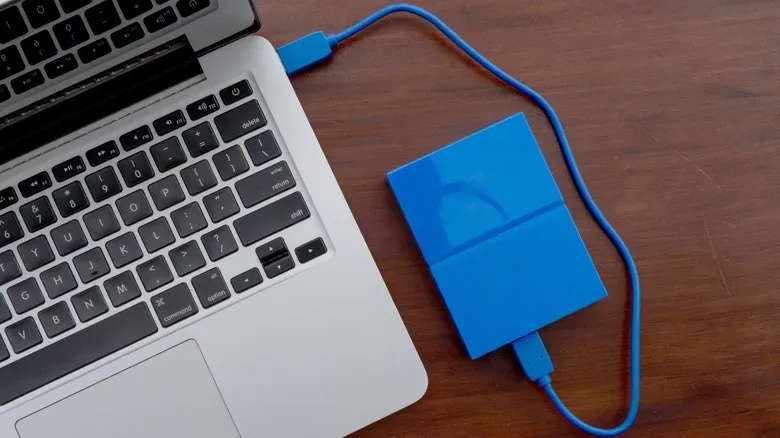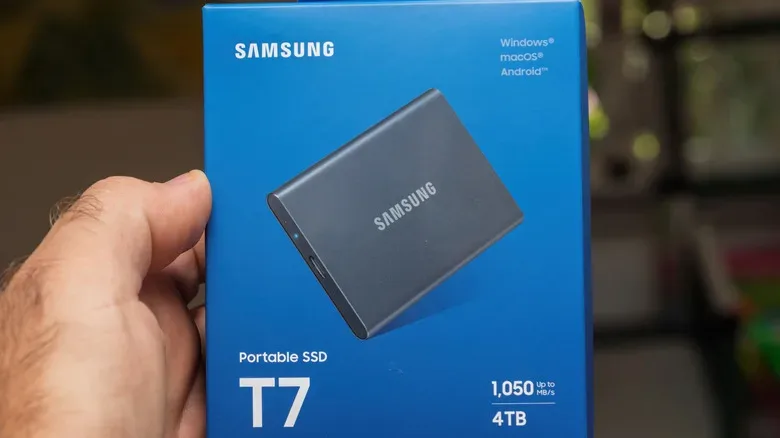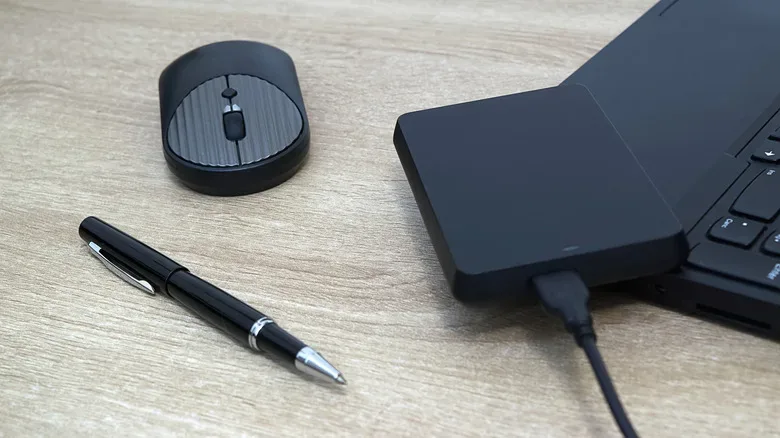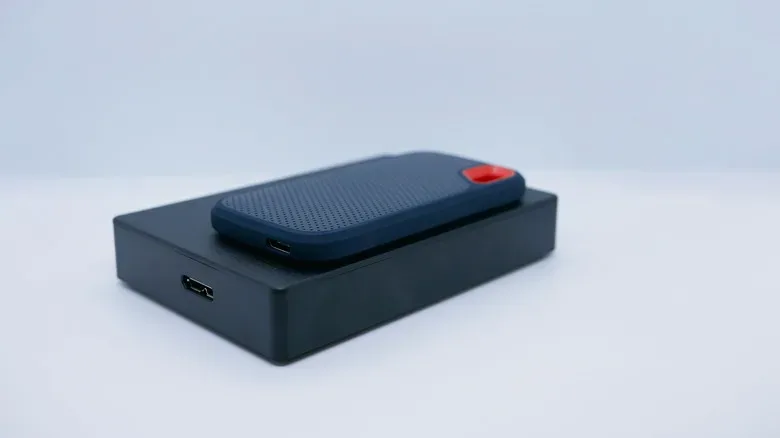
Buying an external drive sounds simple until the labels start firing acronyms at you like a boss encounter. HDDs promise massive capacity without putting your wallet into critical condition. SSDs promise dramatically quicker transfers in compact, quiet cases. Neither drive type is universally superior; the smart pick depends on whether the drive will be an active part of how you play and work, or a storage vault that mostly sits still.
For gamers, that distinction matters. Modern game installs can be enormous, captures pile up quickly, and moving a library between machines can turn into an all-evening progress bar. External storage is also useful beyond gaming: it can hold a backup of a PC, a photo archive, video projects, ROM collections, installers, or files that need to travel between devices. Since many laptops are difficult or impossible to upgrade internally, USB storage can be the least painful way to make room.
The short version is straightforward: choose an external SSD when frequent access, transfer speed, compact size and durability on the move matter most. Choose an external HDD when the priority is fitting the most terabytes into a limited budget, especially for archival storage and backups. Here is the longer version before you spend money on a drive that does not fit its intended quest.
External SSDs are built for active storage
An SSD stores files in flash memory and has no spinning disk or moving read/write head. That design delivers its chief advantage: speed. On an external drive, the practical benefit is not making your operating system boot faster, as an internal system SSD would. Instead, it is about copying, opening and working with files without waiting around for a mechanical drive to catch up.
This is valuable when a drive is part of your everyday setup. Moving large installs between PCs, transferring recorded gameplay, opening a photo library, editing video from the drive, or keeping a portable work folder responsive all favor an SSD. The supplied performance comparison puts an average external HDD at roughly 100MB/s for reads and writes, while an external SSD can readily reach 500MB/s or more. Real-world results vary with the drive, the file type, cable and USB connection, but the broad gap is substantial.
SSDs are also the natural choice for a drive that goes wherever your laptop goes. Without delicate mechanical parts inside, they are less vulnerable to ordinary knocks and drops than an HDD. They tend to be smaller and lighter as well, so slipping one into a bag is less like packing a paperback-sized gadget and more like carrying a small accessory. They run silently, too. No disk spin-up, no chatter during a transfer, and no tiny desktop appliance making itself known at the worst possible time.
Power use is another modest but meaningful advantage. A portable SSD generally needs less power than a hard drive with a motor and spinning platters. For laptop owners working away from an outlet, that can be helpful, particularly if the external drive will stay connected for extended file transfers or media access.
The compromise: capacity costs more
The major SSD drawback is cost per gigabyte. You receive less space for the same budget than you would from an HDD, and the difference becomes harder to ignore at high capacities. A comparison available at the time of writing listed a Samsung T9 Portable SSD with 1TB at around $232, while a Seagate 2TB Portable Hard Drive was listed at $130. Models, standards and promotions change, so those figures should not be treated as a permanent price guide. The underlying trade-off, however, is consistent: SSD speed and portability command a premium.
That can make an SSD a poor fit for someone who simply needs a huge, inexpensive place to park files. Paying for fast access is sensible if the files are regularly used. It is less compelling if the plan is to make a backup, disconnect the drive, and perhaps not look at it again for months.
External HDDs win the storage-per-dollar battle
An HDD uses a mechanical assembly: a head writes data to spinning magnetic platters. It is older technology, but “older” does not mean obsolete. The external hard drive remains one of the most practical options for anyone who needs multi-terabyte capacity without paying SSD-scale prices.
That makes HDDs particularly appealing for backup archives. A desktop PC backup, a long-running collection of screenshots and captures, raw footage you need to retain, or a large library of games you are not actively playing can consume space with alarming enthusiasm. Once SSD capacities reach roughly 4TB and beyond, the expense can become difficult to justify for many buyers; large external HDDs are often the more attainable route.
For a drive that will remain attached to a desktop and receive occasional backups, slower performance may not be a serious problem. If the backup takes longer but runs in the background or overnight, capacity can be much more important than top transfer speed. An HDD is also entirely adequate for documents, music, many video files and other storage duties that do not involve repeated transfers of enormous data sets.
Where hard drives ask for more care
The same moving parts that make an HDD economical create its limitations. A hard drive is slower than an SSD, and it can make audible mechanical noise while working. It usually draws more power as well. Most importantly, a dropped or badly handled HDD has greater risk because its internal components must remain precisely aligned. Extreme temperatures can also create problems.
That does not mean every HDD is fragile junk waiting for a dramatic failure. It means its job should influence how it is treated. A hard drive that stays on a desk, in a safe spot, and is used primarily for backups is playing to its strengths. A drive that rides loose in a backpack, gets moved daily, or may be knocked off a table is better served by SSD construction.
Gaming on external drives: platform rules matter
External storage can be a useful pressure valve for game libraries, but console compatibility is not identical to PC behavior. On a PC, an external SSD is the better option for games you expect to load and play from the drive regularly, since its faster reads will be closer to the experience of modern internal storage. An external HDD can still be useful for storing less frequently played games or keeping installers and backups.
On PlayStation 5 and Xbox Series X/S, USB drives can hold additional games, reducing the need to delete and download titles repeatedly. However, current-generation games cannot be played directly from a USB external drive on those systems. In that situation, either drive can function as overflow storage, but an SSD makes transferring games back and forth quicker. An HDD may make more financial sense when the goal is simply maximizing cold storage capacity.
This is also worth keeping in mind when managing older hardware and a growing collection. A massive HDD can be an excellent home for disc images, patches, manuals, captures and backups, while a compact SSD is more convenient for a curated set of files taken to events or between machines. Storage strategy, much like a game backlog, works better when every item has a job.
USB bandwidth can decide whether an SSD feels fast
Do not buy an SSD based on the drive label alone. The USB port, cable and drive interface form a chain, and the slowest part governs the result. An external SSD connected through USB 2.0 will not deliver the sort of performance that makes SSD storage appealing. Check both the drive specification and the ports on the PC, laptop or console that will use it.
USB connections are commonly slower than internal SATA unless the hardware on both ends supports 10Gbps or faster connections. That does not make an external SSD pointless on every slower port; it can still offer benefits in durability, silence and responsiveness. But it does mean buyers should set appropriate expectations rather than assuming every USB-C-shaped connector provides the same bandwidth.
Also consider the drive’s file system if it needs to work across several devices. The format can affect whether a console, phone, computer or router can read and write to it. A router USB port may allow an external drive to act as simple network storage, and appropriately formatted drives can connect to phones for media playback or data transfers. Compatibility should be checked before filling the drive with irreplaceable files.
A practical buying checklist
- Pick an SSD for regular transfers, editing, portable game storage, travel, silence and better resistance to everyday bumps.
- Pick an HDD for the largest possible backup or archive at the lowest capacity cost.
- Check the USB standard on both the drive and your device; a fast drive cannot outrun a slow port.
- Match the platform’s rules before planning console storage, especially for PS5 and Xbox Series X/S current-generation titles.
- Plan for backups rather than treating one external drive as the only copy of important files.
There is a third route if you already own an unused internal drive: put it in a USB enclosure. Confirm the physical size, commonly 2.5-inch or 3.5-inch, and make sure the enclosure supports the drive’s internal connector. It can be a cost-conscious way to turn spare hardware into useful external storage instead of leaving it in a drawer like an abandoned side quest.
Finally, the drive choice is only one part of a tidy gaming setup. If you are already sorting out laptop expansion, it is worth comparing USB-C hubs and docking stations as well, since port availability and bandwidth can influence how comfortably external storage fits into the rest of your gear.
For most people, the decision comes down to one question: will you use the data constantly, or mainly keep it? Buy an SSD for the first answer and an HDD for the second. If the budget eventually permits both, a fast SSD for active files plus a roomy HDD for backups is a remarkably effective two-drive loadout.
Shop the products
Check current price, model and availability at the retailer.